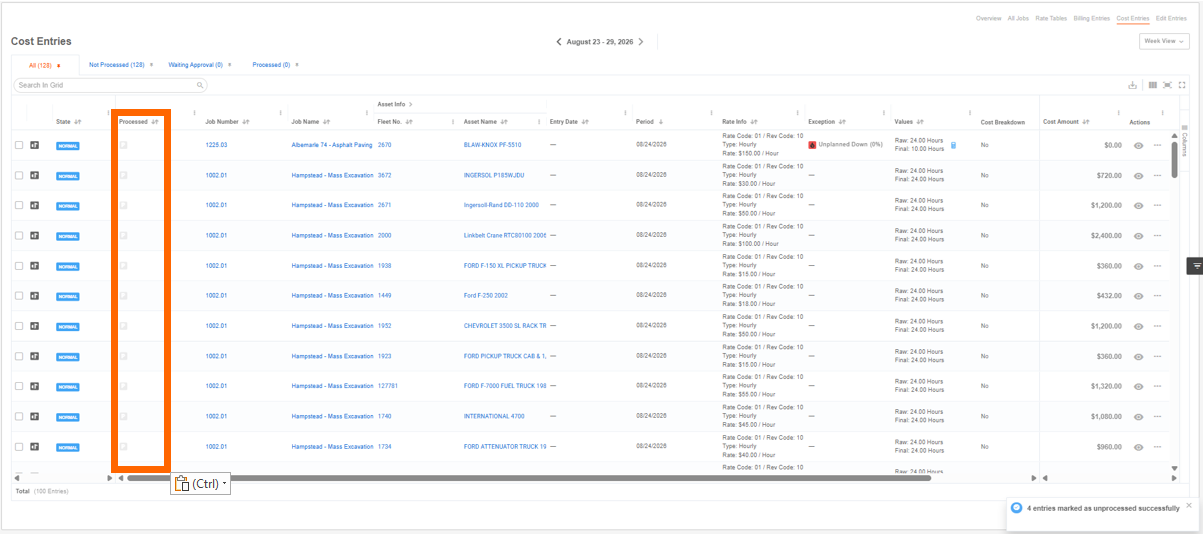
Cost Entry Actions (Desktop)
The Cost Entries page is the central hub for viewing all cost entries. Here you can view, process, and unprocess cost entries. While the actions are the same for billing entries, it is important to remember that cost entries represent internal charges while billing entries are external.
Permission Requirements
- View Cost/Billing Entries allows users to view cost and billing entries.
- Process Cost/Billing Entries allows users to to mark cost and billing entries as processed or unprocessed.
- Manage Cost/Billing Entries allows users to add, edit, and delete cost and billing entries.
- Export Cost/Billing Entries allows users to export cost and billing entry data.
- Accept Changes to Cost/Billing Entries allows users to approve or decline cost and billing entry data changes.
💥Cost Entries is part of a premium product, Asset Financials, and requires a separate license. Please contact your Account Manager for more information on premium product licenses or reach out to Customer Support at help@tenna.com or call 888.836.6269.
In this article:
How to View a Cost Entry
- 1
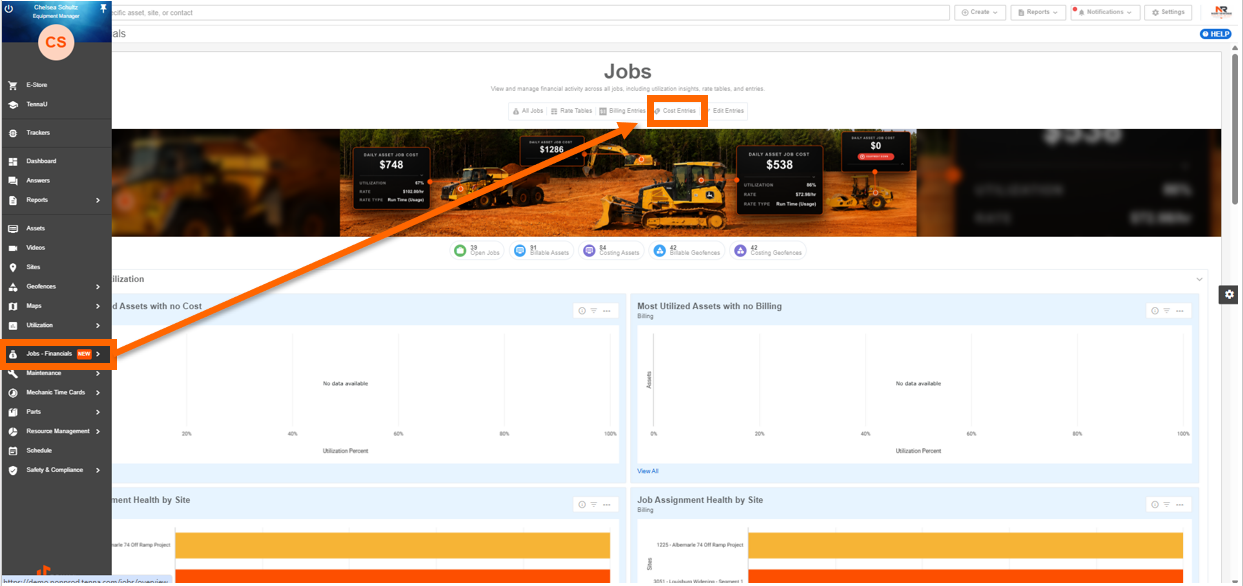
- Navigate to "Jobs" and select "Cost Entries".
- 2
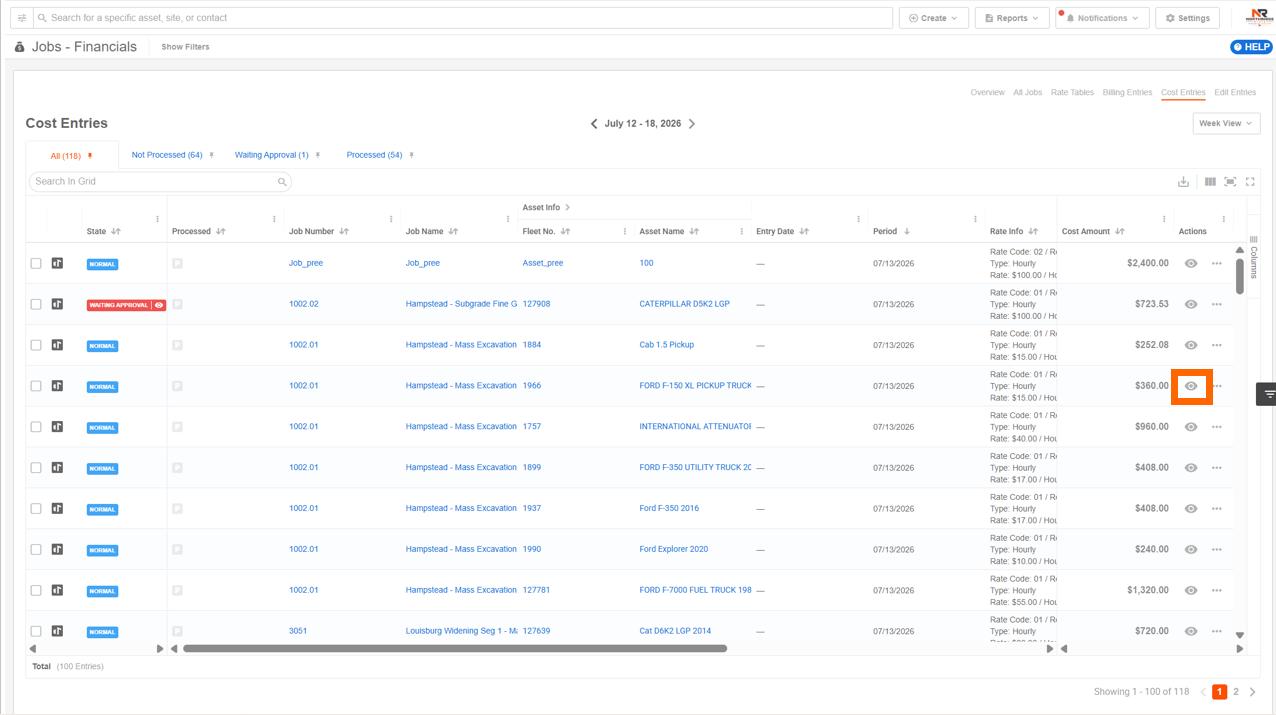
- Find the cost entry you'd like to view and click the "eye" icon.
- 3
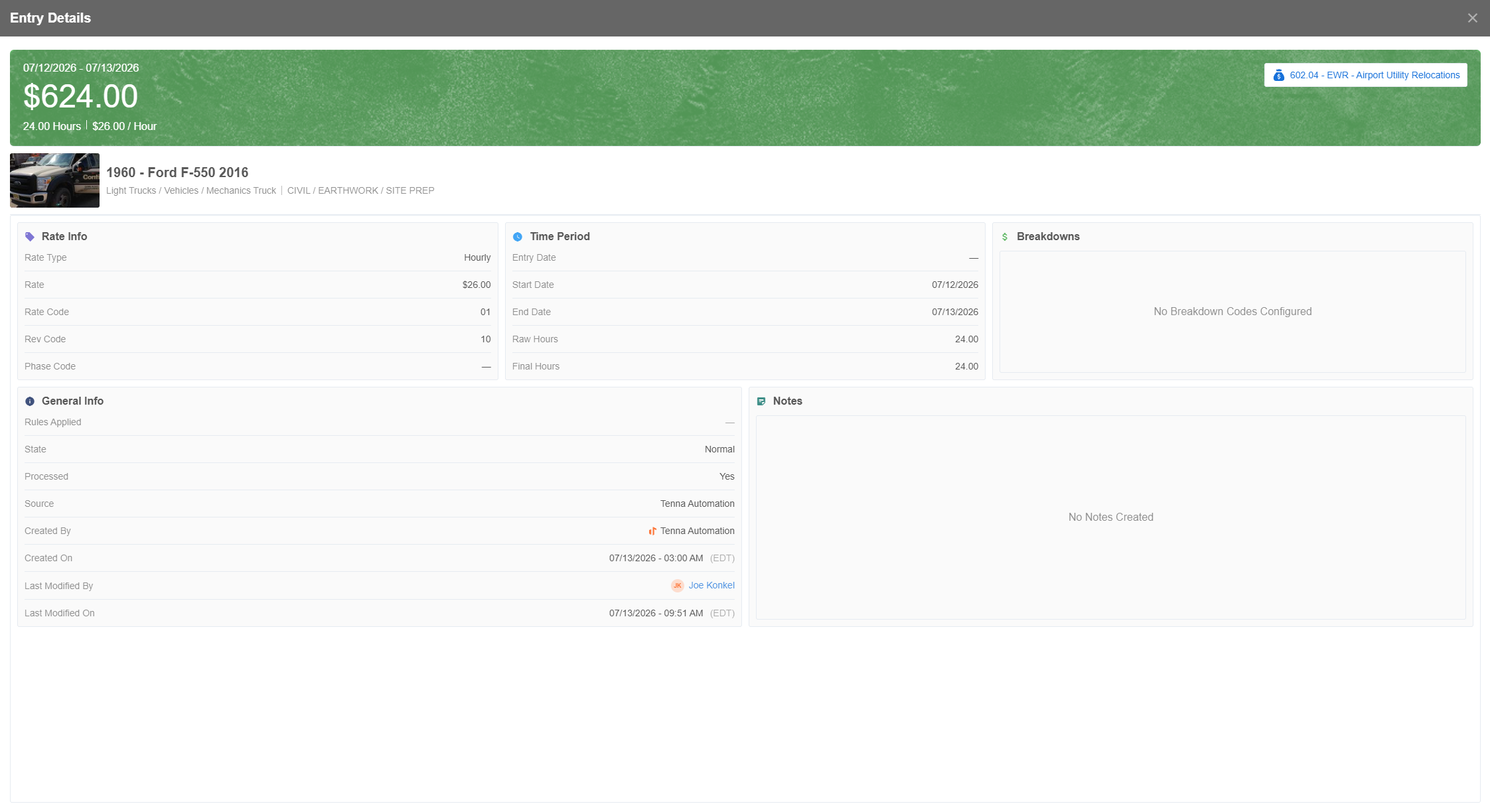
- Here you can view the details of the Cost Entry.
How to Process a Cost Entry
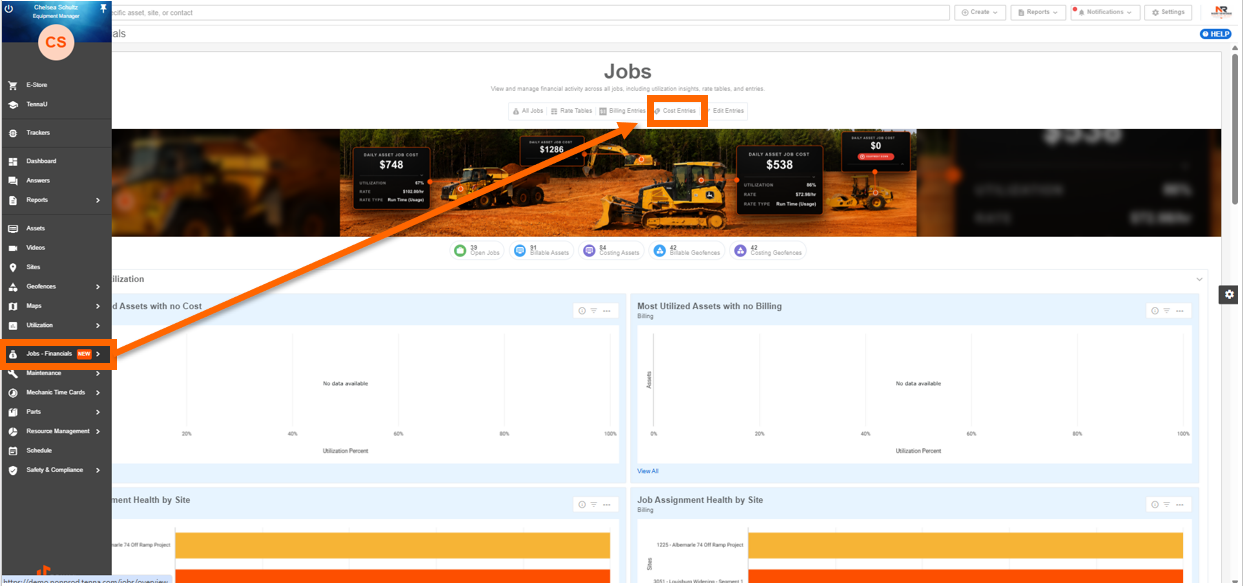
- 1
- Navigate to "Jobs" and select "Cost Entries".
- 2
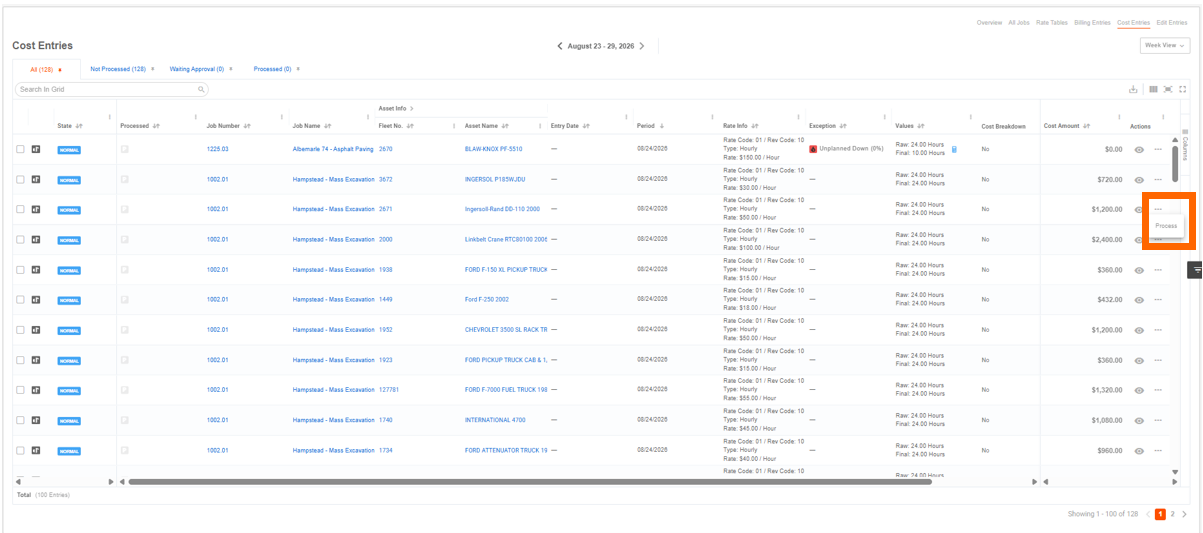
- Click the dotted icon for the entry you'd like to process, then click "Process".
- 3
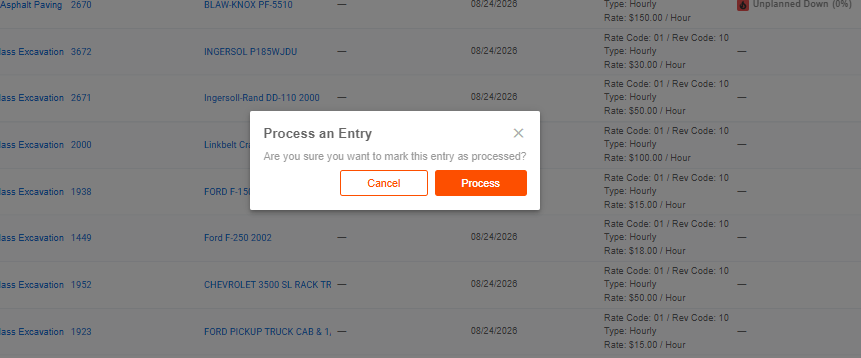
- A prompt will appear asking if you'd like to process the entry, click "Process".
- 4
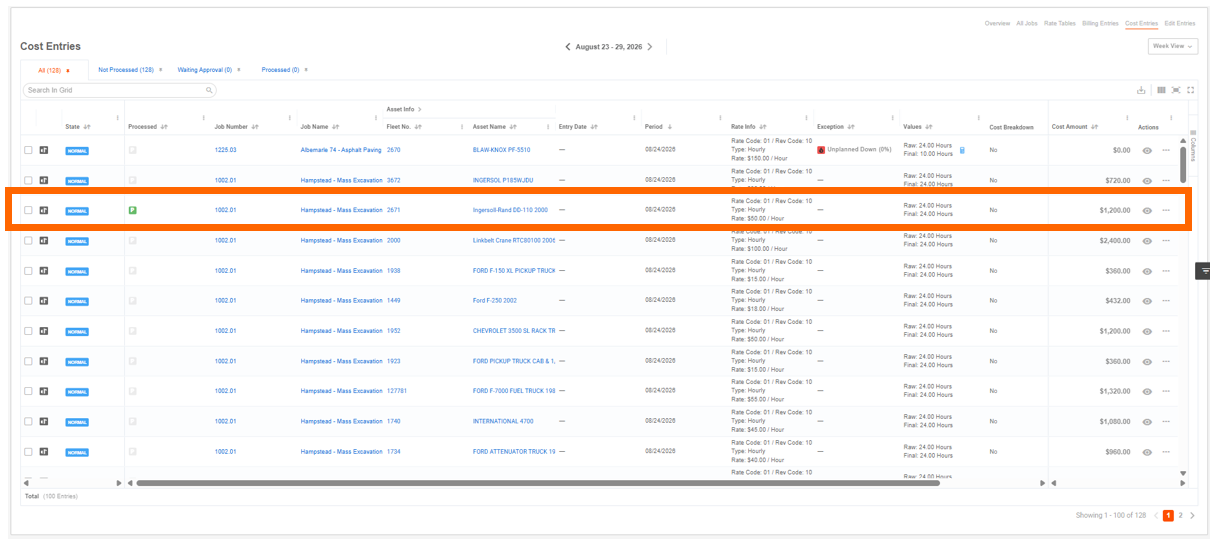
- Your entry will now be marked as process with the green "P" icon.
How to Unprocess a Cost Entry
- 1
- Navigate to "Jobs" and select "Cost Entries".
- 2
- Click the dotted icon for the entry you'd like to unprocess, then click "Unprocess".
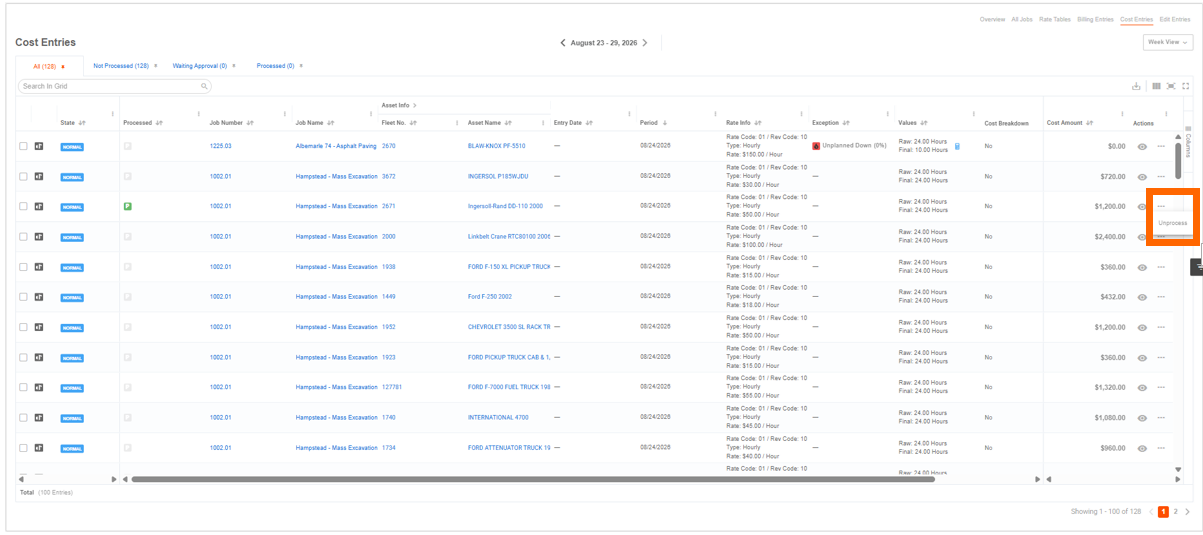
A prompt will appear asking if you'd like to unprocess the entry, click "Unprocess".
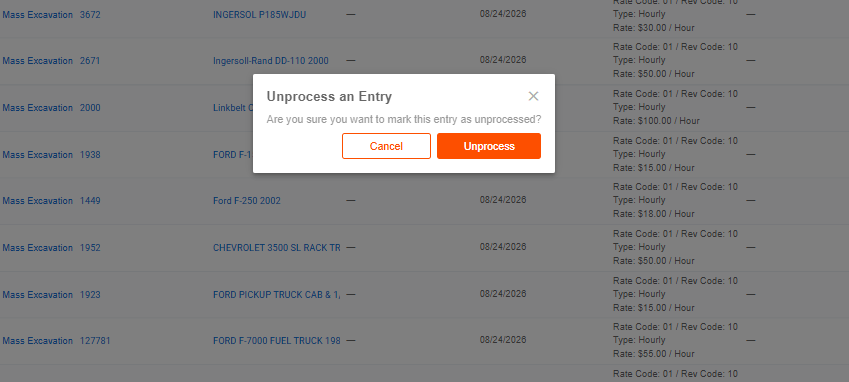
- 4
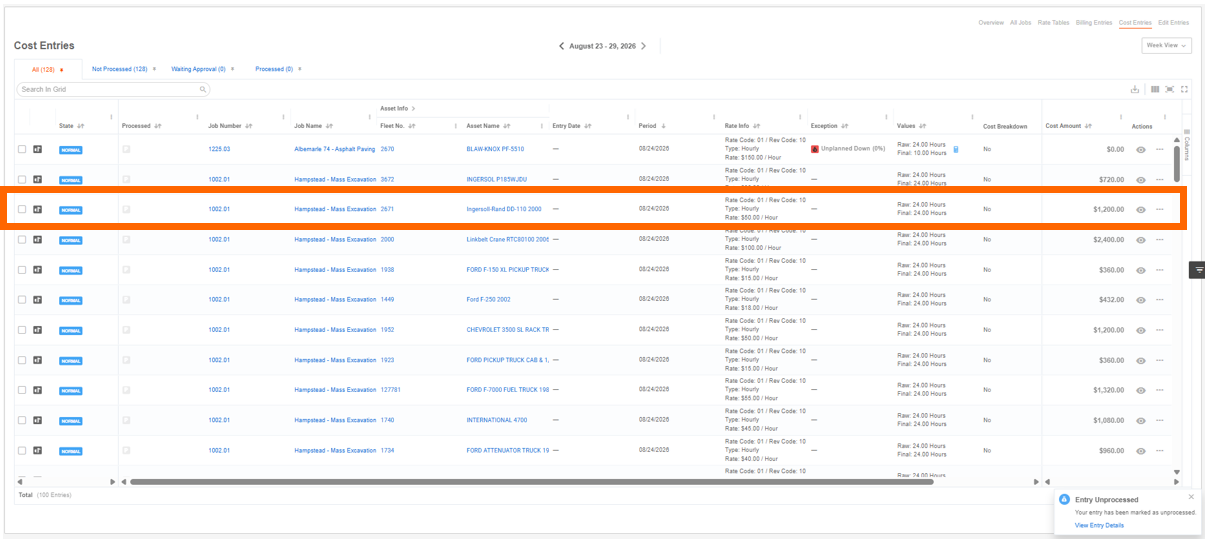
- Your entry will now be marked as unprocessed.
Bulk Actions
How to Bulk Process Cost Entries
- 1
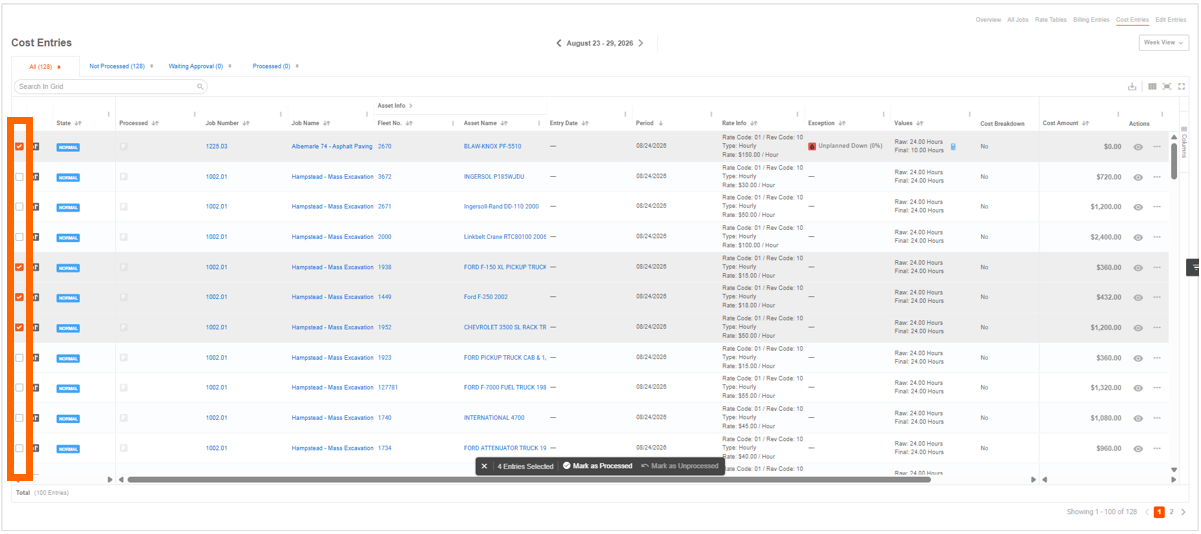
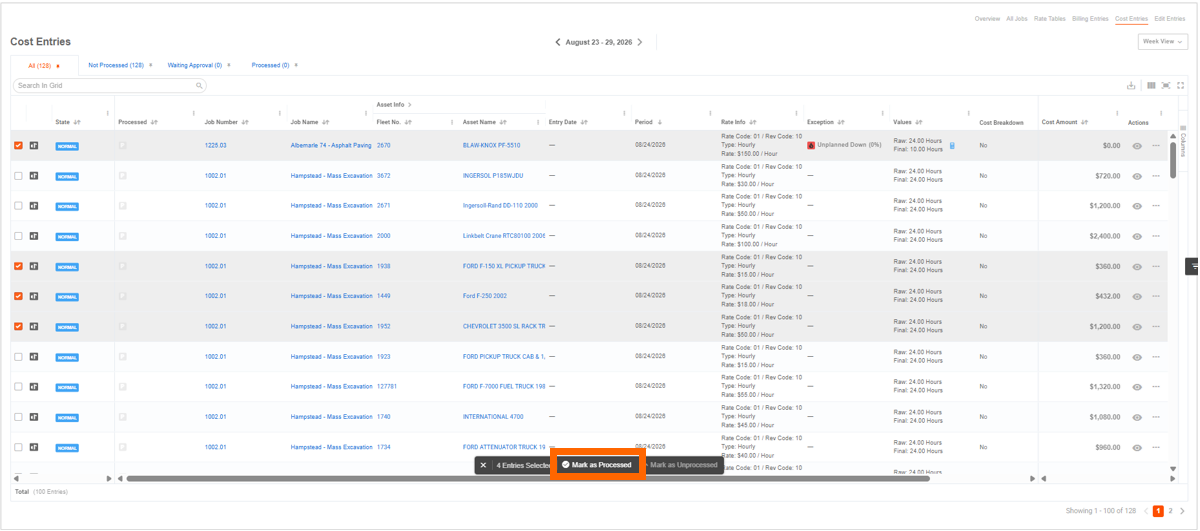
- Multi-select the cost entries you'd like to process by clicking the check boxes next to the entries.
- 2
- Select "Mark as Processed" from the bulk options.
- 3
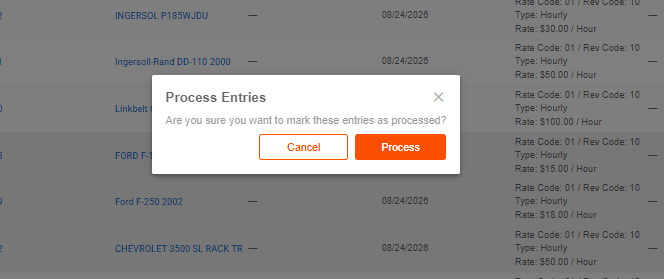
- A prompt will appear asking if you'd like to process the selected entries, click "Process".
- 4
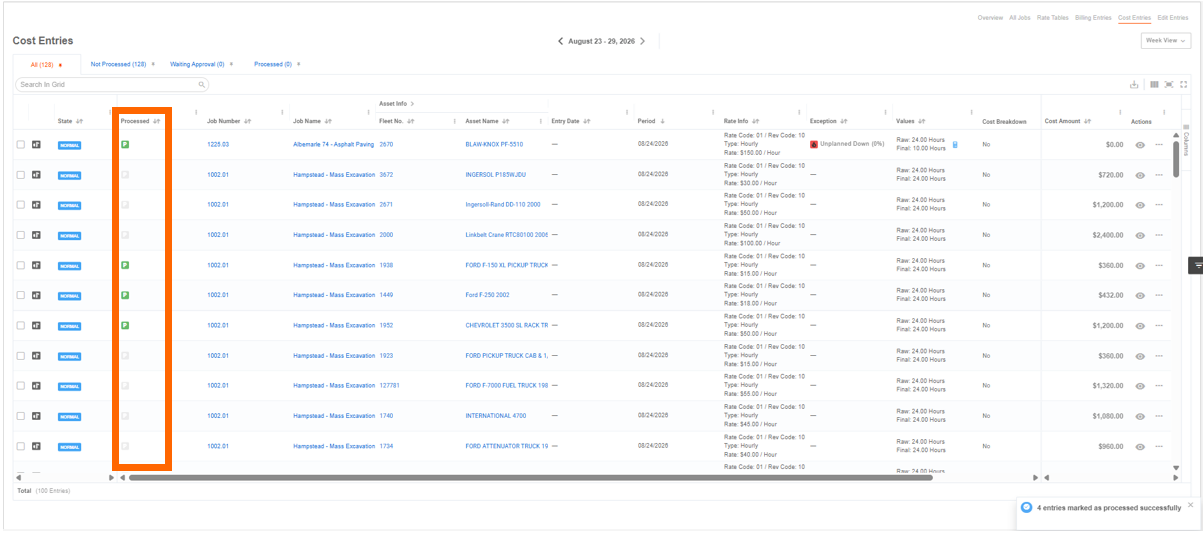
- The selected billing entries will now be marked as processed with the green "P" icon.
How to Bulk Unprocess Cost Entries
- 1
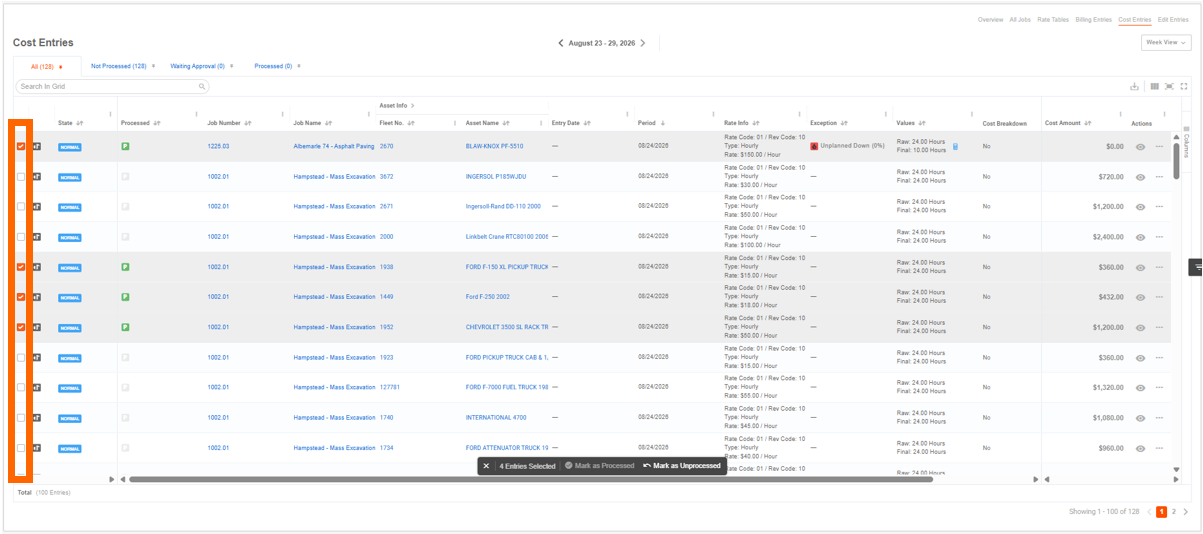
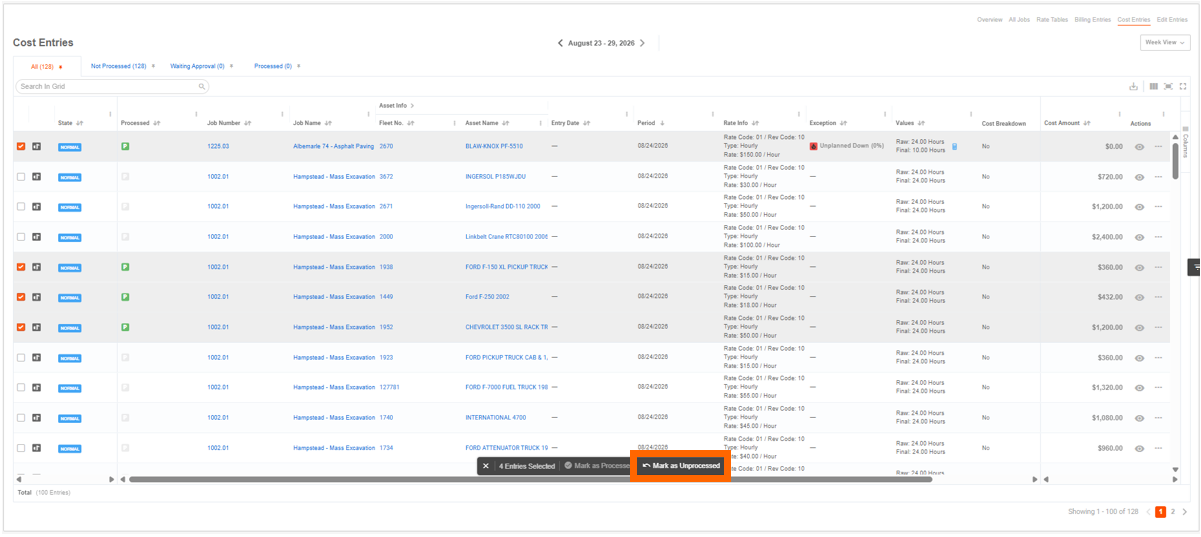
- Multi-select the cost entries you'd like to process by clicking the check boxes next to the entries.
- 2
- Select "Mark as Unprocessed" from the bulk options.
- 3
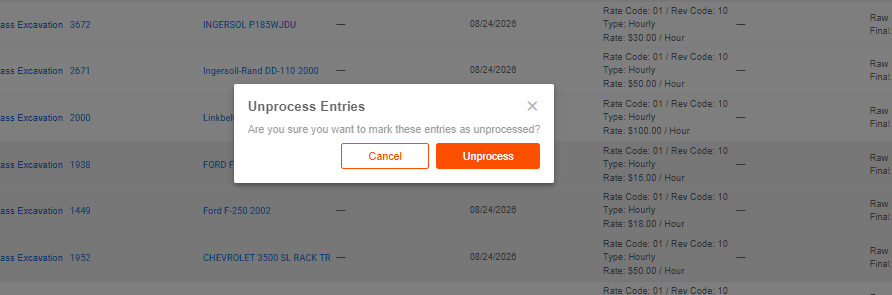
- A prompt will appear asking if you'd like to unprocess the selected entries, click "Unprocess".
- 4
- The selected cost entries will now be marked as unprocessed.