Dispatch Command Center Overview-Beta

Your Central Hub for Resource Planning and Coordination

Dispatch Command Center is your real-time coordination platform designed to streamline how you manage and deploy your assets, laborers, and crews across all your job sites. Whether you're planning next week's deliveries or responding to an urgent site request, Command Center gives you complete visibility and control—all from one powerful interface.

Access anywhere: Command Center works seamlessly on desktop and tablet, so you can make critical decisions whether you're in the office or out in the field.

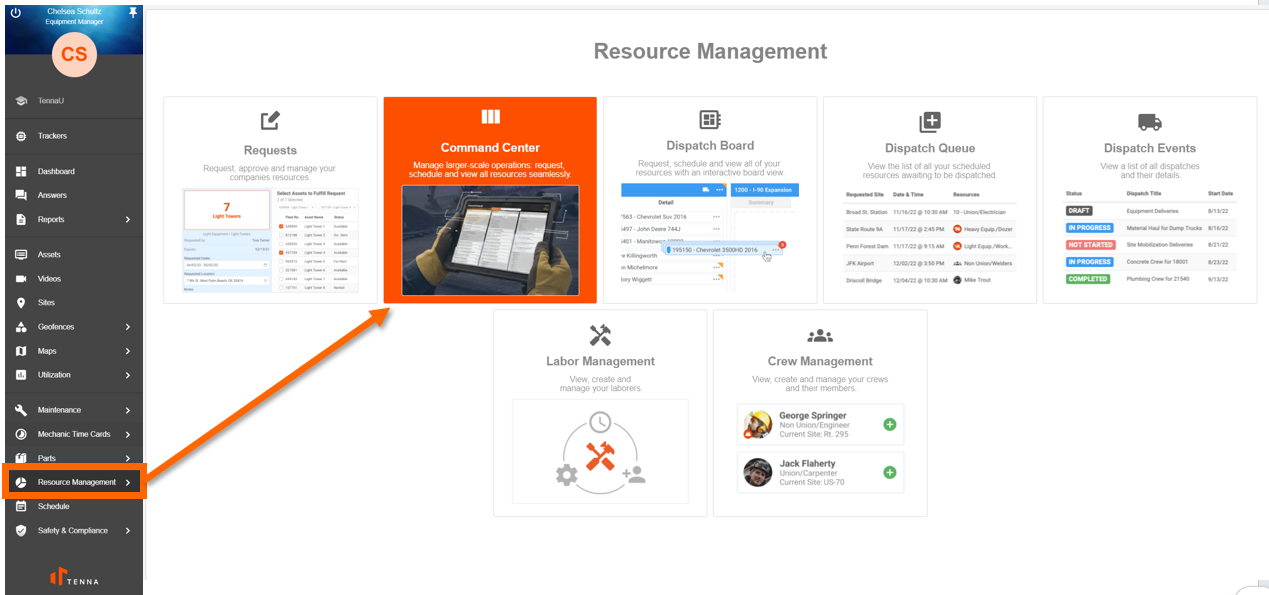
Note: Accounts with Resource Management can access this. Contact your Tenna Rep to enable the Beta License.

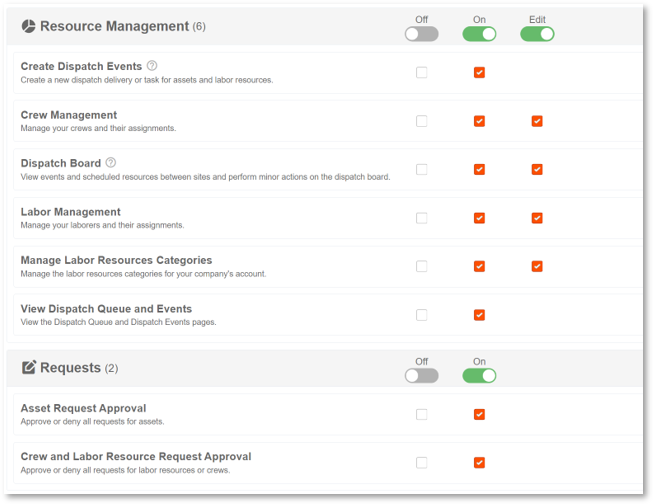
Permissions: The Dispatch Board permission must be turned ON for read only access or set to EDIT to perform actions.

Secondary Permissions:

  • Request Approval enables Advanced Flows
  • Transfer Assets enables Transfer Actions
  • Labor/Crew Management set to edit enables Transfer Actions
  • View Dispatch Queue & Events enables access to Dispatch Management View
  • Create Dispatch Events enables Advanced Flows

What You Can Do in Command Center

With Dispatch Command Center, you can handle your entire dispatch workflow without jumping between multiple screens:

  • Schedule and dispatch resources to job sites with drag-and-drop simplicity
  • Find available equipment and crews instantly using smart filters
  • Respond to site requests with one-click approvals or denials
  • Create and manage dispatch events for deliveries, tasks, and site work
  • Transfer assets and crews between locations as your needs change
  • Get intelligent recommendations for which resources best match each request

Modes &Views

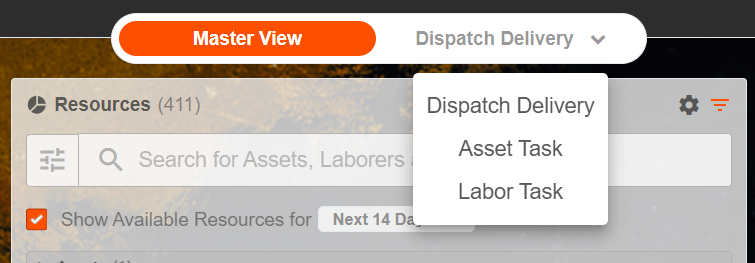
Command Center adapts to your workflow with three specialized modes:

1. Master View - Strategic Planning

Best for: Medium to long-term planning and resource allocation

Master View answers the fundamental questions: What do we need? What do we have? Where should it go?

This is your planning headquarters where you can:

  • Review all incoming requests from your sites and teams
  • See every available resource your company can deploy
  • Understand current assignments across all your locations
  • Match the right equipment or crew to the right job site before dispatch

Think of Master View as your strategic command post—it helps you plan ahead and allocate resources intelligently before they become active dispatch events.

2. Dispatch Management - Week-of Execution

Best for: Managing active deliveries, tasks, and day-to-day dispatch operations

Dispatch Management focuses on what's happening now and this week:

  • Process approved requests waiting to be dispatched
  • Build and modify dispatch event itineraries
  • Track deliveries and site tasks in real-time
  • Coordinate multiple stops and pickups efficiently
  • Communicate with drivers and field teams using board notes

Think of Dispatch Management as your tactical control center—it handles the execution of your dispatch operations and keeps everything moving on schedule.

3. Transfers - Location Management

Best for: Moving non-tracked equipment, laborers, and crews between sites

Transfers give you quick control over resource locations:

  • Update site assignments for equipment without GPS tracking
  • Move laborers and crews to different job sites
  • Track who was on-site and for how long
  • Document transfers with notes for complete visibility

Think of Transfers as your logistics tracker—it ensures you always know where your people and equipment are located.

Master View: Your Planning Hub

How Master View is Organized

Master View uses a powerful three-column layout that shows you everything at a glance:

Column 1: Requests (What Your Teams Need)

This is where all demand enters your system. You'll see:

Request Types:

  • Specific equipment requests ("I need Excavator #247")
  • General equipment requests ("I need any excavator with a 24-foot reach")
  • Specific laborer requests ("I need John Smith, our certified welder")
  • General labor requests ("I need any certified welder")
  • Crew requests ("I need the Concrete Finishing Crew")

Organization Options:

  • Group requests by project, region, or customer
  • Customize grouping to match how your company works
  • Keep it simple or create detailed hierarchies—your choice

What You Can Do:

  • Search and filter by site, date, status, priority, or who requested it
  • Take action on individual requests: approve, deny, cancel, or remove from queue
  • Handle multiple requests at once with bulk actions
  • Resolve scheduling conflicts before they become problems
  • See recommended resources that best match each request
  • View complete request details in an expandable side panel
  • Create dispatch events directly from approved requests

Column 2: Resources (What You Can Deploy)

This shows everything your company has available to send to job sites:

Resource Types:

  • Equipment (both GPS-tracked and non-tracked)
  • Individual laborers
  • Full crews

Smart Organization:

  • Resources grouped by type and category for easy browsing
  • Advanced filters to find exactly what you need
  • Availability indicators to see what's uncommitted and ready to go

What You Can Do:

  • Quickly search for available resources using multiple filter criteria
  • Transfer resources between sites with a few clicks
  • Schedule equipment or crews for future dispatch
  • View real-time insights on resource utilization
  • Add notes to any resource for team communication
  • Take bulk actions when managing multiple resources at once

Column 3: Sites (Where the Work Happens)

This column grounds everything to real-world locations:

Location Types:

  • Active job sites and projects
  • Equipment yards and staging areas
  • Company offices and facilities

Intelligent Filtering:

  • Click any site card to filter requests for that location
  • See which resources are currently assigned to each site
  • Use sites as drop zones for drag-and-drop scheduling

What You Can Do:

  • View complete site details with one click
  • Filter the entire view to focus on one location
  • Drag resources directly to sites to schedule or transfer them
  • See request and resource counts for each location

Common Workflows in Master View

Responding to Site Requests

When requests come in from your job sites:

  1. Review the request queue: Filter by priority, date, or location to focus on what matters most
  2. Evaluate each request: Click to see full details including site needs, timeline, and special requirements
  3. Find the right resource: Use the Recommended Resources feature to see your best options based on availability, location, and capabilities
  4. Take action:
    • Approve and schedule the resource immediately
    • Drag the resource to the appropriate site card
    • Deny requests that can't be fulfilled with documented reasons
    • Bulk approve similar requests to save time
  5. Add context: Leave notes on requests so everyone stays informed about decisions and next steps

Matching Resources to Requests

When you're planning resource deployment:

  1. Set your filters on Requests:
    • Focus on a specific date range you're planning
    • Filter by site or priority level
    • View only approved requests waiting for resources
  2. Refine your Resources view:
    • Show only uncommitted, available resources
    • Filter by equipment categories or labor specialties
    • Focus on resources near the target site
  3. Make the match:
    • Drag resources directly to request cards to create assignments
    • Or drag resources to site cards for general site transfers
    • Use bulk actions when handling multiple similar requests
  4. Confirm and dispatch: Review your assignments and create dispatch events when ready

Dispatch Management: Your Execution Engine

Dispatch Management is where approved plans become real-world action. This mode keeps your daily and weekly operations running smoothly.

Three Dispatch Types

Switch between three views depending on what you're managing:

Dispatch Deliveries: Equipment being transported between locations

Asset Tasks: On-site work being performed with specific equipment

Labor Tasks: Jobs being completed by your crews and laborers


What Dispatch Management Handles

Request Processing

  • Review and approve incoming requests from sites
  • Submit new requests on behalf of field teams
  • Support both specific requests ("we need Forklift #42") and general requests ("we need any forklift rated for 5,000 lbs")

Smart Resource Matching

  • Get intelligent recommendations for which resources best fit each request
  • See availability, utilization, and idle time at a glance
  • Quickly create placeholder resources for rental equipment or new hires
  • Handle high-volume workflows with bulk actions across entire queues

Location-Aware Dispatching

  • Filter everything by site to focus on specific locations
  • Define both pickup locations and destinations for each dispatch
  • Transfer resources between sites with complete accuracy
  • Track equipment and crews as they move through your operation

Dispatch Event Lifecycle

  • Create new dispatch events for deliveries or tasks
  • Build multi-stop itineraries with drag-and-drop
  • Reorder stops to optimize routes
  • Add notes to communicate with drivers and field teams
  • Monitor events as drivers or laborers update their status
  • Track completion in real-time

Resource History and Intelligence

  • View a complete timeline of where each resource has been
  • See past assignments, transfers, and dispatch events
  • Use historical data to make better planning decisions
  • Apply availability intelligence to avoid double-booking resources

Transfers: Keep Everyone and Everything in the Right Place

The Transfers mode is your dedicated space for updating locations and assignments across your entire operation.

Asset Transfers

Focus on equipment that needs manual updates:

  • Transfer non-tracked equipment between sites (GPS-tracked equipment updates automatically when crossing geofences)
  • Update locations for rental equipment or assets without active trackers
  • Use quick-filter buttons to show only resources relevant to specific sites

How it works:

  1. Find the resource you need to transfer
  2. Drag it to the destination site
  3. Add notes about why the transfer is happening
  4. Confirm—the transfer is complete and documented

Labor and Crew Transfers

Manage your workforce locations:

  • Quickly update where individual laborers are working
  • Transfer entire crews to new job sites as projects shift
  • Track who was on-site and for how long for accurate job costing and compliance

Perfect for:

  • Daily crew reassignments as job priorities change
  • Emergency response when you need to move people quickly
  • End-of-day logging to capture accurate time and location data

Transfer Documentation

Every transfer is automatically recorded in your resource management history:

  • See a complete timeline of where resources have been assigned
  • Add notes to explain transfer decisions
  • Support reporting, auditing, and operational reviews
  • Maintain accountability across your entire operation
Did this answer your question? Thanks for the feedback There was a problem submitting your feedback. Please try again later.