Jobs Overview Dashboard and FAQ (Desktop)
The Jobs Overview Dashboard is your central hub for understanding job-related financial activity across your organization. It provides at-a-glance metrics, interactive dashboard widgets, and quick navigation to all Jobs features — helping you identify data gaps, monitor asset assignment health, and evaluate automation effectiveness.
Permission Requirements
- There are no permissions necessary to access the Jobs Overview Dashboard page.
- Individual widgets may have their own permission or configuration requirements. View Jobs Permissions, Notifications, and Configurations for more details.
- DAC is applied per widget, so you'll only see data you're authorized to view.
💥Jobs - Financials is a premium product and requires a separate license. Please contact your Account Manager for more information on premium product licenses or reach out to Customer Support at help@tenna.com or call 888.836.6269.
In this article:
Navigating the Jobs Overview Dashboard
Navigating the Jobs Overview Dashboard
In the left-hand navigation menu, click "Jobs - Financials", then select "Overview".
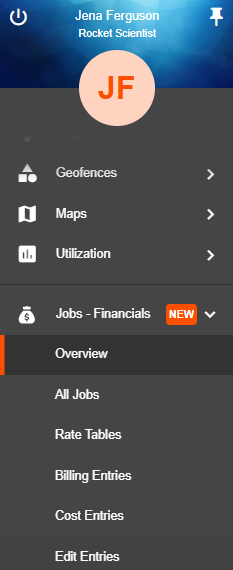
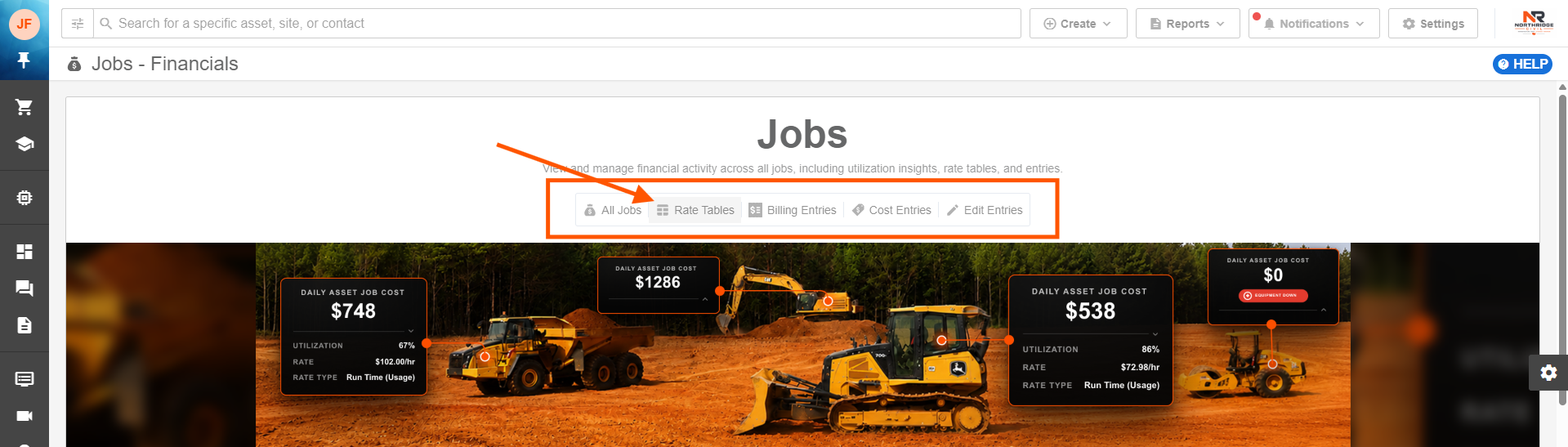
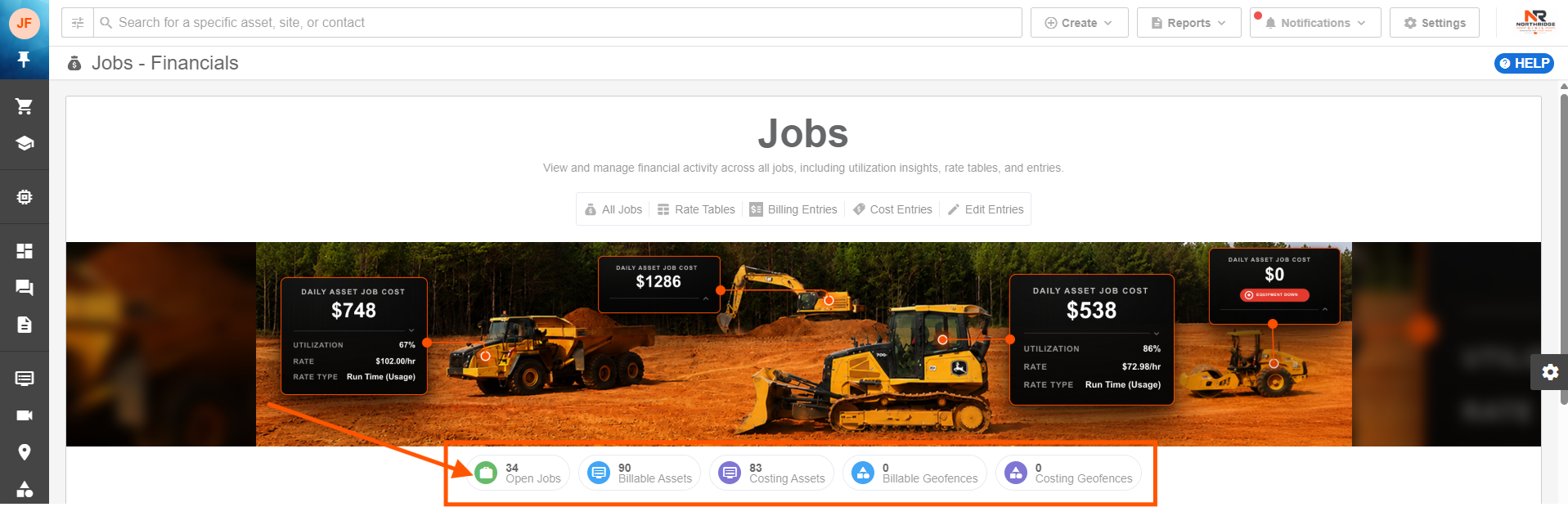
When you navigate to Jobs > Overview, you'll see three main areas:
- Navigation Links — Quick access to All Jobs, Rate Tables, Billing Entries, Cost Entries, and Edit Entries.

- Metric Links — Quick access to open jobs, billable assets, costing assets, and geofence assignments.

- Dashboard widgets — Configurable charts and visualizations organized by category.
Note: Which links appear depends on whether your account has billing, costing, or both enabled under Settings > Configurations > Jobs > Visibility & Automation Defaults.
View Jobs Permissions, Notifications, and Configurations for more info.
Navigation Links
The Jobs section includes the following pages, accessible from the top navigation:
- Overview — The dashboard described on this page.
- All Jobs — View and manage all jobs in your account.
- Rate Tables — Configure rate tables for billing and costing.
- Billing Entries — View and manage billing entries. Displayed only if billing is enabled.
- Cost Entries — View and manage cost entries. Displayed only if costing is enabled.
- Edit Entries — Make bulk edits to billing and cost entries. Displayed only if billing and costing is enabled.
Click on any of the links to be taken to the chosen page.
Metric Links
Metric links give you a quick snapshot of your current job activity. Click any of the links to be taken to the filtered list of each metric.
- Open Jobs — The total number of jobs with an Open status.
Note: Clicking Open Jobs will open the grid filtered to all jobs with a status that has the category "Open" in Settings > Jobs > General.

- Billable Assets — The total number of assets assigned to a billing job. Displayed only if billing is enabled.
- Costing Assets — The total number of assets assigned to a costing job. Displayed only if costing is enabled.
- Billable Geofences — The total number of geofences assigned to a billing job. Displayed only if billing is enabled.
- Costing Geofences — The total number of geofences assigned to a costing job. Displayed only if costing is enabled.
Dashboard Widgets
The dashboard displays interactive widgets organized into three categories:
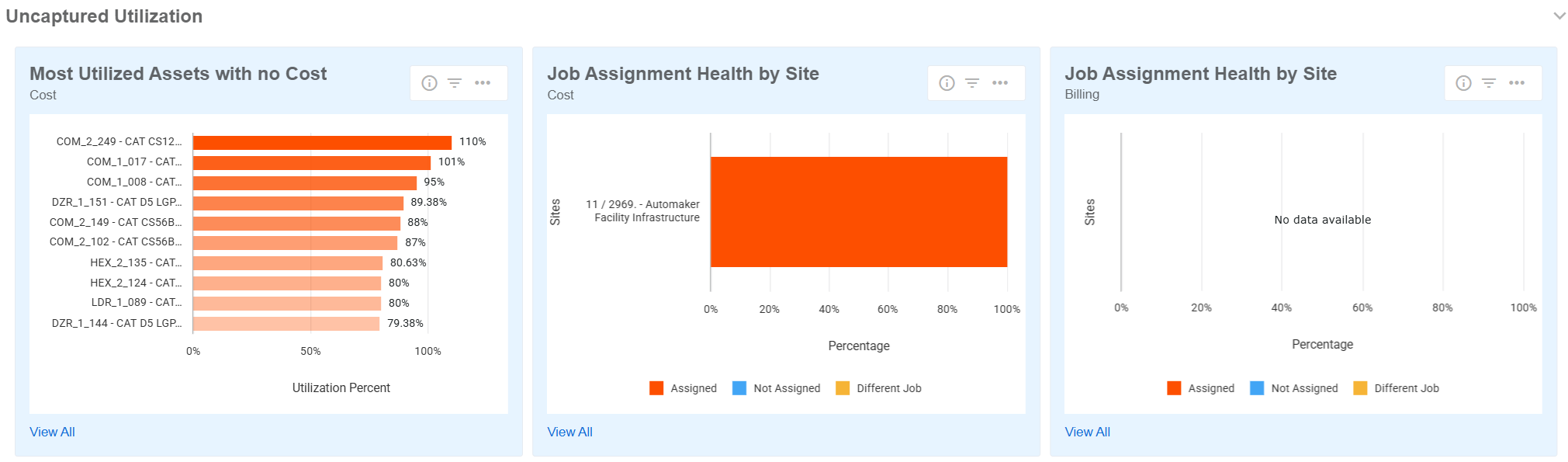
Uncaptured Utilization
These widgets help you find assets that are being used but aren't linked to a job — so you can close financial gaps and capture missed revenue or costs.
- Most Utilized Assets with No Billing/Cost — Surfaces your most-used assets that aren't assigned to any billing or costing job.
- Job Assignment Health by Site — Shows whether utilized assets within geofenced sites are correctly assigned, unassigned, or assigned to the wrong job.
- Asset Utilization by Automation Type — Compares average utilization between automatically and manually assigned assets, highlighting where automation could improve efficiency.
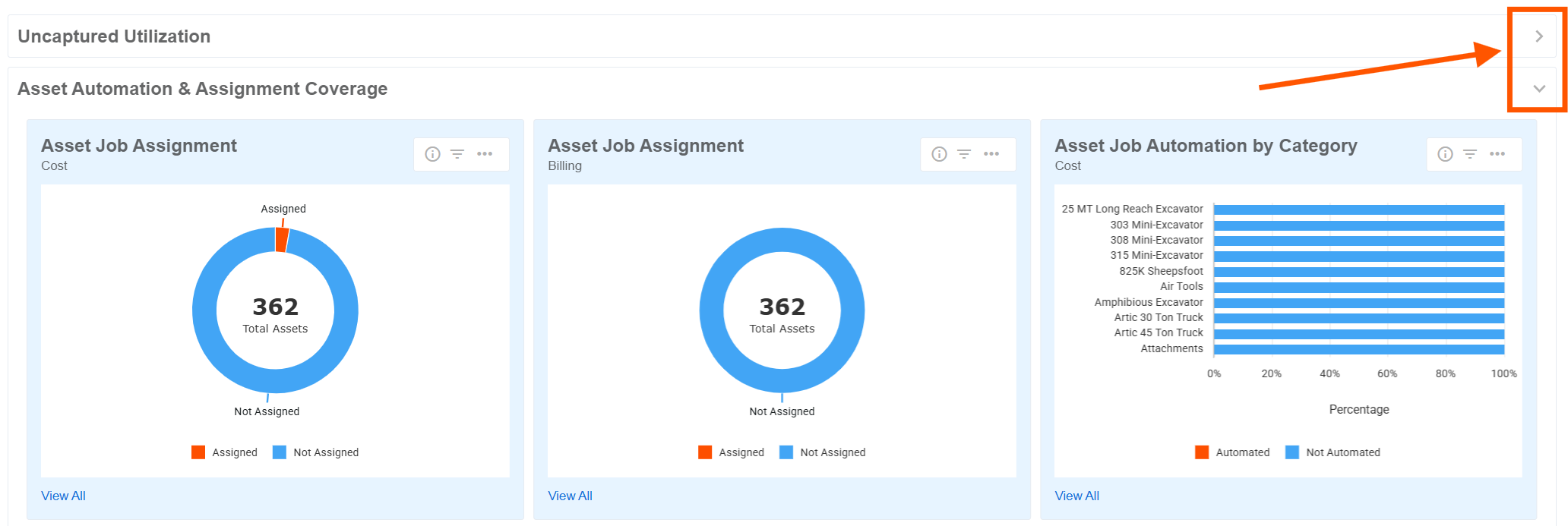
Asset Automation & Assignment Coverage
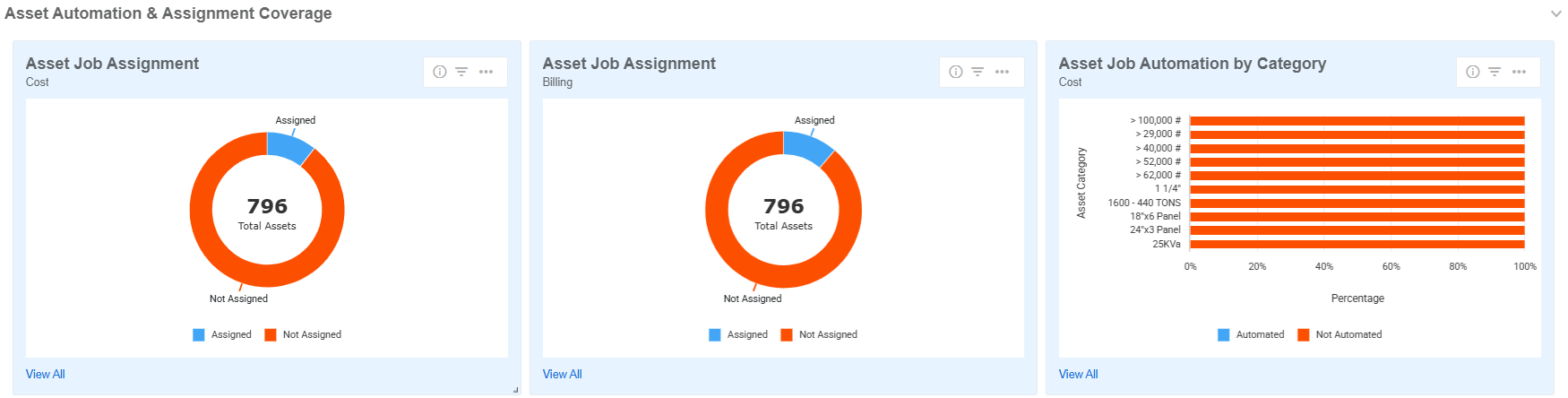
These widgets give you visibility into how well your assets are covered by job assignments and automation.
- Asset Job Assignment — Shows how many assets are currently assigned to a job versus those that are unassigned.
- Asset Job Automation Trends — Tracks how automation adoption has changed over time for asset-to-job assignments.
- Asset Job Automation by Organization — Reveals automation adoption rates across your asset organizations.
- Asset Job Automation by Category — Shows automation adoption rates across your asset categories.
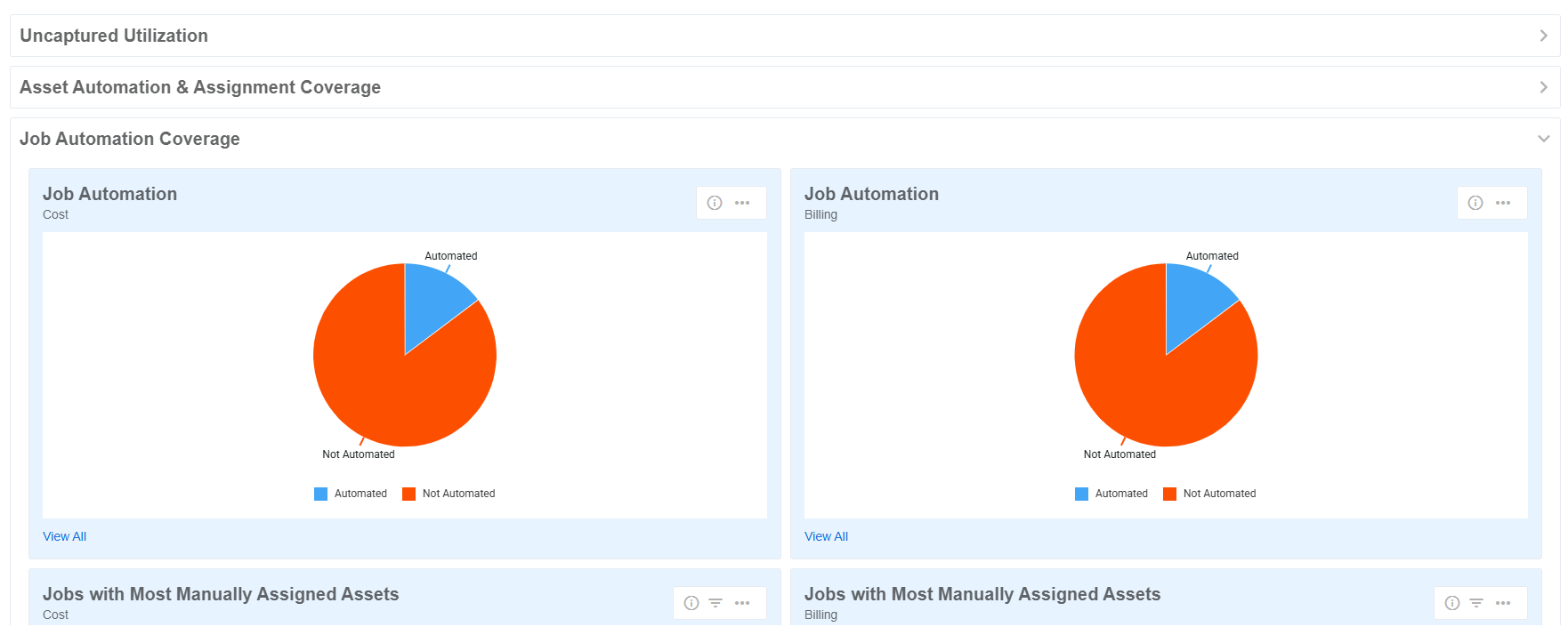
Job Automation Coverage
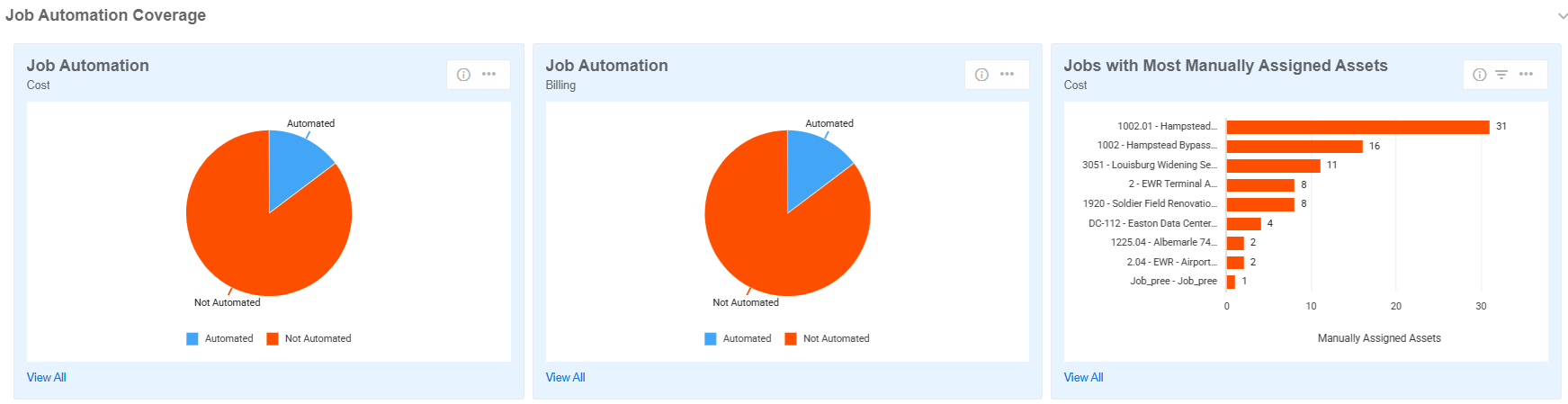
These widgets focus on job-level automation, helping you identify where manual processes can be replaced.
- Jobs with Most Manually Assigned Assets — Identifies jobs with the highest number of manually assigned assets, highlighting automation opportunities.
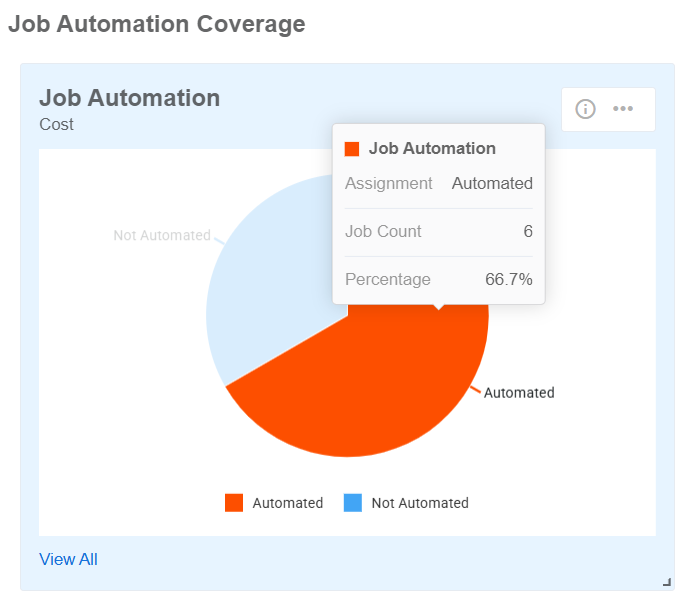
- Job Automation — Shows how many jobs have automation configured via geofences versus those without.
How to Customize your Jobs Dashboard Widgets
You may customize your Jobs Dashboard to fit your preferences. Your dashboard preferences are saved automatically and are specific to your user account.
Review the following options for customizing your Jobs Dashboard Widgets:
Click arrows to open or collapse categories of widgets.
Drag and drop to rearrange the order of charts.
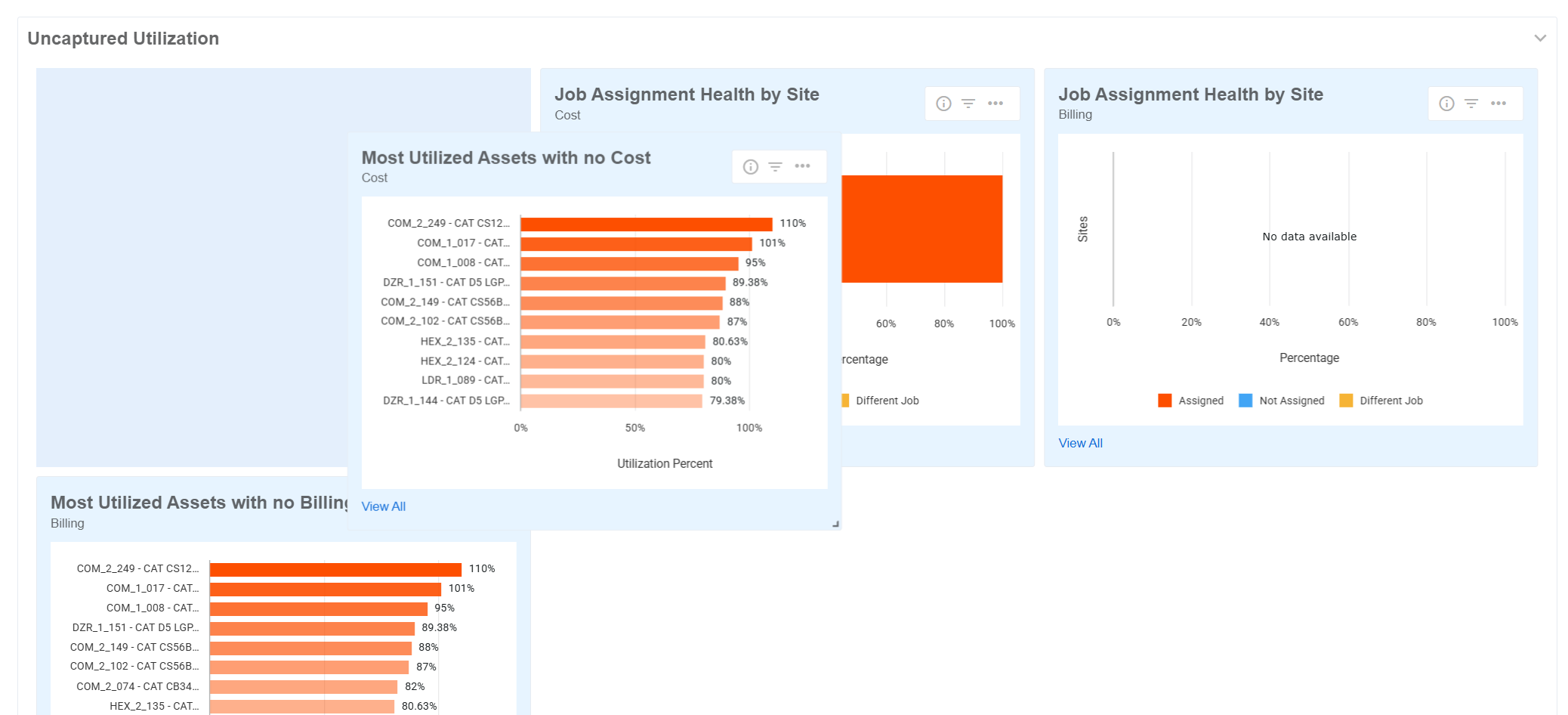
Note: Widgets are organized into fixed categories. You cannot move a widget from one category to another or create custom categories.
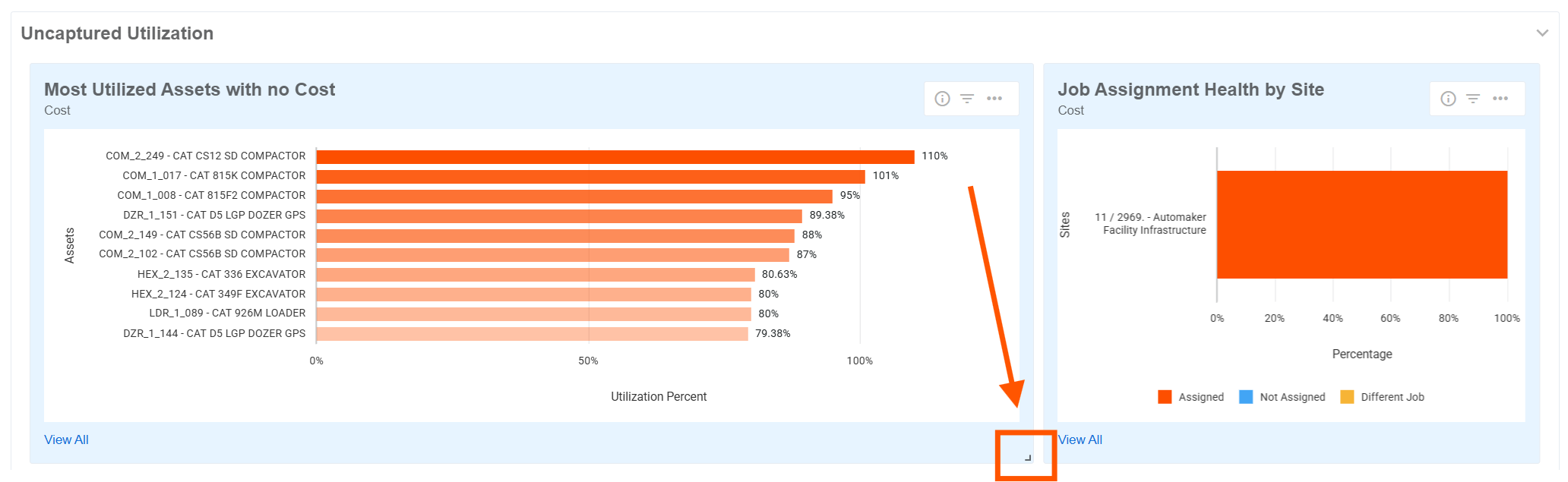
Click the arrow at the bottom of a chart and drag to re-size a chart.
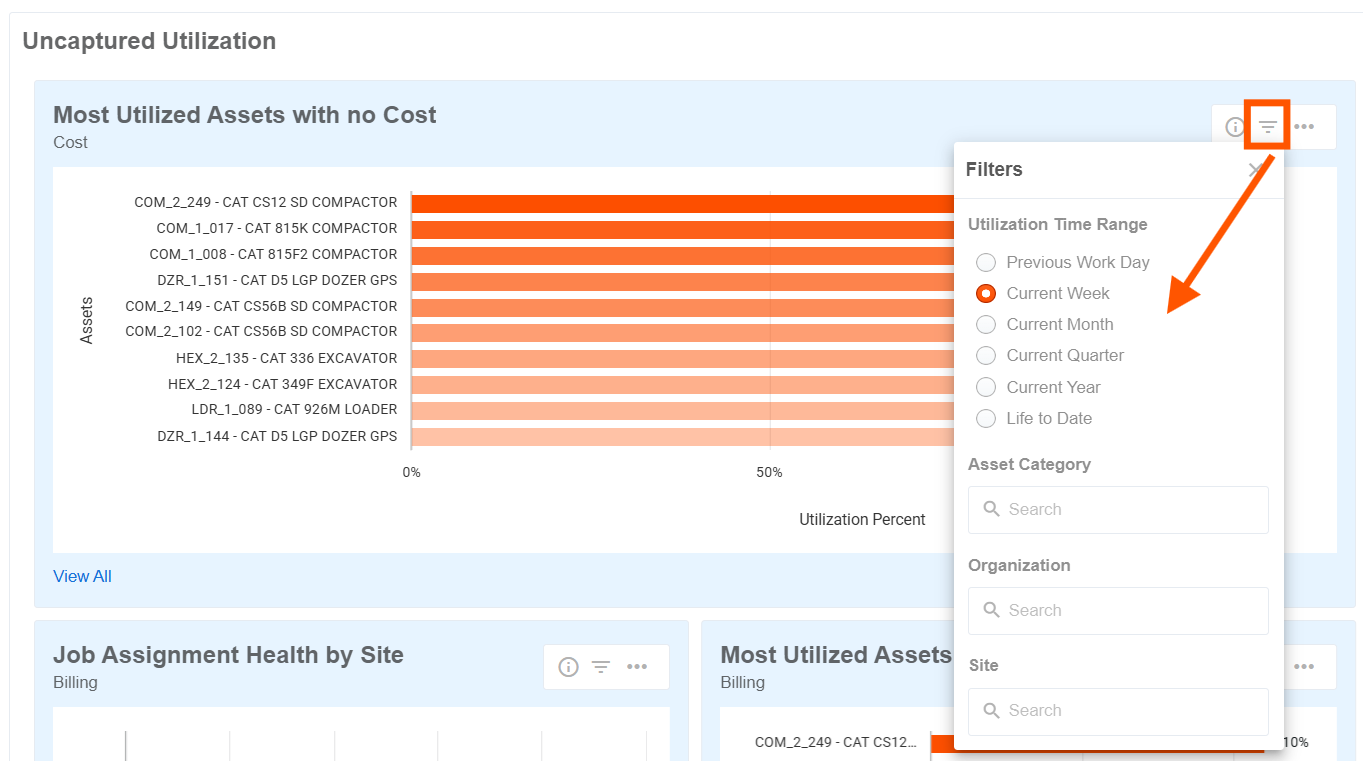
Click the filter icon on each chart to access chart-specific filters.
Hover over elements of a chart to see more details.
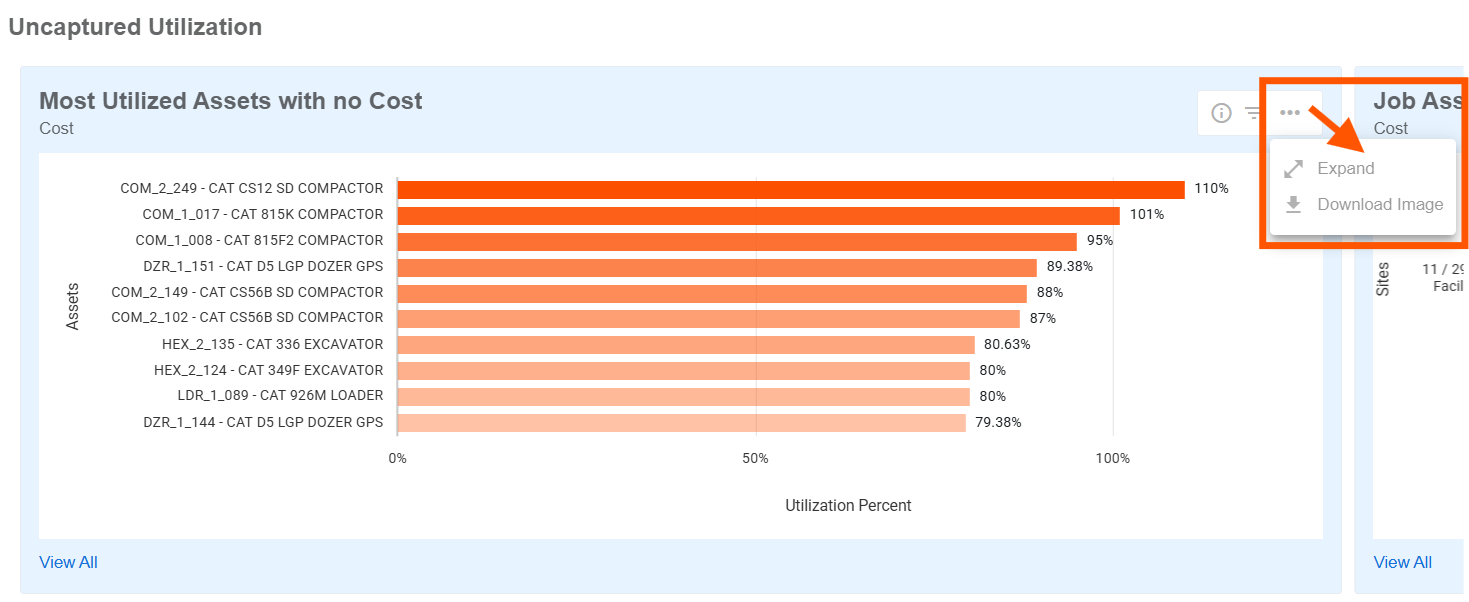
Click the dotted icon on each chart to open options.
- Click Expand to make the chart full width on the screen.
- Click Download Image to download a .png of the chart as currently filtered.
Jobs Dashboard Settings
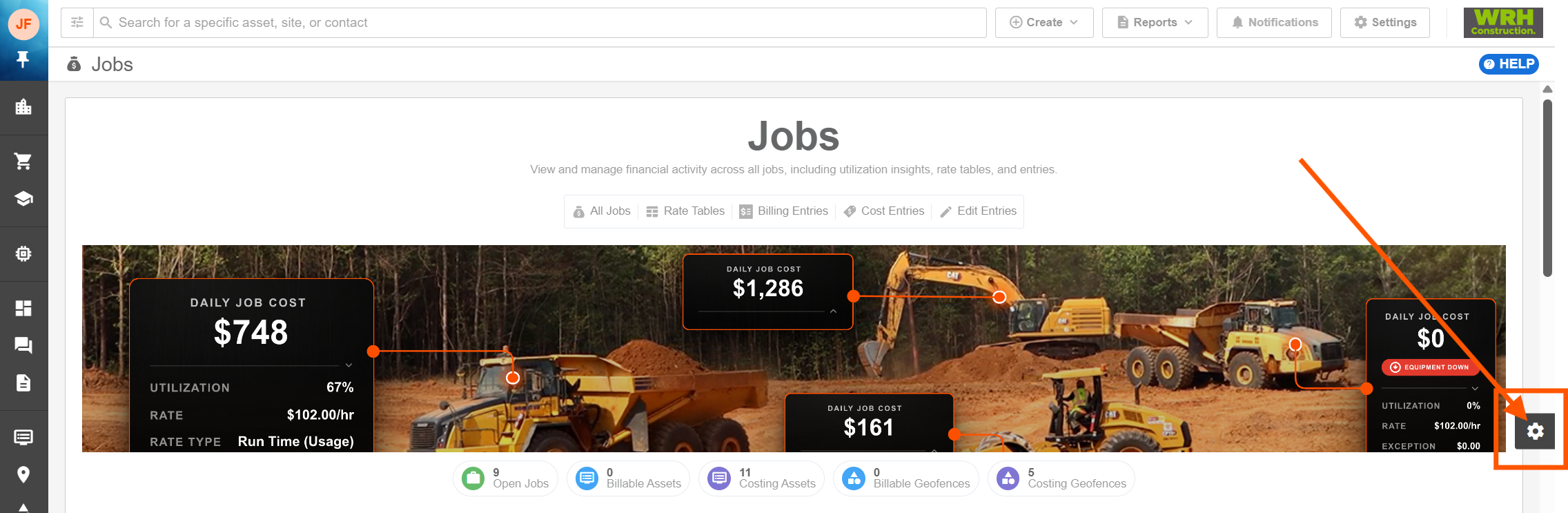
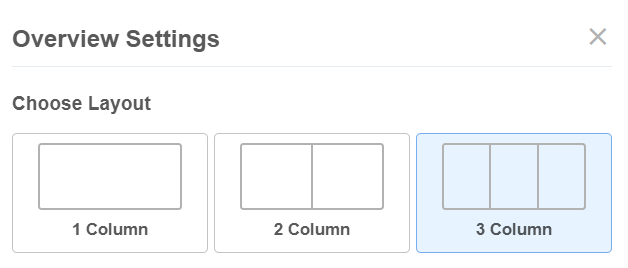
You can also personalize which widgets appear and how they're arranged using the Settings panel:
- Choose your layout — Select a 1-column, 2-column (default), or 3-column layout.
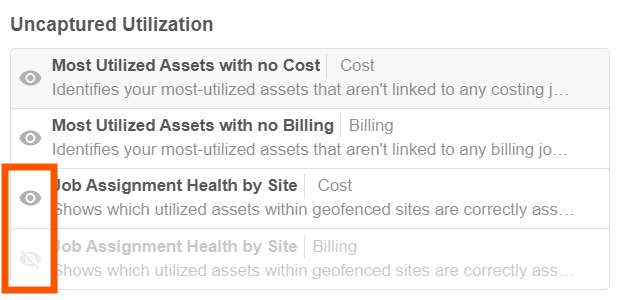
- Show or hide widgets — Click the eye icon to toggle individual widgets on or off.
Frequently Asked Questions
Can I create my own widget categories?
No. Widget categories are fixed. You can show or hide widgets and reorder them within a category, but you cannot create, rename, or reorganize categories.
Can I share my dashboard layout with other users?
Dashboard preferences are saved per user. Each user can configure their own layout and widget selections independently.
How often is the data refreshed?
Widget data is loaded fresh each time you open or refresh the page. There is no automatic real-time refresh while you're viewing the dashboard.
Why don't I see billing or costing widgets?
Billing and costing widgets are only available if the corresponding setting is enabled for your account. Check Settings > Configurations > Jobs > Visibility & Automation Defaults to confirm whether Show Billing and/or Show Costing is turned on, or contact your administrator.
I can see the widget, but no data. What should I do?
If a widget can't load data, you'll see one of the following:
- Loading — A spinner while data is being retrieved.
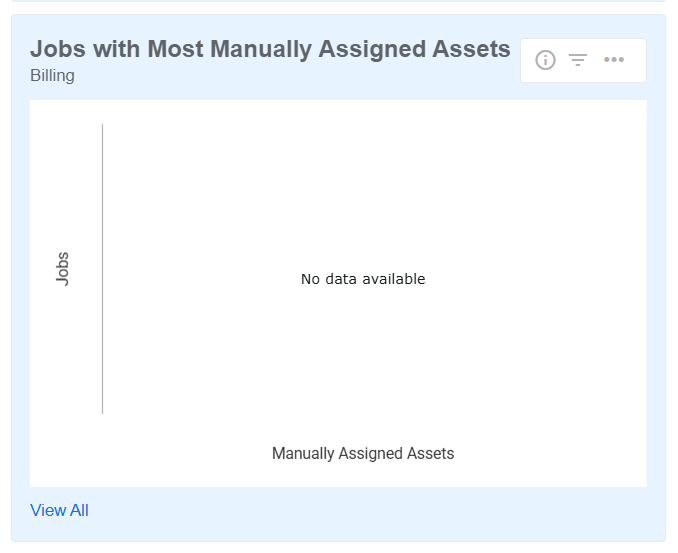
- No Data Available — The widget loaded successfully but there's no data to display.
- Failed to Load — The widget couldn't retrieve data from the server. Try refreshing the page.