How to Create, View, and Edit Breakdown Types (Desktop)
Use Breakdown Types to categorize work, costs, or job details in a consistent way. This article explains how to create new Breakdown Types, view existing ones, and update them when things change.
Permission Requirements: Users with the “Manage Job Settings” permission enabled can view, create, and edit Breakdown Types.
💥Jobs - Financials is a premium product and requires a separate license. Please contact your Account Manager for more information on premium product licenses or reach out to Customer Support at help@tenna.com or call 888.836.6269.
In this article:
Overview
A Breakdown Type is a configurable category used to organize and track job-related information, such as work activities, cost groupings, or reporting details, so teams can apply consistent classifications across jobs.
Best Practice: Create Breakdown Types such as Ownership, Fuel, Maintenance, and Insurance, then apply them consistently in rate tables and job reporting. This helps you compare costs by category, identify where expenses are increasing, and map each cost type to the correct GL account for accounting.
How to Create a Breakdown Type
- 1
- Click "Settings", then click "Jobs", then the "Breakdown Types" tab.

- 2
- Click "Create Breakdown Type".

- 3
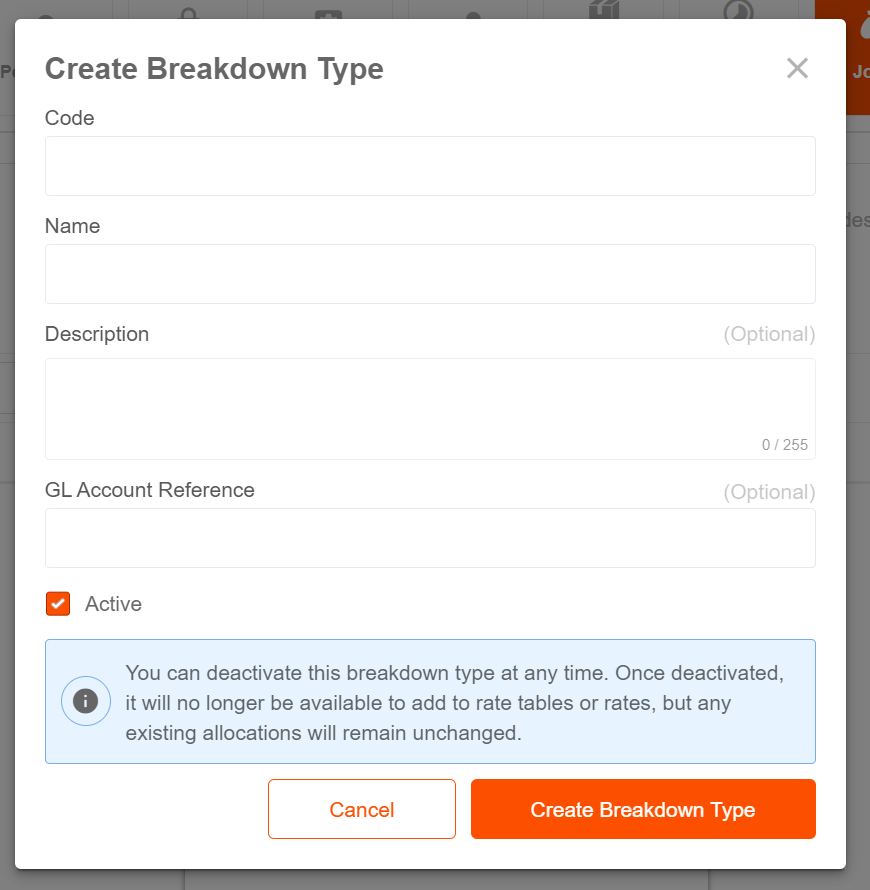
- Fill out the appropriate fields.
*Required Fields
*Code: Alphanumeric code. (Max 20 characters)
Important! The Code must be unique to your account.
*Name: Give the Breakdown Type a name. (Max 50 characters)
Examples: Ownership, Fuel, Maintenance, Insurance
Note: Updates made to the name will update in all Rate Tables. Only future Cost and Billing Entries will be effected by changes.
Description: Describe the Code. (Max 200 characters)
Examples: "Equipment depreciation, financing costs, and ownership overhead"
GL Account Reference: Optional General Ledger Account number for ERP mapping.
Active: Check the box if the Breakdown Type is currently active (can be used). Inactive types cannot be added to rate table templates, job rate tables, asset overrides, and exceptions.
Important! Breakdown Types cannot be deleted, only marked “inactive” by unchecking the box.
- 4
- Click "Create Breakdown Type" to complete.
How to View Breakdown Types
- 1
- Click "Settings", then click "Jobs", then the "Breakdown Types" tab.
- 2
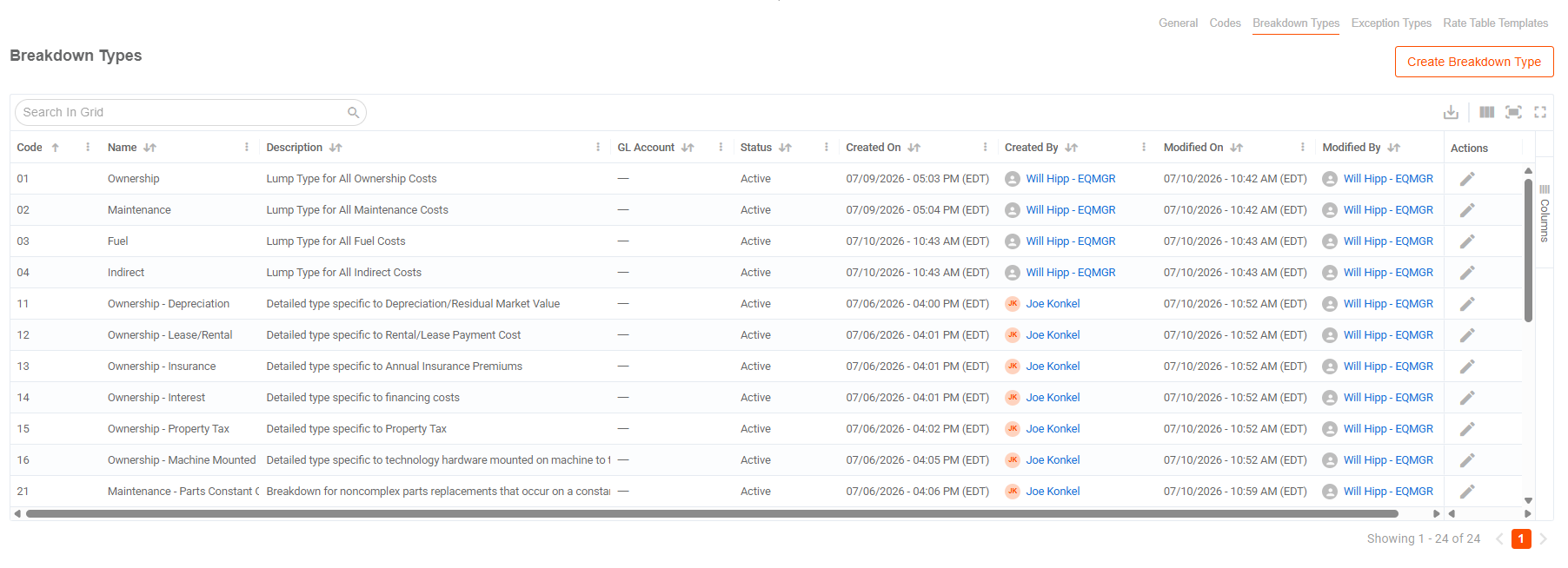
- The Breakdown Types grid includes the following details about each type:
- Code
- Name
- Description
- GL Account
- Status (Active or Inactive)
- Created On and By (timestamp and user name)
- Modified On and By (timestamp and user name)
- 3
- Search, filter, and sort the grid.
- Utilize the search bar to quickly find a type.

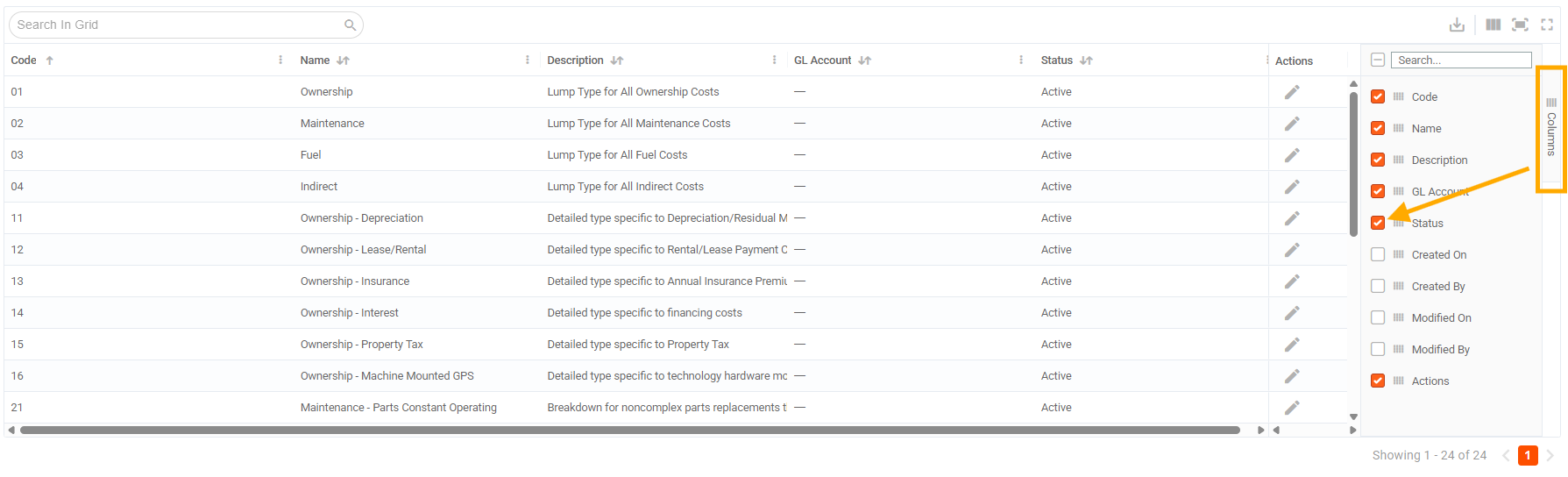
- Click the Columns button to show/hide and/or re-arrange columns in the grid.
- Click the download icon to export the grid results as shown.

How to Edit or De-/Re-activate a Breakdown Type
- 1
- Click "Settings", then click "Jobs", then the "Breakdown Types" tab.
- 2
- Click the pencil icon next to a Type to edit.

- 3
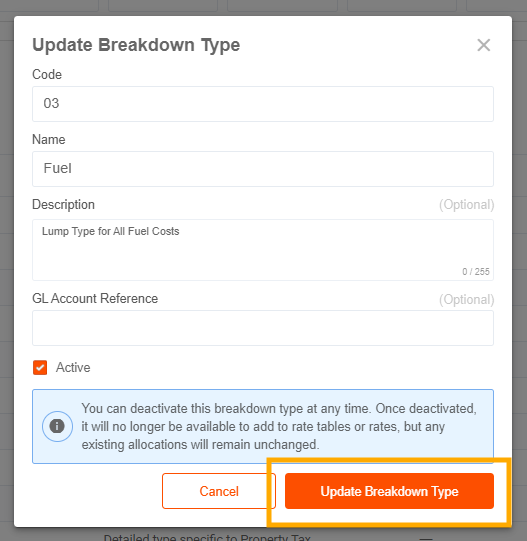
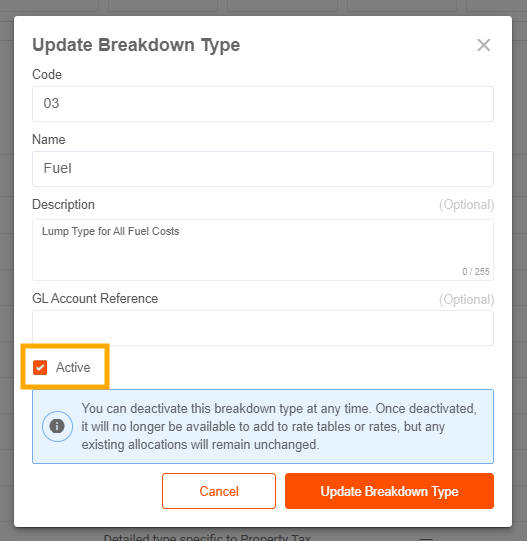
- Edit the Breakdown Type.
To de-activate a Breakdown Type (because they cannot be deleted), un-check the box next to “Active”.
Important! Once deactivated, the breakdown type will no longer be available to add to rate tables or rates, but any existing allocations will remain unchanged.
You can also re-activate an inactive Type by checking the box.
- 4
- Click "Update Breakdown Type" to save changes.