
How to Create, View, and Edit Exception Types (Desktop)
Exception Types are configurable categories that define the kinds of exceptions you can track on a job, such as special pricing, rate overrides, billing adjustments, operational exceptions, or other job-specific conditions that do not follow the standard setup.
Permission Requirements: Users with the “Manage Job Settings” permission enabled can view, create, and edit Exception Types.
💥Jobs - Financials is a premium product and requires a separate license. Please contact your Account Manager for more information on premium product licenses or reach out to Customer Support at help@tenna.com or call 888.836.6269.
In this article:
Overview
Exception Types are configurable categories that define the kinds of exceptions you can track on a job, such as special pricing, rate overrides, billing adjustments, operational exceptions, or other job-specific conditions that do not follow the standard setup.
Best Practice: Create clear, consistent exception types that match how your team reviews and manages job exceptions, then use them to classify exceptions for easier reporting, troubleshooting, approvals, and downstream accounting or operational workflows.
How to Create an Exception Type
- 1
- Click "Settings", then "Jobs', then the "Exception Types" tab.

- 2
- Click "Create Exception Type".

- 3
- Fill out the appropriate fields.
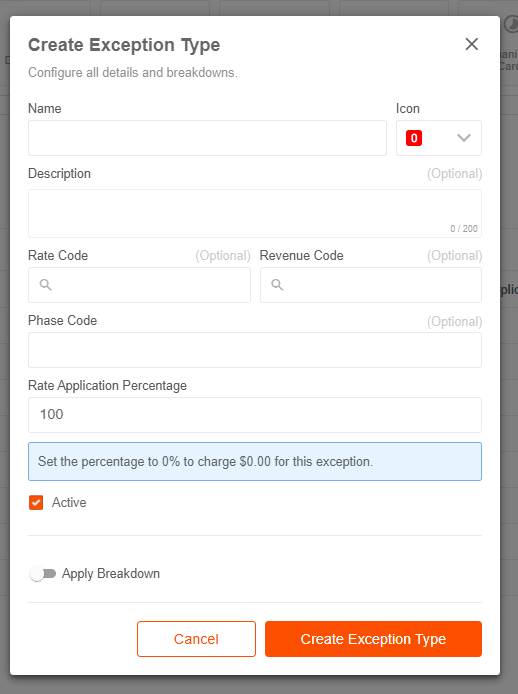
*Required Fields
*Name: Give the Exception Type a name. (Max 50 characters)
Examples: Early Delivery, Equipment Called off, Scheduled Maintenance, Unplanned Down, Weather Delay, etc.
*Icon: Select an icon and background color. An appropriate icon helps for quick identification. The icon shows in grids and Asset Details when applied.
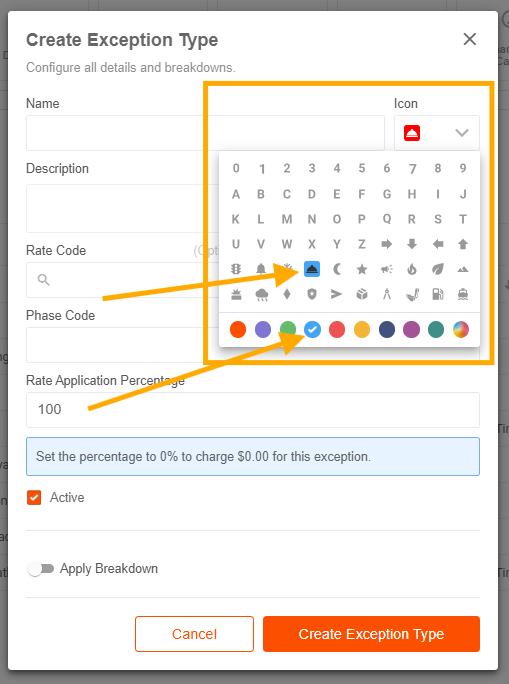
Rate Code: Select a default rate code for exception-based cost entries. You must select one of the existing Rate Codes in the account.
Revenue Code: Select a default revenue code for GL mapping of exception costs. You must select one of the existing Revenue Codes in the account.
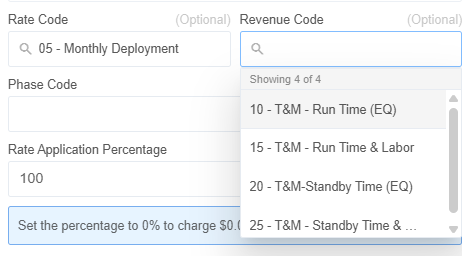
Phase Code: Create a Phase Code for exception-based entries.
*Rate Application Percentage: Enter a percentage (0-100). This defines what percentage of the standard billing/costing rate should be applied when this exception type is active on an asset.
- The default is 100% (full rate applies), meaning no adjustment unless configured otherwise.
- The built-in "On Hold" exception is seeded at 0%, which forces a $0 outcome — bypassing all rate calculations entirely when equipment is on hold.
For example, if a piece of equipment has a standard daily rate of $500 and an exception is applied with a 75% Rate Application Percentage, the system would bill/cost at $375 instead.
Status: Select the checkbox to make the Exception Type active or inactive.
Note: Exception Types cannot be deleted, only marked inactive. Exception Types that are currently assigned to an asset cannot be marked inactive.
Apply Breakdown: Yes (orange) or No (gray). Click the toggle to select if the Exception Type should have different Breakdown Types for financial tracking.
Use "Apply Breakdown" on an Exception Type when the cost allocation during that exception state is fundamentally different from normal operations — most commonly to route all exception charges to Ownership while excluding operating cost categories like Fuel or Maintenance.
- If yes, click “Add Breakdown Code”.
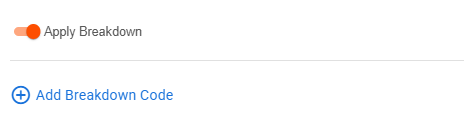
- Select a Breakdown Code.
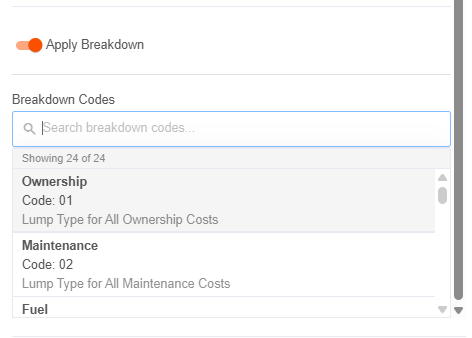
- Enter a Percentage for each selected Breakdown Code.
Note: For operational exceptions, breakdown is always configured as a percentage, independent of the Breakdown Units setting under Settings.
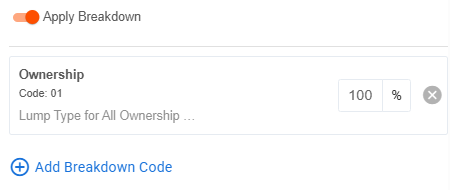
- Click “Create Exception Type” to complete.
How to View Exception Types
- 1
- Click "Settings", then "Jobs', then the "Exception Types" tab.
- 2
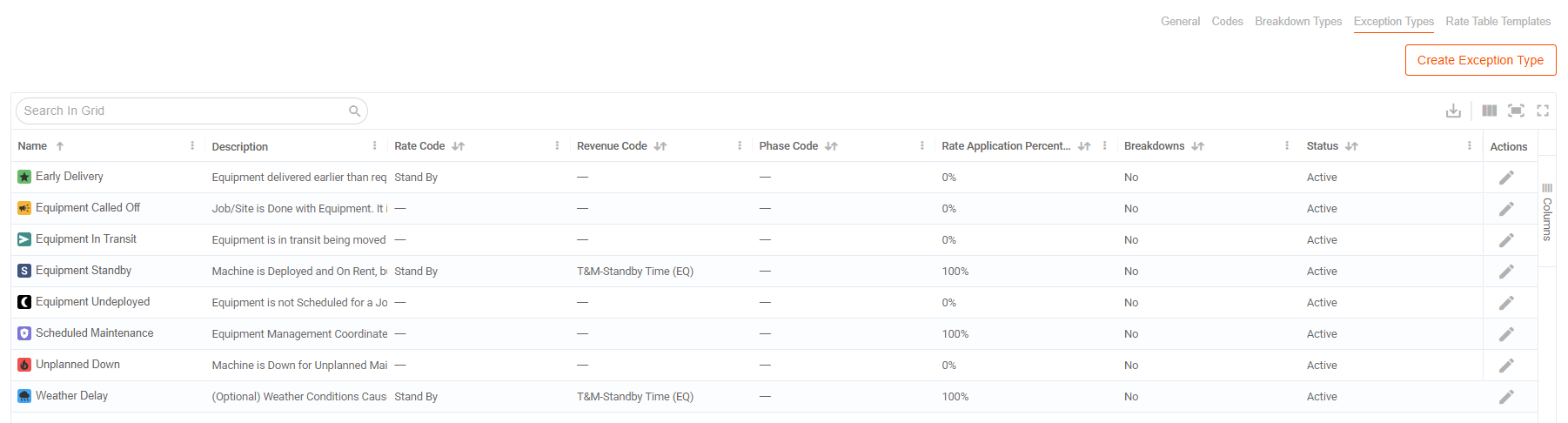
- The Exception Types grid includes the following details about each type:
- Icon
- Name
- Description
- Rate Code
- Revenue Code
- Phase Code
- Rate Application Percentage
- Breakdowns (Yes or No)
- Status (Active or Inactive)
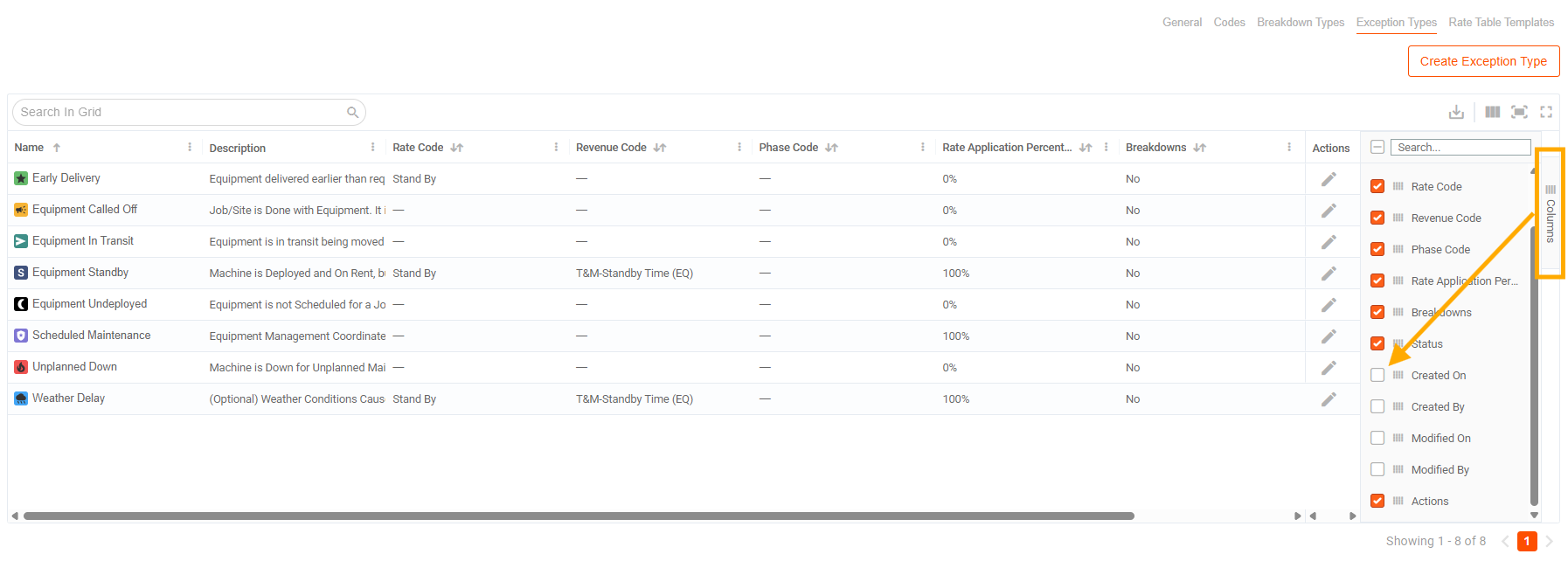
- Created On and By (timestamp and user name)
- Modified On and By (timestamp and user name)
- 3
- Search, filter, and sort the grid.
- Utilize the search bar to quickly find a type.

- Click the Columns button to show/hide and/or re-arrange columns in the grid.
- Click the download icon to export the grid results as shown.

How to Edit or De-/Re-activate an Exception Type
- 1
- Click "Settings", then "Jobs', then the "Exception Types" tab.
- 2
- Click the pencil icon next to a Type to edit.

- 3
- Edit the Exception Type.
All aspects of the Exception Type can be edited.
To de-activate an Exception Type (because they cannot be deleted), un-check the box next to “Active”.
Note: Exception Types that are currently assigned to an asset cannot be deactivated.
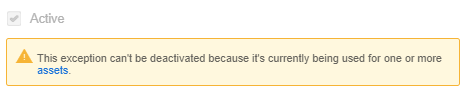
You can also re-activate an inactive Type by checking the box.
- 4
- Click "Update Exception Type" to save changes.
FAQs
When should I use the “Apply Breakdown” option for an Exception Type?
The Apply Breakdown toggle on an Exception Type serves a very specific financial allocation purpose tied to how exceptions work differently from standard rates.
When an exception is active (e.g., a machine is "Down"), the rate is already reduced by the Exception Rate Application Percentage. But the system still needs to know how to allocate that reduced charge across GL accounts — and the breakdown categories that apply during normal operation (Fuel, Maintenance, etc.) may not make sense during an exception.
When you enable "Apply Breakdown" on an Exception Type, you're defining a separate breakdown allocation that applies specifically to the exception-adjusted amount — not the full base rate.
The system calculates it in two steps:
- First, it applies the Exception % to the base rate (e.g., a "Down" exception at 10% of base rate)
- Then, it applies the exception's breakdown percentages to that reduced amount
Example: A machine is Down. The exception is set to charge 10% of the base rate. The exception breakdown is configured as: Ownership — 100%
This reflects the real-world reality that when a machine is down, you're not incurring fuel or maintenance costs — but you are still incurring ownership costs (depreciation, financing, etc.). So 100% of the exception charge flows to the Ownership GL account.