
Permissions & Notifications Overview
Permissions dictate a user’s ability to see and interact with specific Tenna features and functions. Permissions and notifications must be set up to allow users to utilize the platform properly. This article explains the important pieces of Permissions.
Permission Requirements: Power Users and users with the “Manage Permissions” permission have the ability to create and edit permissions.
NOTE: Users/Contacts and Org Chart must be set up in your account prior to setting up permissions and notifications.
To get to the Permissions page, click the “Settings” button on the top right and then select the “Permissions” tab.
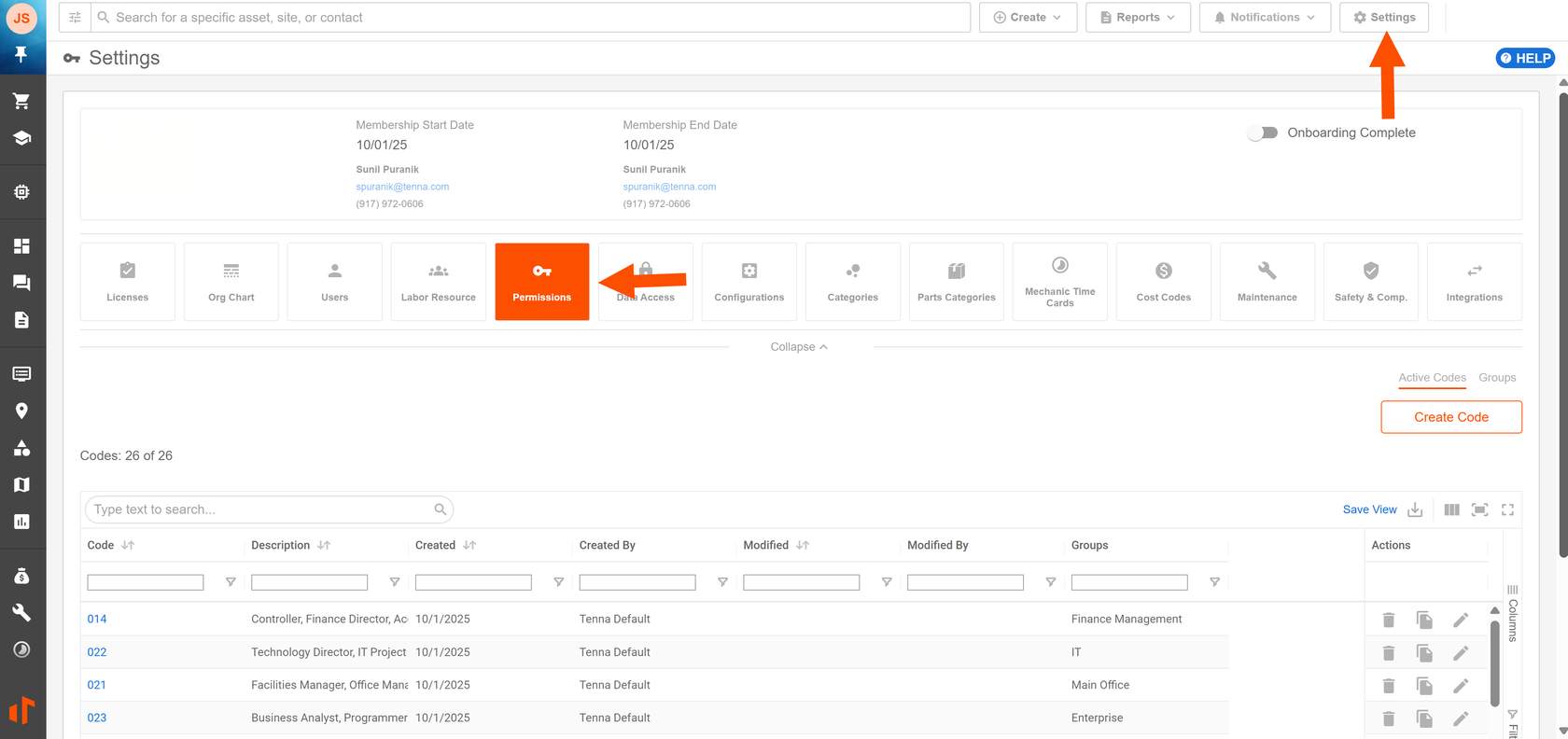
There are three pieces to configure in Permissions: Permission Codes, Notifications, and Permission Groups.
Permission Codes
Permission Codes are the collection of individually configured permissions and notifications.
Permissions can be turned “On” or “Off”. Some permissions also have an “Edit” option which allows a user to not only see the information in the platform, but also to edit it.
For example, if the “Manage Asset Financial Information” permission is turned “On”, the user will be able to view financial information for assets. If the permission is turned “On” and “Edit”, the user will be able to view and edit the financial information.
Notifications
Notifications is a communication engine that helps share information between team members about events they need to know. Users receive Notifications based on their permissions.
Notification Types
There are two types of notifications:
- Alerts: Notifications for high-importance events that need immediate attention. Alerts cannot be turned off for users that have permission to receive them.
- Messages: Notifications for routine or non-critical events. Users can adjust their preferences (frequency and delivery methods) for Messages they have permission to receive.
Once a user has been granted permission to receive a Notification, they also have the ability to customize the delivery methods and frequencies at which they receive those Notifications via their Preferences. Preferences can be set for Messages, but not Alerts, which must always be received immediately.
See How to Update your Notification Preferences (Desktop) for additional information.
Notification Formats
There are two types of notification formats:
- Daily Digest: Notifications are accumulated and sent to users at 9AM in their respective time zones. This format is only available for specific notification types.
- Standard: Notifications are sent individually, based on the Delivery Timing selected.
Notification Delivery Methods
Notification delivery methods include:
- E-mail Notification: Notifications are sent via email.
- Mobile Push: Notifications are sent as push notifications on a mobile phone. The phone must have the Tenna app installed. This delivery option is not available for Daily Digest format.
- Message Board: Notifications are sent through the Tenna platform and found on the Message Board.
See How to View Notifications (Desktop) and How to View Notifications (App) for additional information.
Notification Frequencies
Notification Frequencies include:
- Immediate: Notifications are sent immediately when triggered.
Note: Alerts are always received Immediately.
- Morning: Notifications are accumulated and sent to users at 9AM in their respective time zones.
- Afternoon: Notifications are accumulated and sent to users at 1PM in their respective time zones.
- Evening: Notifications are accumulated and sent to users at 5PM in their respective time zones.
See How to Update your Notification Preferences (Desktop) for additional information.
Permission Groups
Permission Groups are sets of users that share a similar set of permissions (via a Permission Code). Users can be added to Permission Groups individually, or in bulk via shared traits such as organizational level or title.
IMPORTANT! A Permission Code can only be applied to a user if it is associated with a Permission Group. If a Permission Code is not assigned to a Permission Group, it will not work.
See How to Configure Permissions & Notifications (Desktop) for more information.