
Rate Table Actions
Rate tables in Jobs give you a structured way to manage how costs and billing rates are applied across your jobs. There are two distinct types: Rate Table Templates and Job Rate Tables, and understanding the difference between them is key to using this feature effectively.
Permissions Requirements
Access to rate tables is controlled by separate permission sets for each type.
Rate Table Templates
- View Rate Table Templates allows the user to view rate table templates
- Manage Rate Table Templates allows the user to clone, deactivate, and reactivate rate table templates
Job Rate Tables
- View Job Rate Tables allows the user to view job rate tables
- Manage Job Rate Tables allows the user to manage job rate tables
In this article:
Rate Table Templates vs. Job Rate Tables
How to Access Rate Tables under Jobs
How to Deactivate a Rate Table Template
Rate Table Templates vs Job Rate Tables
Both Rate Table Templates and Job Rate Tables share the same structure but serve different purposes.
|
|
Rate Table Template | Job Rate Table |
| Lives at | Account level (settings) | Job level |
| Purpose | Standartd rate blueprint | Working copy for a specific job |
| Created by | Manually, in settings | Automatically cloned from a template when a job is created |
| Editable | Yes, in settings | Yes, on the job |
| Affects other records? | No, editing a template does not update existing Job Rate Tables | No, editing a Job Rate Table does not update the source template |
Both types contain the same components: rate grids, categories, rate types, code breakdowns, rules, and asset overrides.
Pro Tip! Think of Rate Table Template as your master pricing model and a Job Rate Table as the job-specific copy that gets put to work.
Key things to know:
- One template → many jobs. A single template can be cloned onto hundreds of jobs.
- Fully independent after cloning. Changes to a template do not affect existing Job Rate Tables, and changes to a Job Rate Table do not affect the source template.
- Templates control the future. Updating a template only applies to jobs created after the change; existing Job Rate Tables are not affected.
- Lifecycle differs. Templates can be deactivated or reactivated to control availability. Job Rate Tables exist as long as the job does.
How to Access Rate Tables Under Jobs
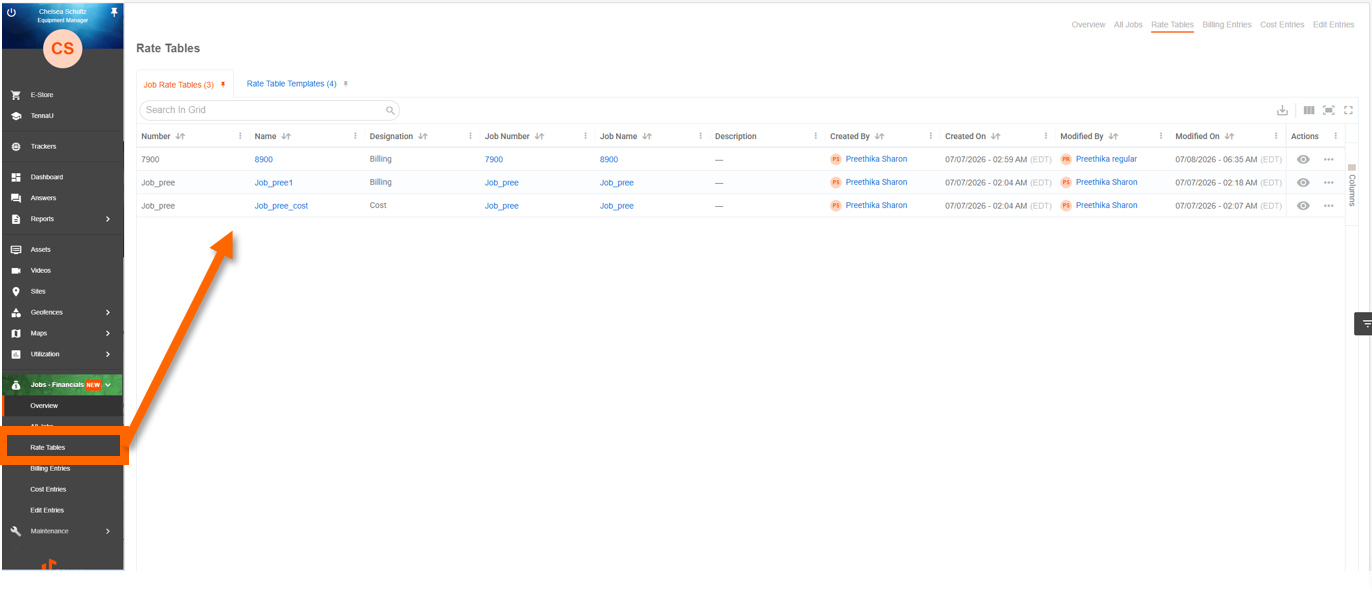
Rate tables are accessible from the Rate Tables tab in the Jobs navigation.
The tab uses a dual-tab interface:
- Job Rate Tables (default/pinned): shows all job-specific rate tables
- Rate Table Templates: shows active templates only; this is a read-only reference view; editing is done in Settings
Each tab displays a count badge and is pinnable. Both tabs support search, sort (default: Name A–Z), and export to CSV or Excel (requires the Export Data permission).
NOTE: DAC (Data Access Control) does not apply at the rate table level.
Available Actions
Rate Tables support the following actions. Availability depends on the record type, its current status, and the user's permissions.
| Action | Description |
| View | Opens the rate table in read-only mode |
| Edit | Updates an existing rate table's configuration and values. Not available for deactivated rate tables |
| Clone to template | Creates a new, independent rate table template from an existing job rate table or template |
| Delete | Removes a rate table (soft delete). Not available for job rate tables assigned to an active job |
| Deactivate | Makes a template inactive so it is no longer available for assignment or cloning, while preserving existing relationships |
| Reactivate | Restores an inactive template to active status |
Most actions are available from a grid view, detail view, or any interface that exposes rate table controls. Rate Table Templates are account-wide resources and can only be edited in Settings; the Jobs view is read-only for templates.
How to View a Rate Table
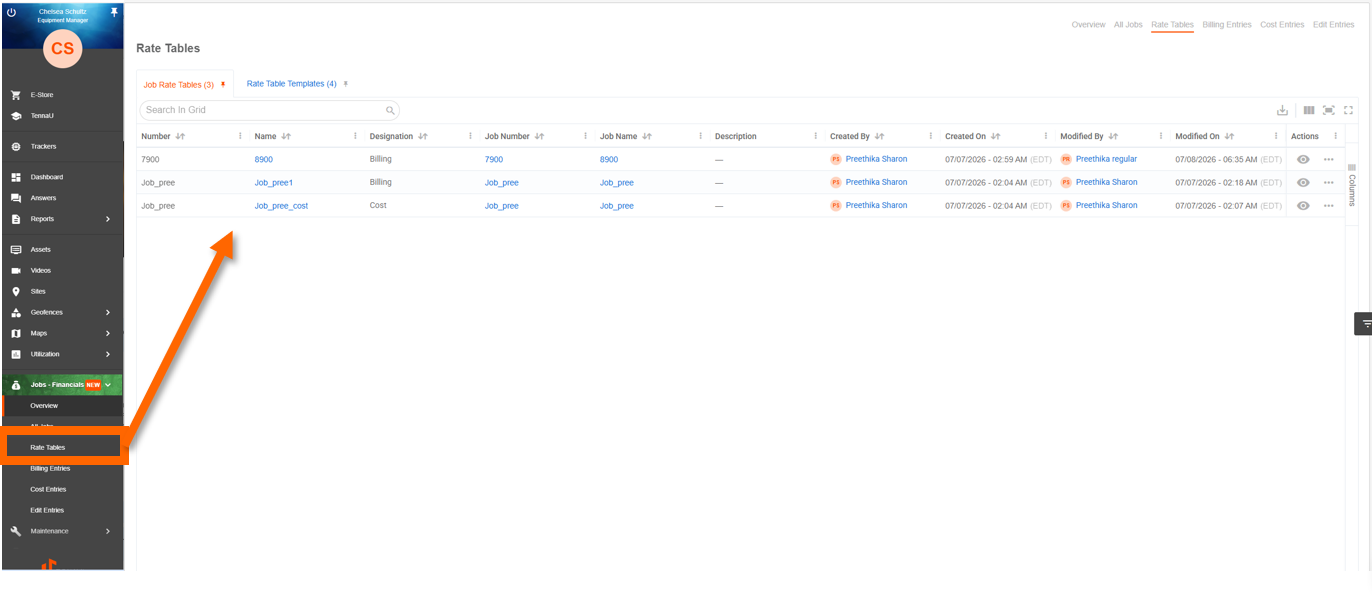
- 1
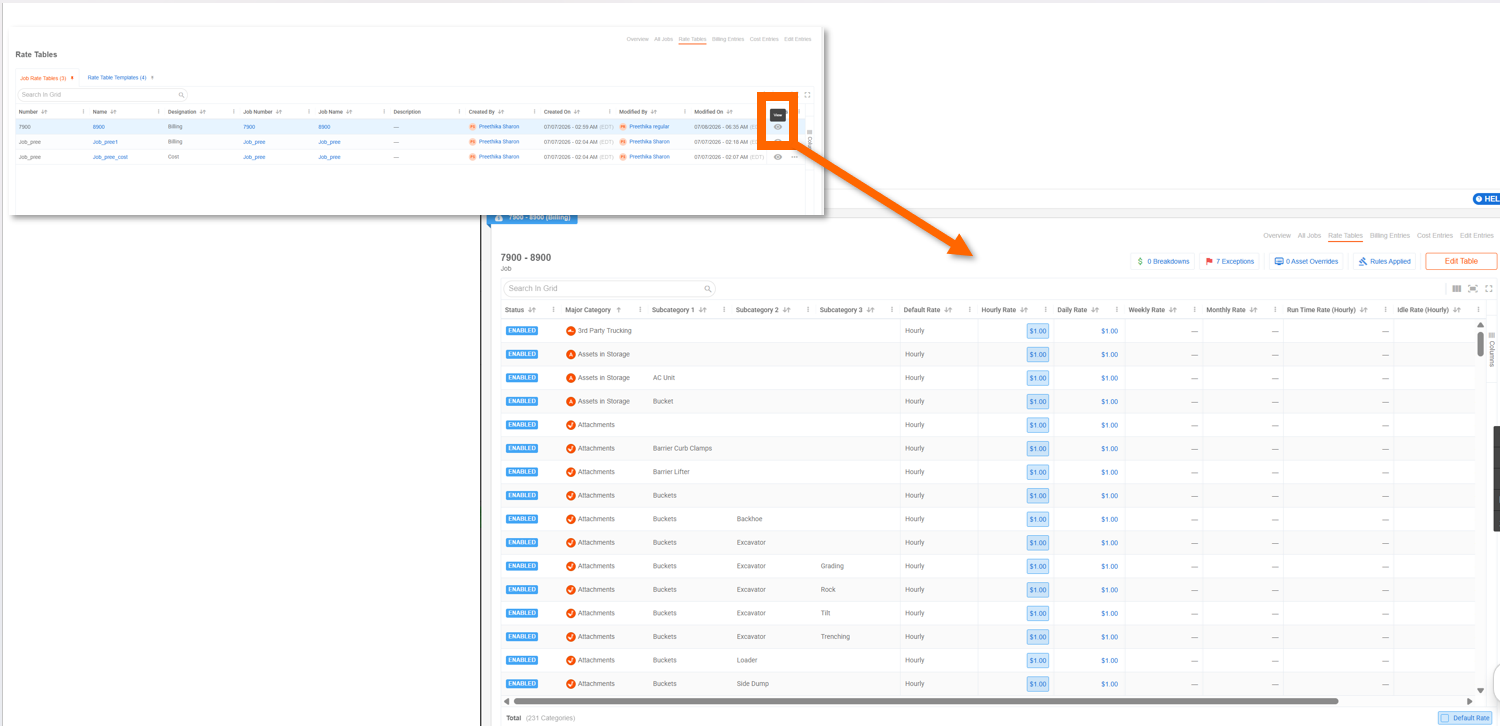
- Navigate to "Jobs" and select the "Rate Tables" tab.
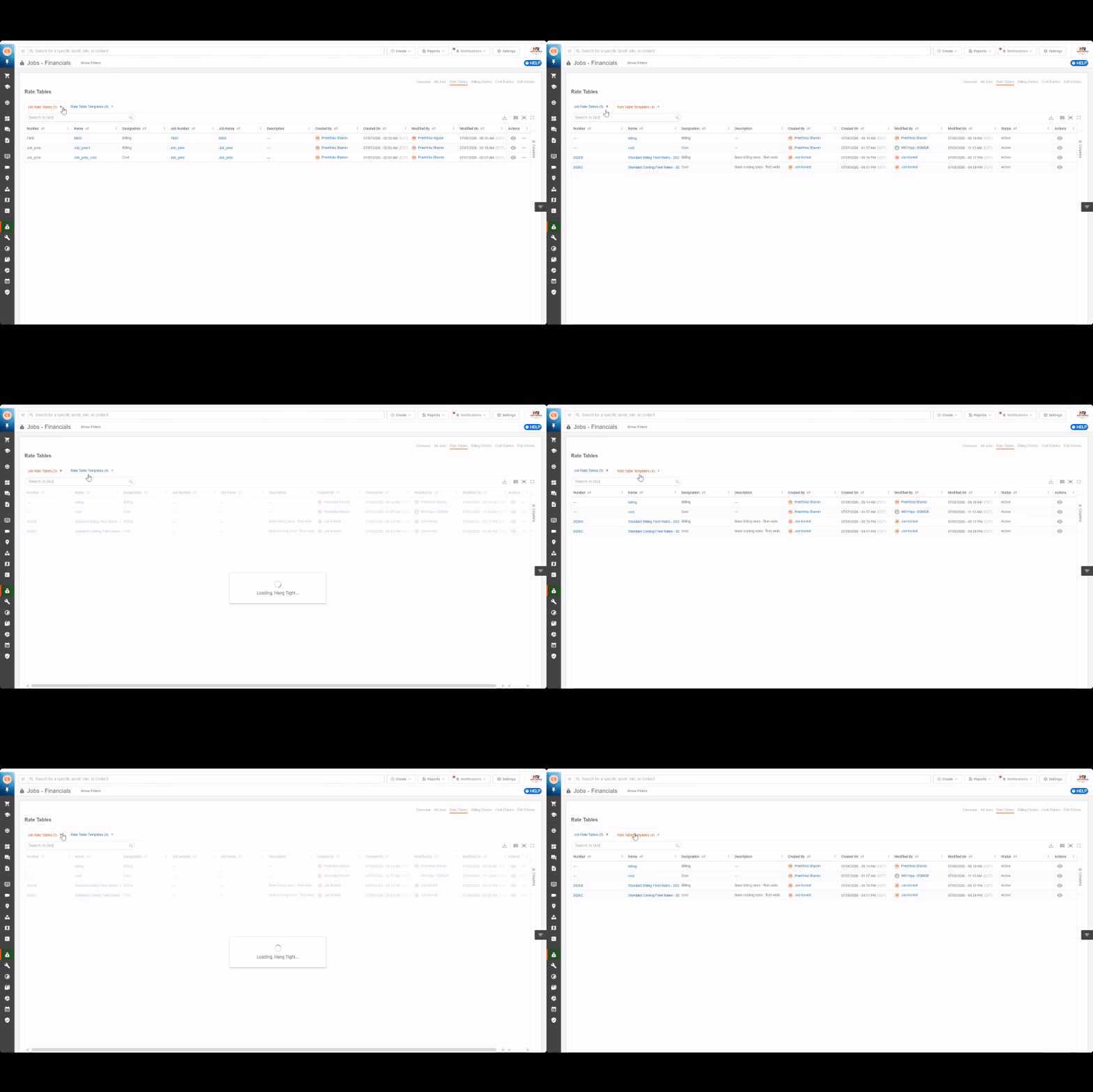
- 2
- Select the appropriate sub-tab: Rate Tables or Rate Table Templates.
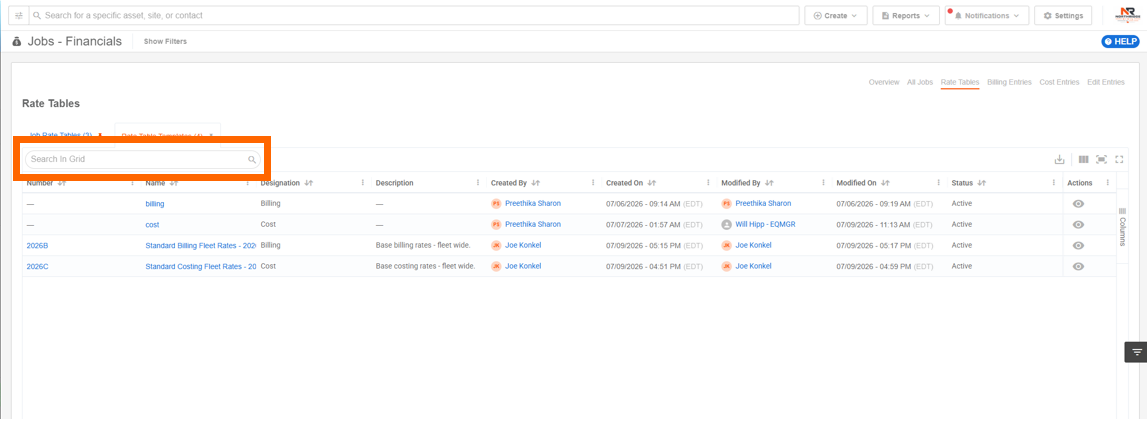
- 3
- Locate the rate table using search or by scrolling the grid.
- 4
- Select the rate table name or click the "View" action to open it in read-only mode.
How to Edit Rate Tables
NOTE: Editing a Rate Table Template must be done in Settings. Templates displayed under the Jobs view are read-only. Editing a Job Rate Table does not affect the source template, and editing a template does not update existing Job Rate Tables.
To edit a Rate Table Template:
- 1
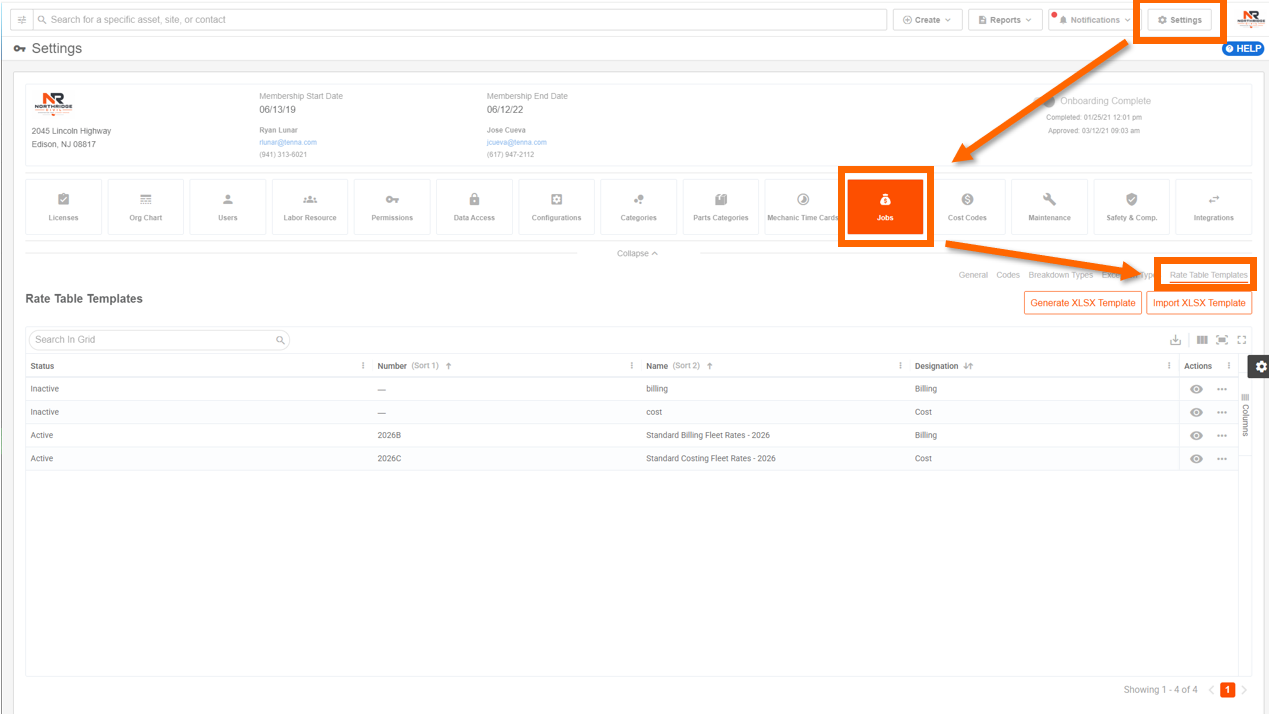
- Navigate to "Settings", then click "Jobs". Then select "Rate Table Templates".
- 2
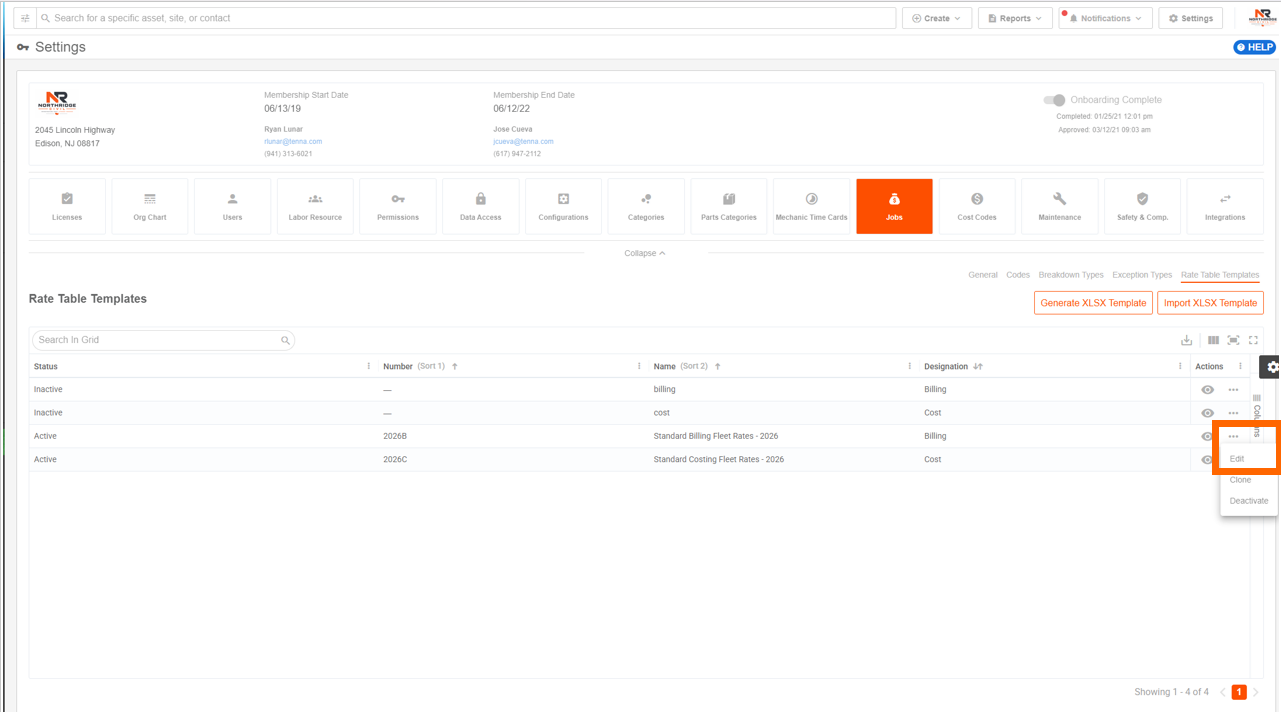
- Find the template and click the dotted icon and select "Edit".
- 3
- Make changes to the template, then click "Done".
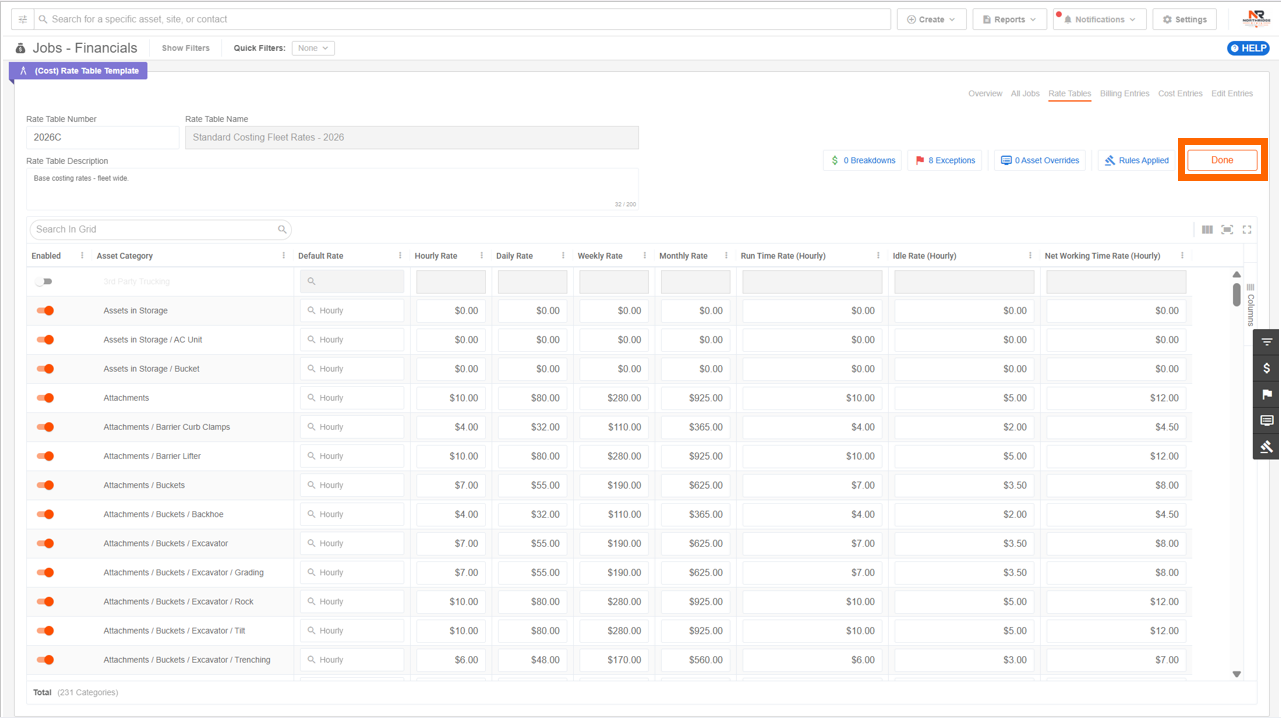
Important! In order for your changes to save, you MUST click out of the cell you have made changes in. If you do not, you will see a prompt stating your changes won't save.
How to Edit a Job Rate Table:
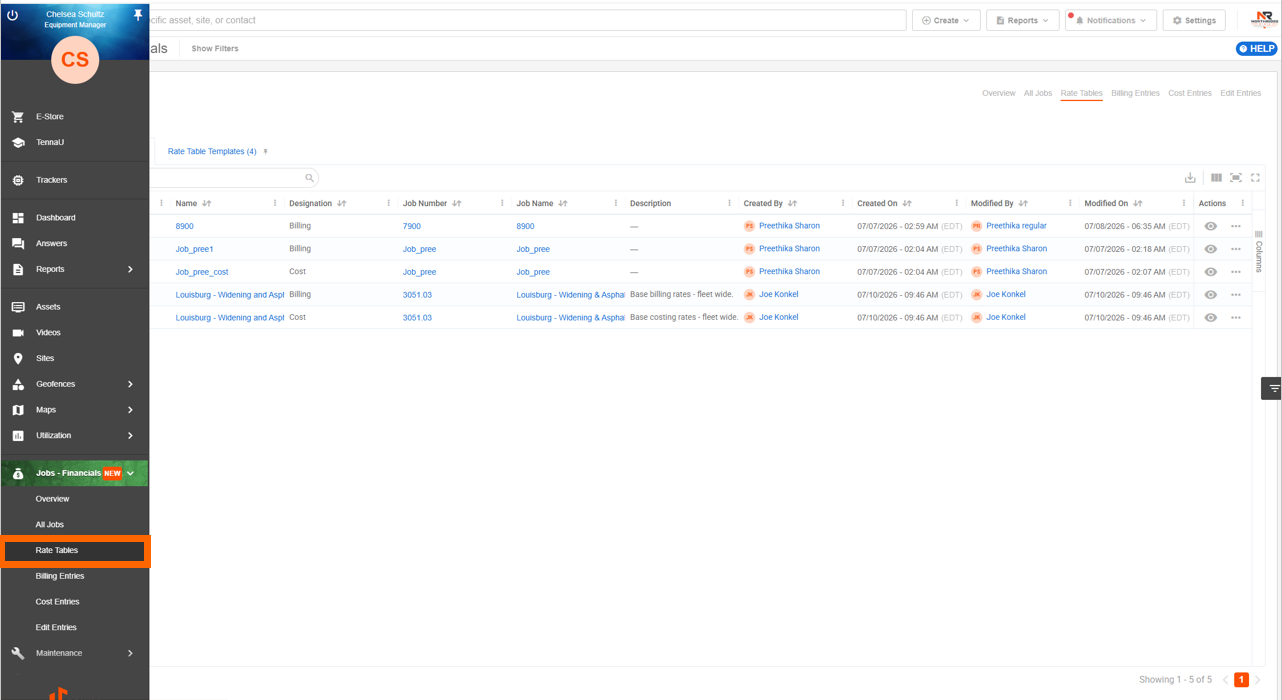
- 1
- Navigate to "Jobs", then select "Rate Tables".
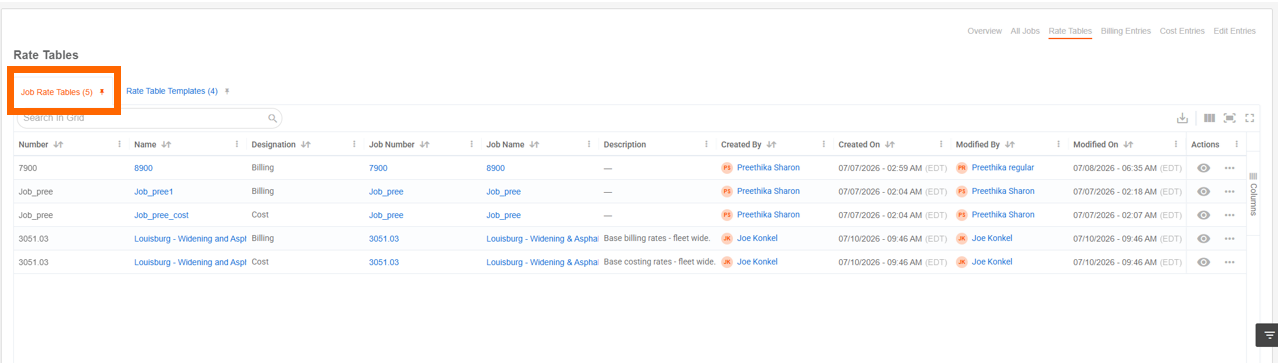
- 2
- Select the "Job Rate Tables" sub-tab.
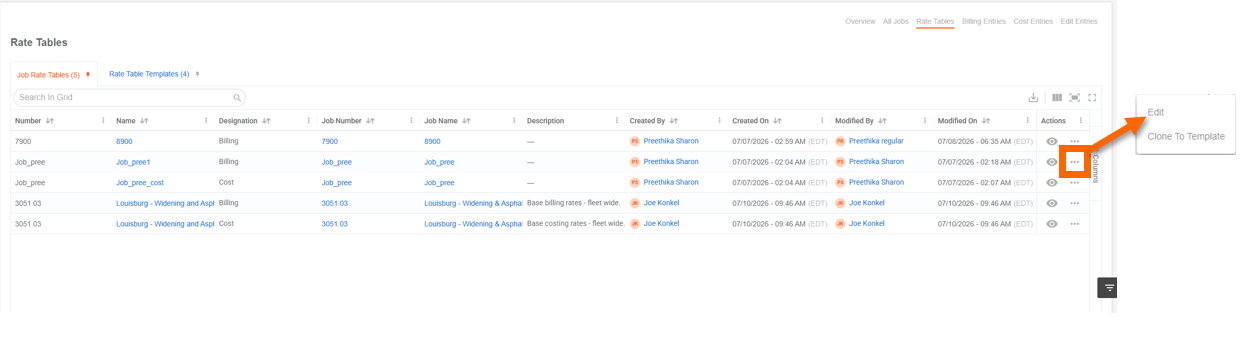
- 3
- Find the rate table and click the dotted icon, then select "Edit".
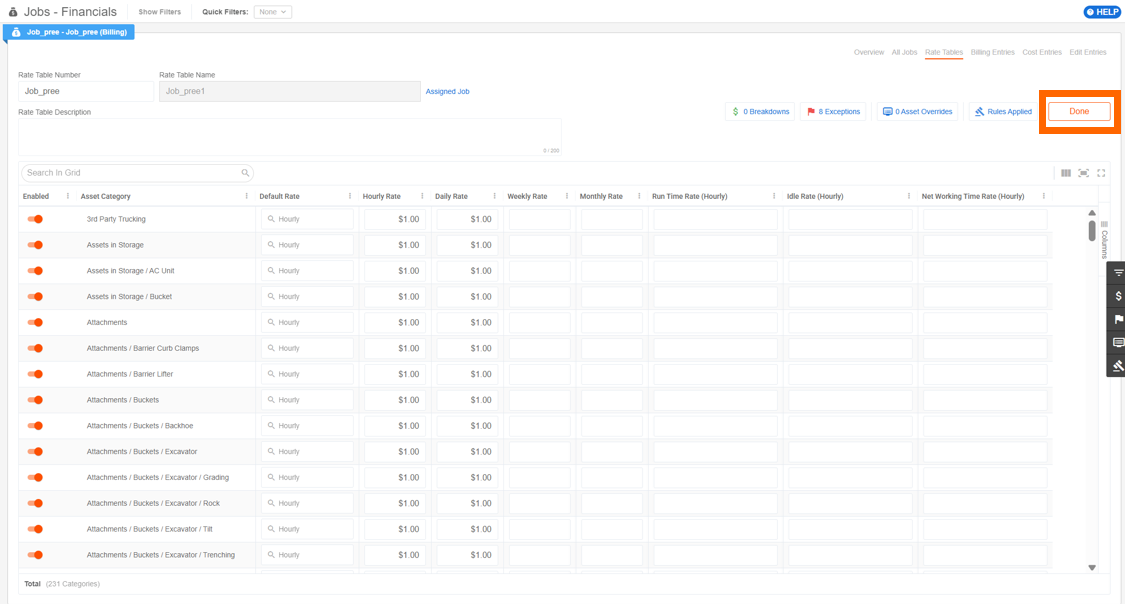
- 4
- Make the necessary edits then click "Done".
NOTE: Editing is not available for deactivated rate tables. Reactivate the template first if edits are needed.
How to Clone a Rate Table
Cloning creates a new, fully independent rate table template from an existing job rate table. The clone opens in edit mode so you can make changes before saving.
NOTE: Cloning requires the Managing Rate Table Templates permission. Template names must be unique; if the default cloned name conflicts with an existing template, you will be prompted to rename it.
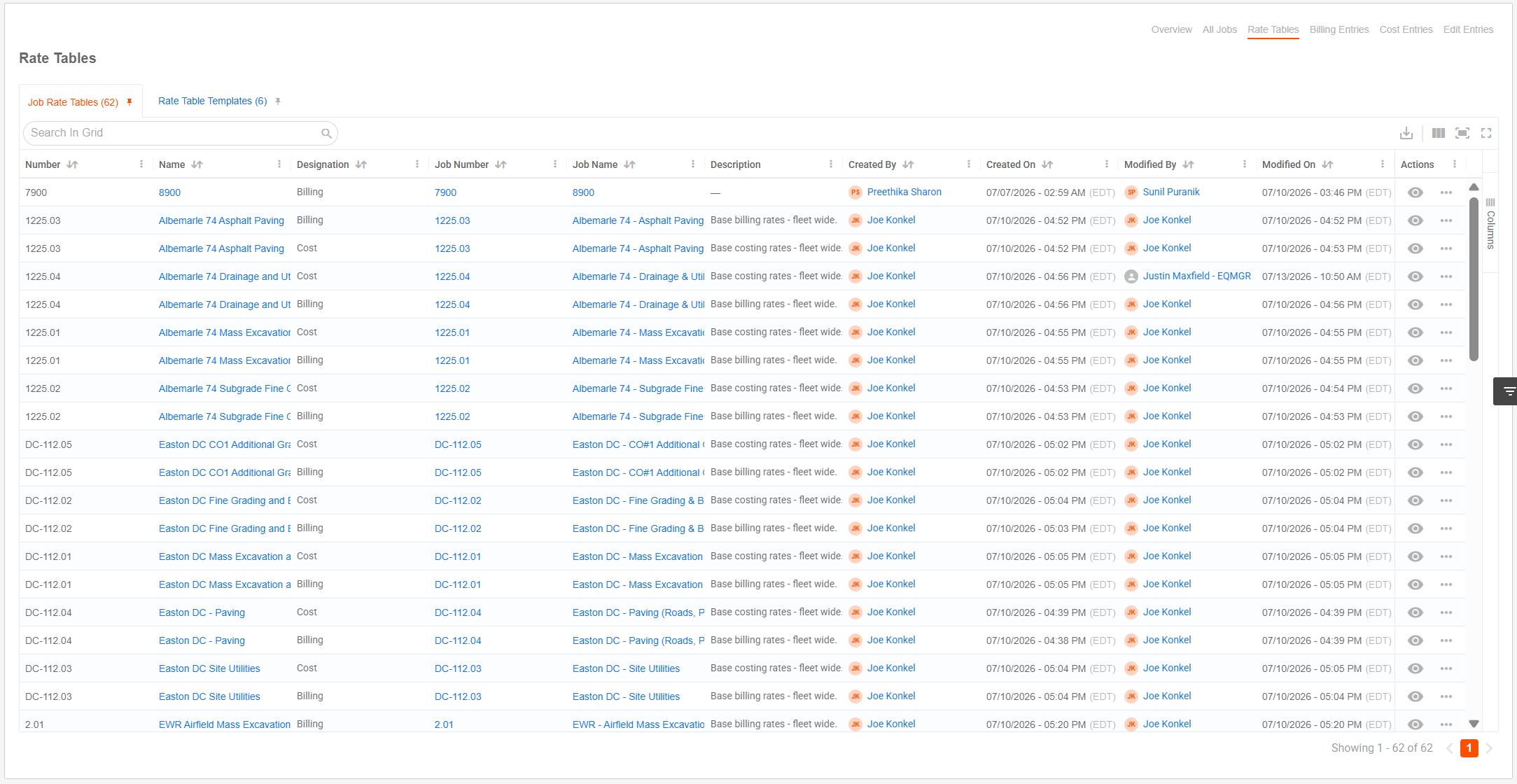
- 1
- Navigate to the "Rate Tables" page.
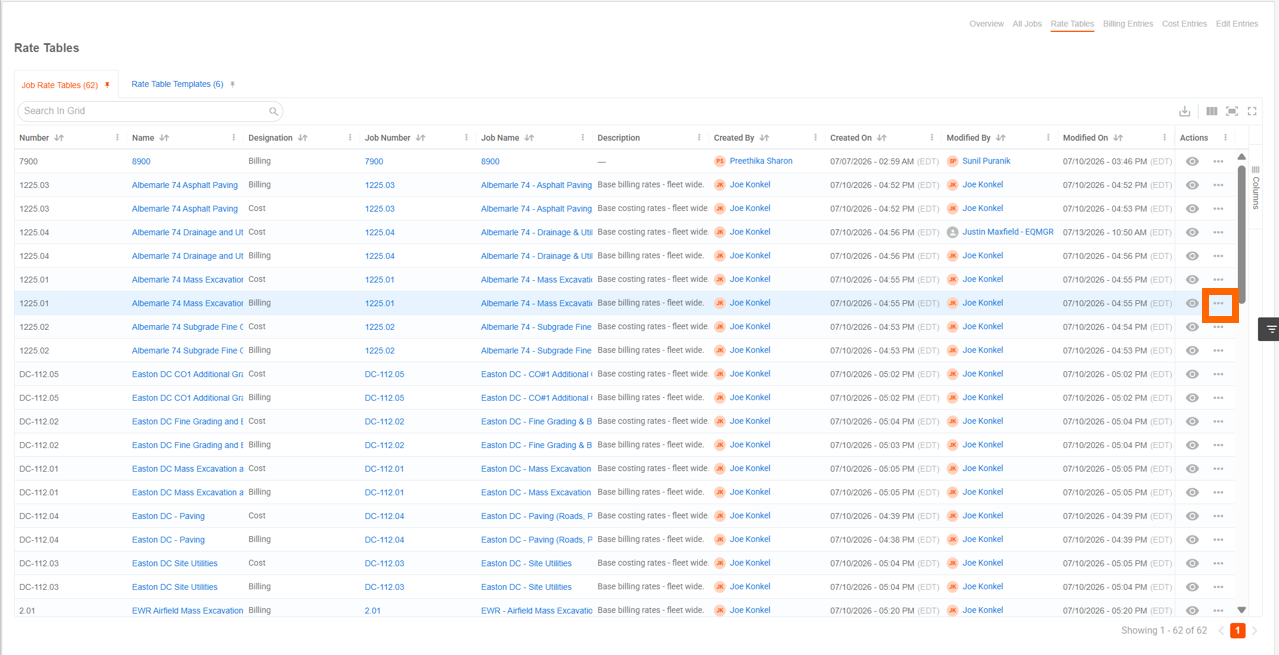
- 2
- Find the Rate Table you'd like to clone and click the dotted icon.
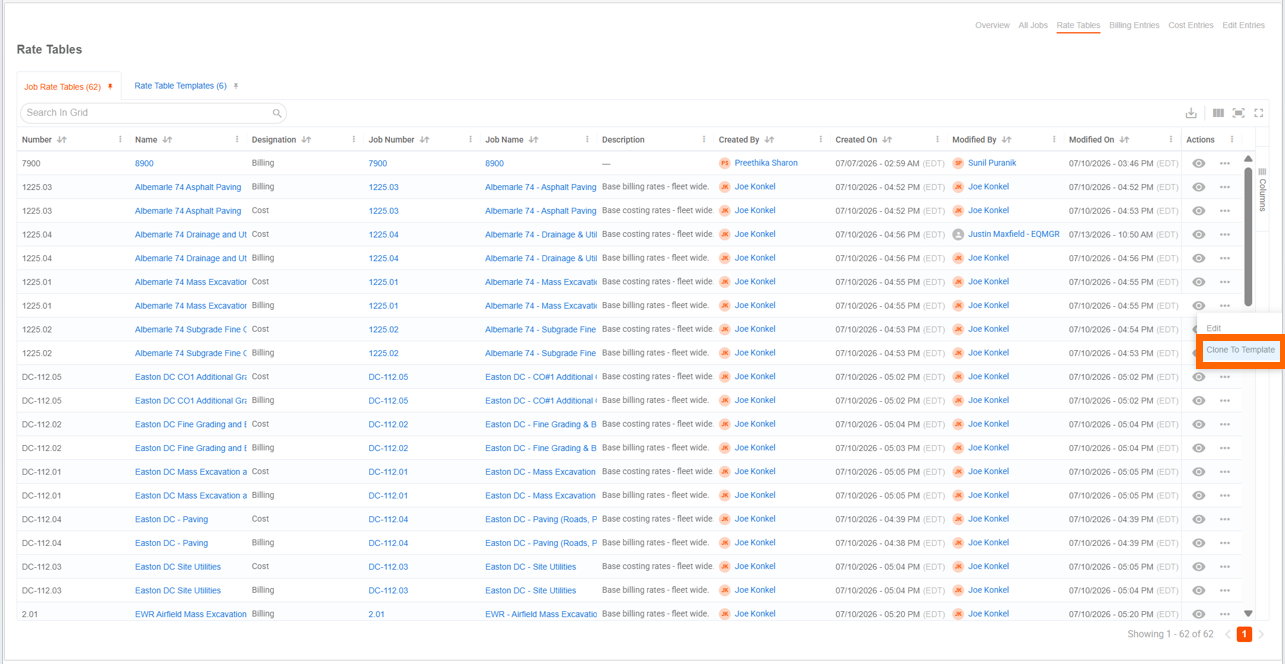
- 3
- Select "Clone to Template".
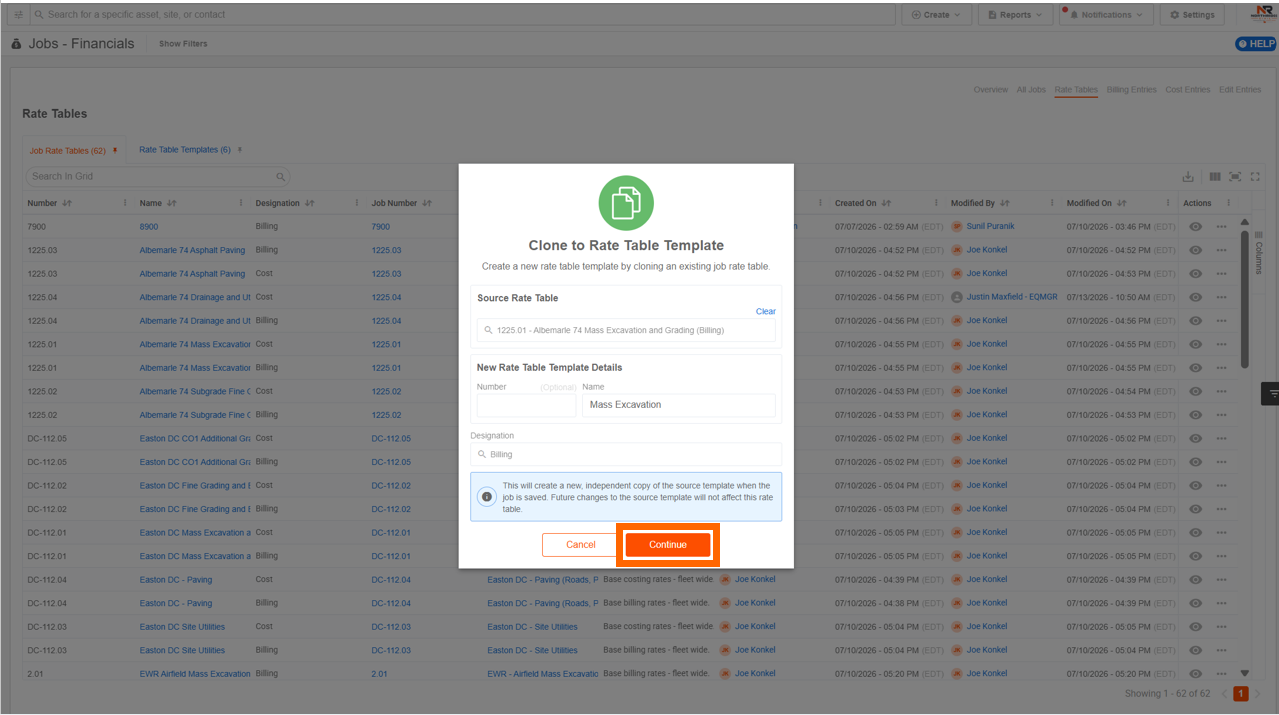
- 4
- A prompt will appear asking that you name the new template, then click "Continue".
- 5
- Review and update the template name and any values that need to be changed, then save.
What gets copied:
- All rates
- All exceptions
- All breakdown codes
- Asset overrides
- All rules
NOTE: Updates to the source after cloning do not affect the clone, and updates to the clone do not affect the source rate table.
How to Deactivate a Rate Table Template
Deactivating a template makes it inactive so it is no longer available for assigment for cloning.
NOTE: This requeires the "Manage Rate Table Templates" permission.
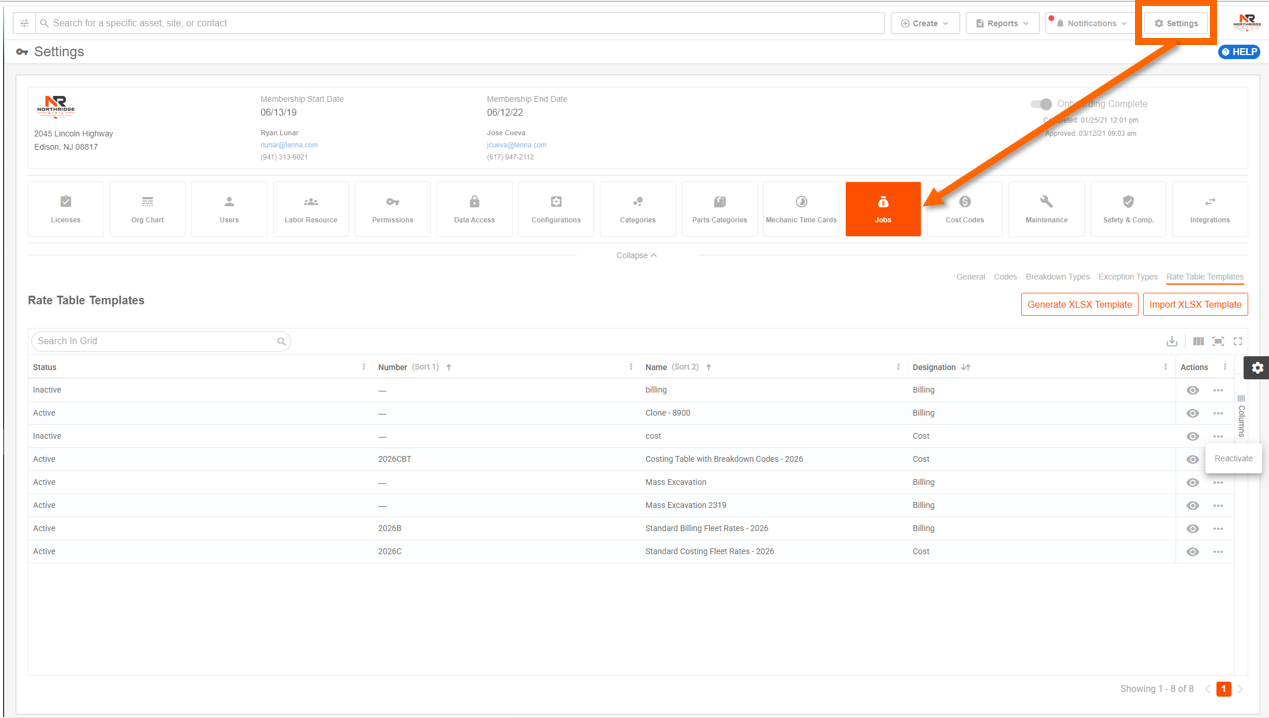
- 1
- Navigate to "Settings" then click "Jobs".
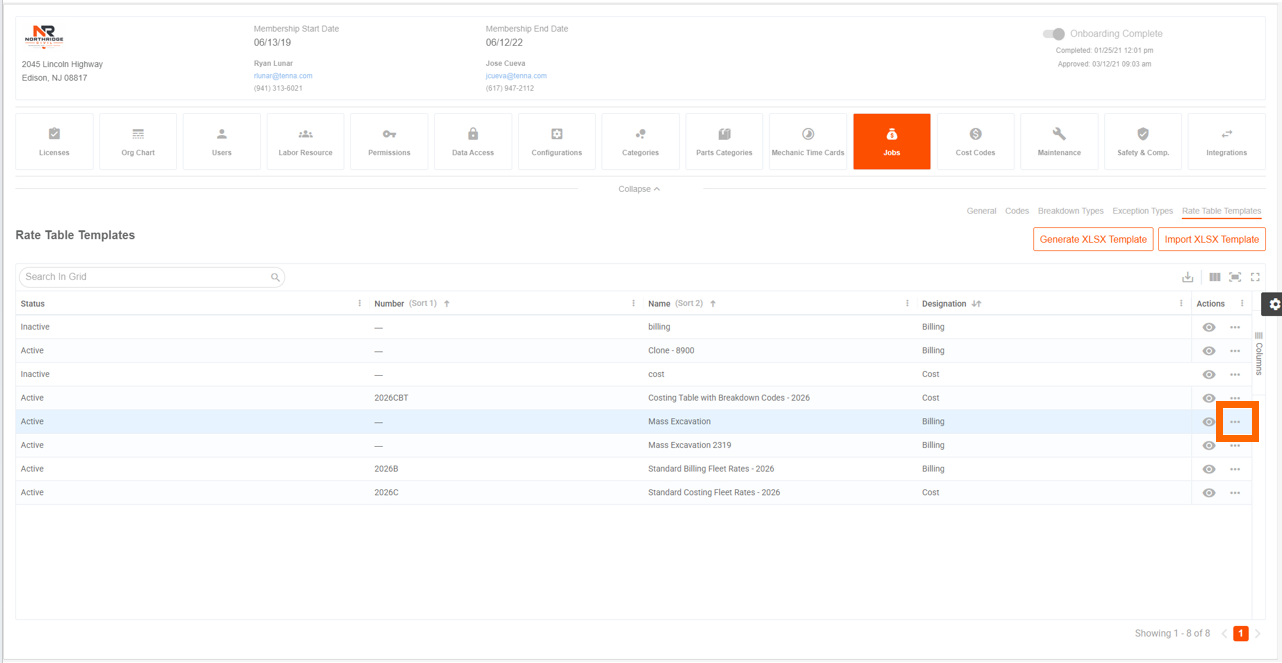
- 2
- Find the Rate Table Template you'd like to deactivate and click the dotted icon.
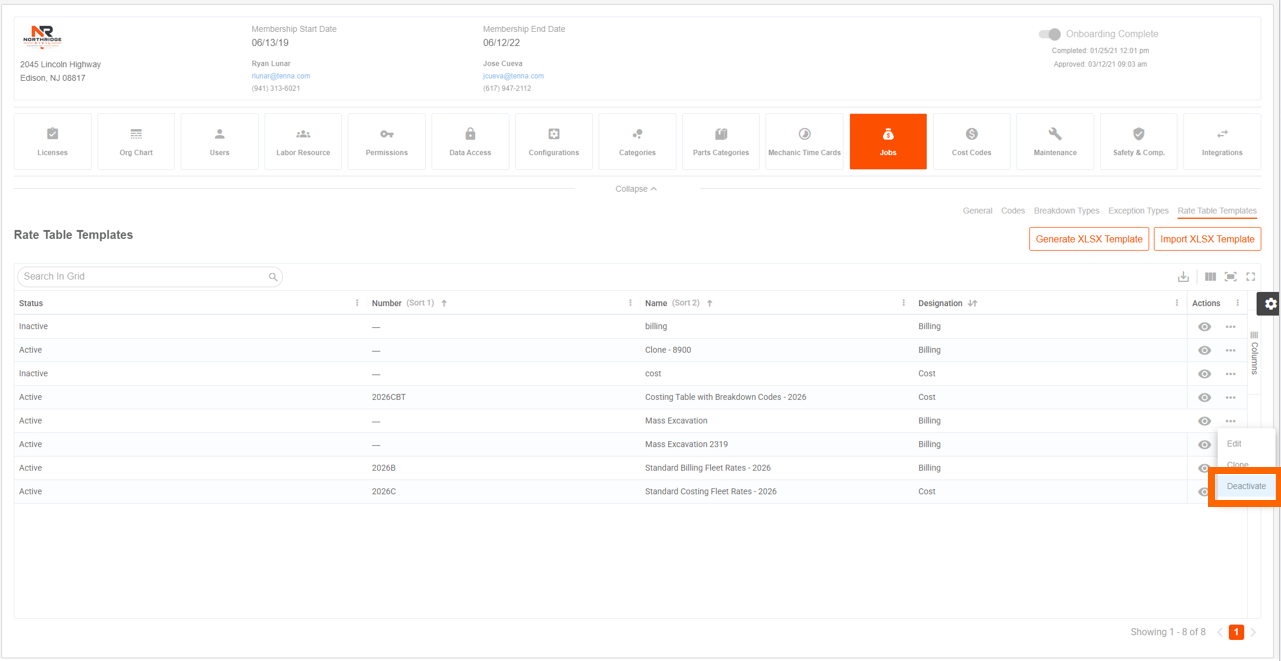
- 3
- Select "Deactivate".
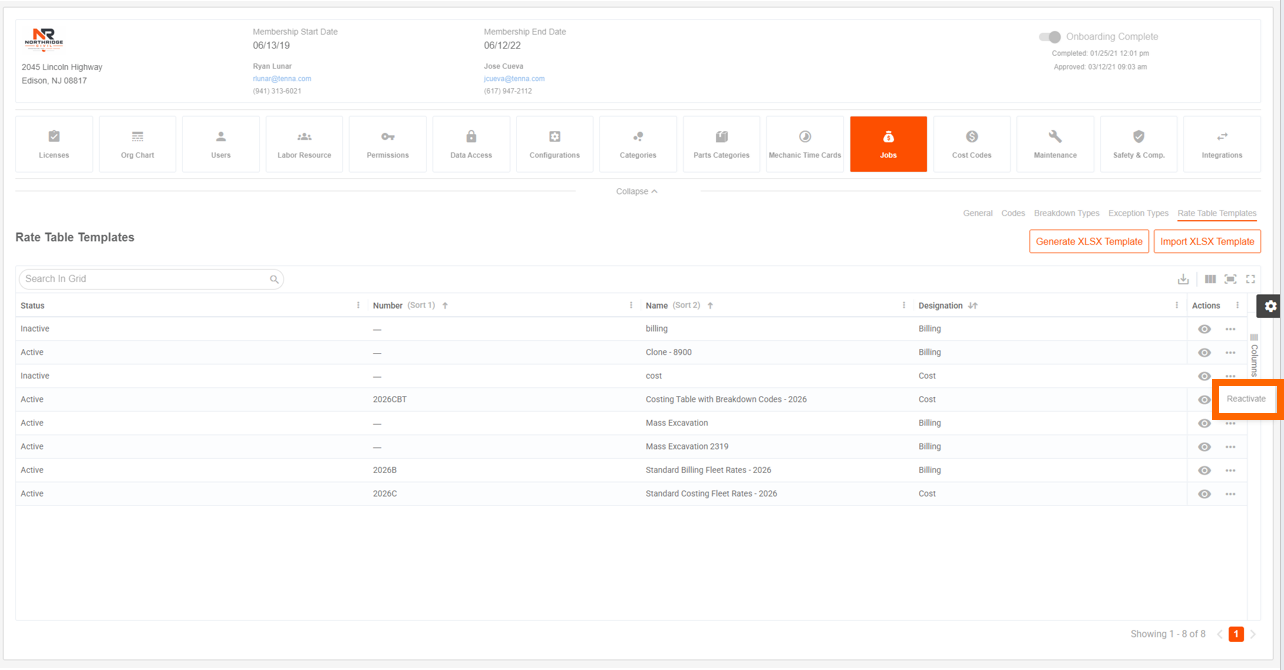
How to Reactivate a Rate Table Template
- 1
- Navigate to "Settings" then click "Jobs".
- 2
- Find the Rate Table Template you'd like to reactivate and click the dotted icon.
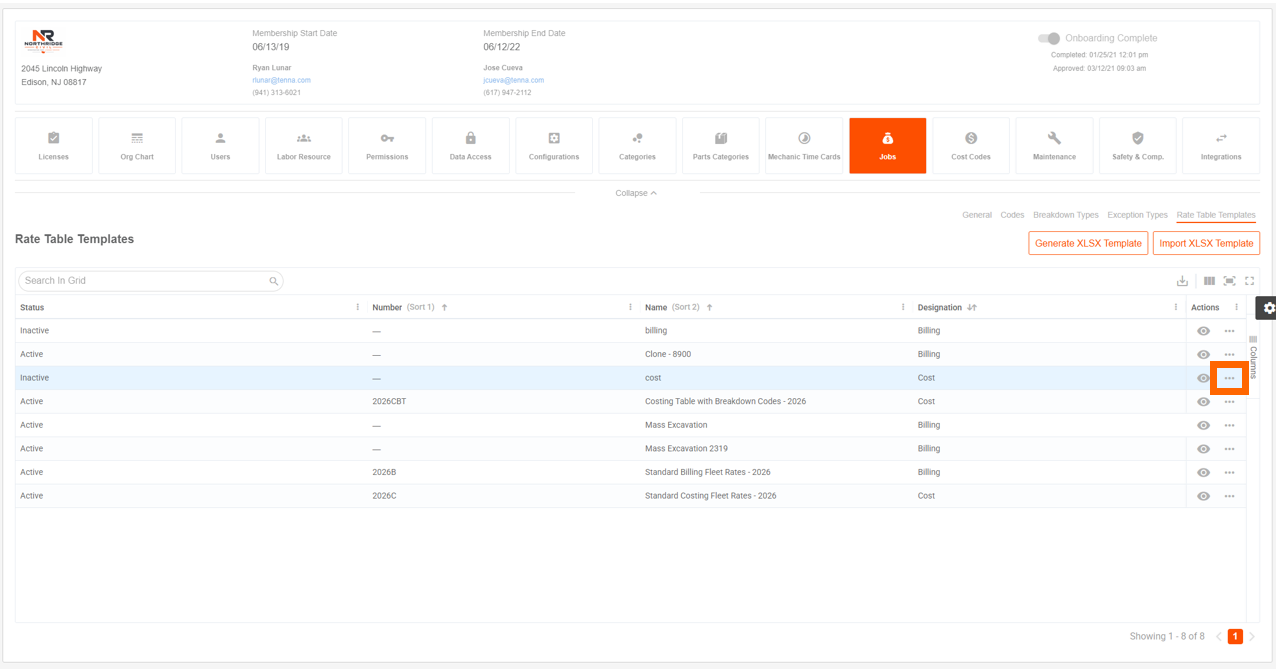
- 3
- Select "Reactivate".
Key Rules
- Viewing requires appropriate permissions for the rate table type (template or job rate table).
- Editing is not available for deactivated rate tables.
- Cloning to a template requires the "Manage Rate Table Templates" permission.
- Template names must be unique.
- Deactivated rate tables do not have the ability to clone.