
How to Bulk Import Jobs (Desktop)
Users may bulk import Jobs to Tenna using a CSV template. This article details how to bulk import Jobs, including best practices and troubleshooting tips.
Permission Requirements: Users with the “Create Jobs” permission enabled can bulk import Jobs.
💥Jobs - Financials is a premium product and requires a separate license. Please contact your Account Manager for more information on premium product licenses or reach out to Customer Support at help@tenna.com or call 888.836.6269.
In this article:
How to Bulk Import Jobs
- 1
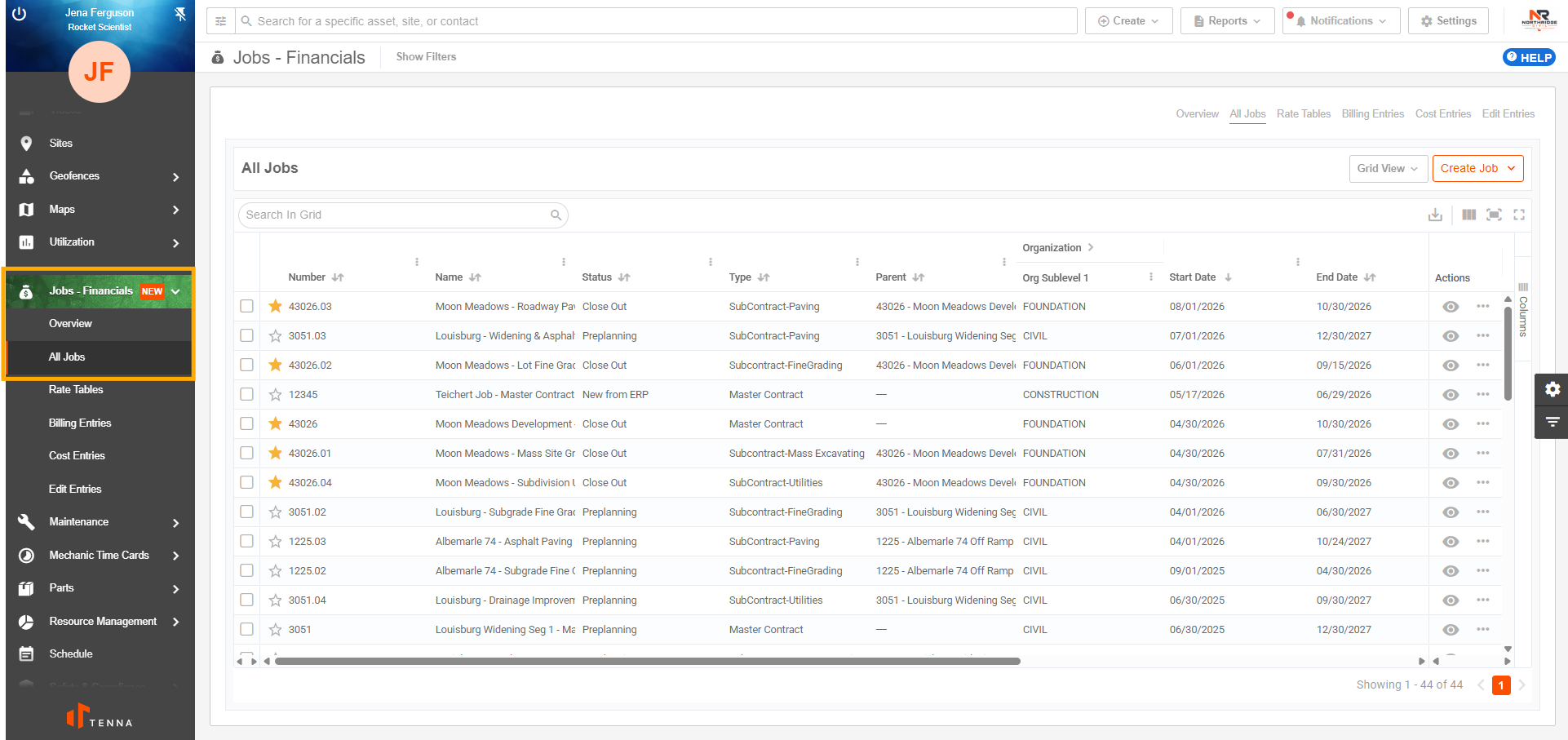
- Click "Jobs - Financials" on the left-side navigation, then click "All Jobs".
- 2
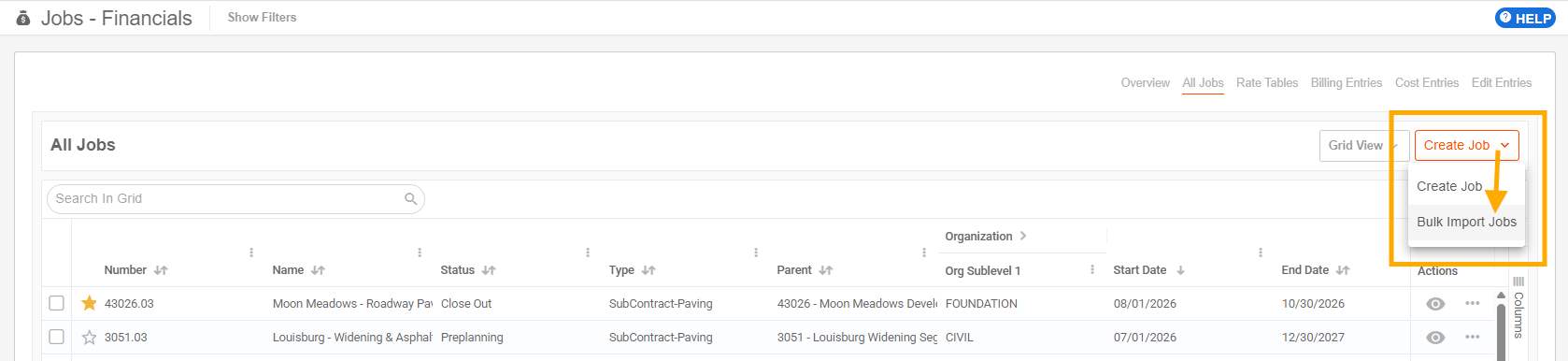
- Click the "Create Jobs" button, then select "Bulk Import Jobs" from the dropdown.
- 3
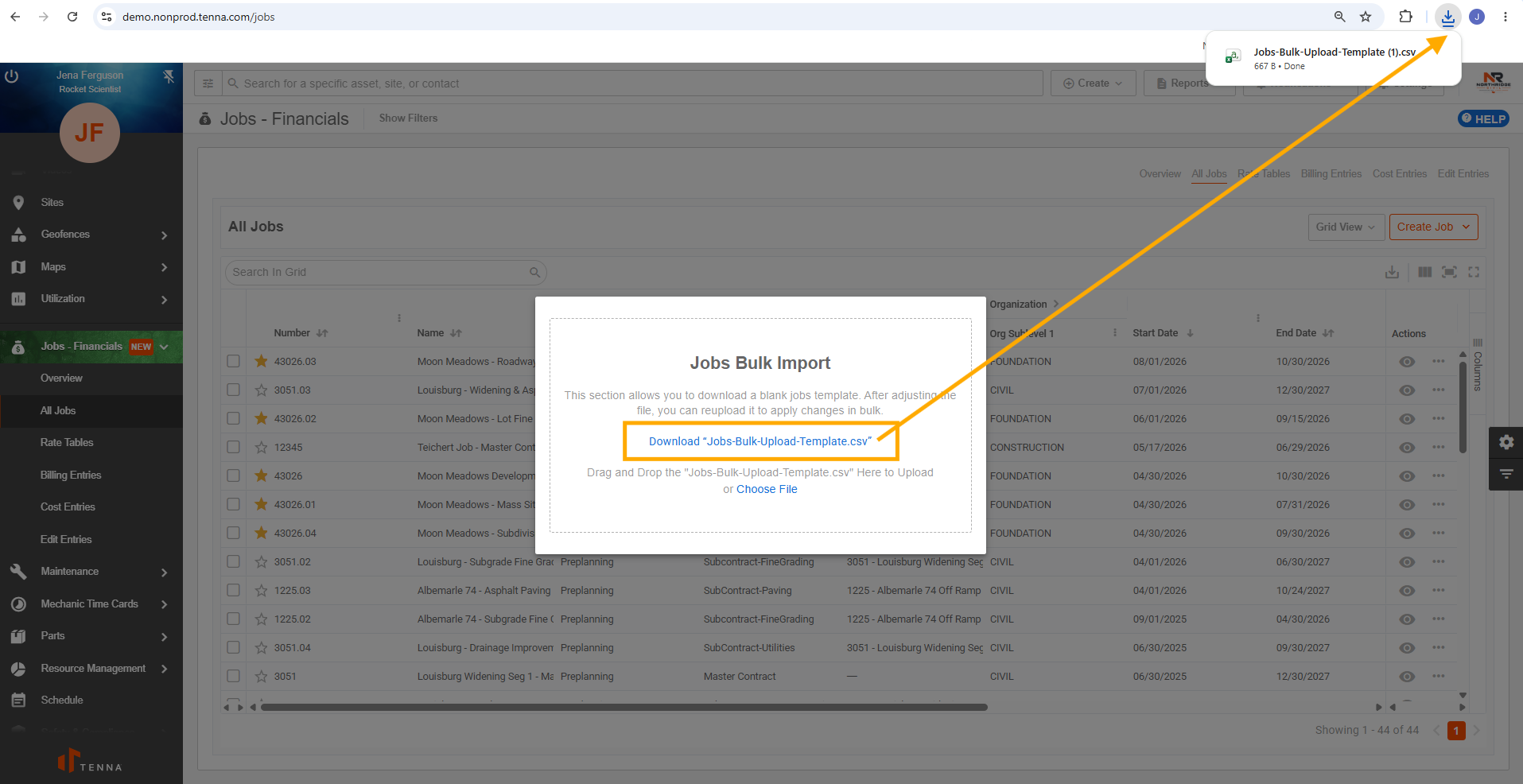
- Click "Download Jobs-Bulk-Upload-Template.csv". Then, open the template from your downloads.
- 4
- Fill in the template with all available Job information.
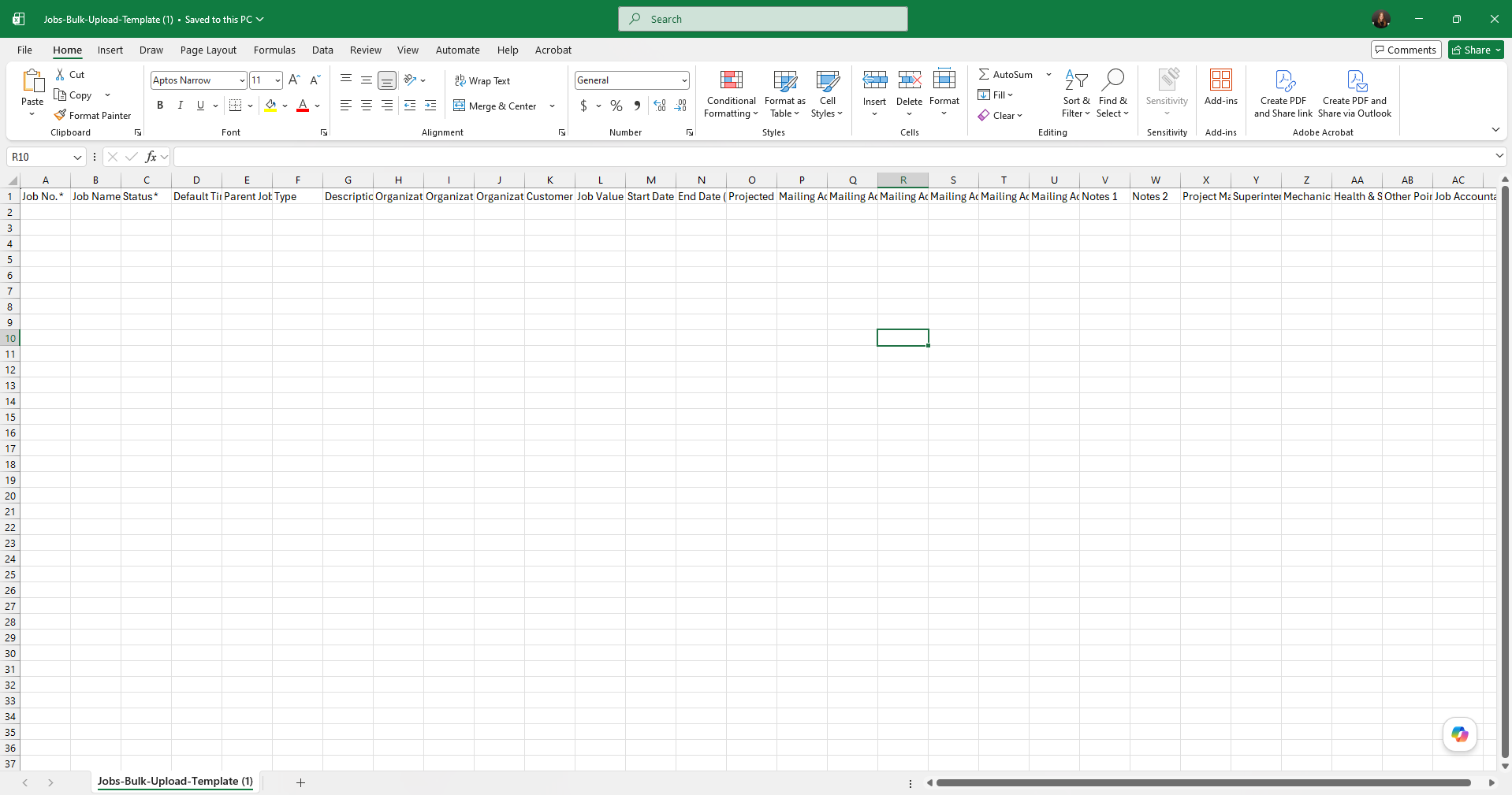
Best Practice: Review the Bulk Import Guide below while filling out the template to ensure data matches the requirements.
- Do not edit or re-order the columns in the template. This will result in an error when you upload.
- When complete, save as a CSV file. Other file types will result in an error.
- Uploaded file max size is 10 MB.
- 5
- Click the Bulk Upload Jobs button again.
Drag and drop your completed template, or click Choose File and select your completed template, to upload.
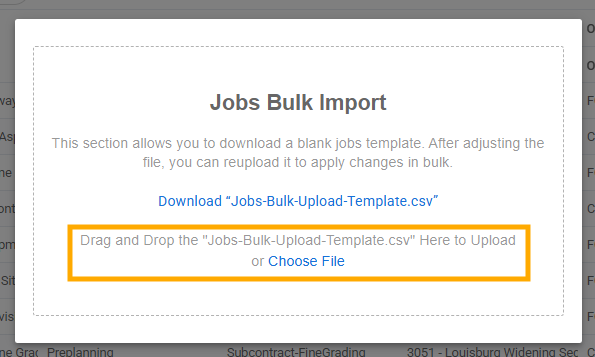
- 6
- The upload may take some time.
You may navigate away from the window while it imports and you will be notified when it is complete.
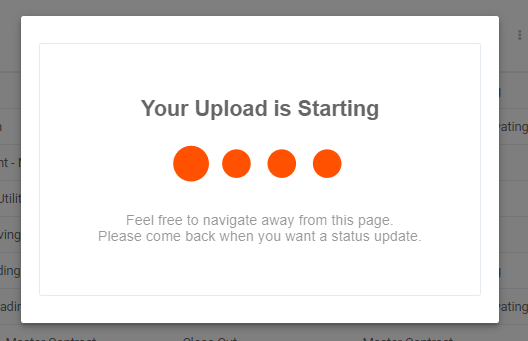
- 7
- Successful uploads will display the number of created Jobs in green.
What do I do if my Jobs import fails?
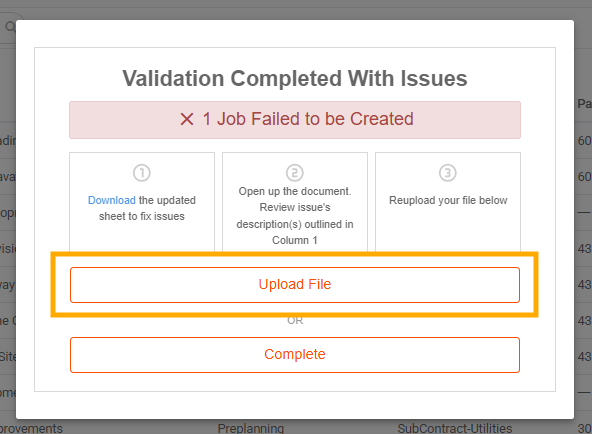
If any Jobs failed in the import, you will see a number of Jobs Failed to be Created in the window.
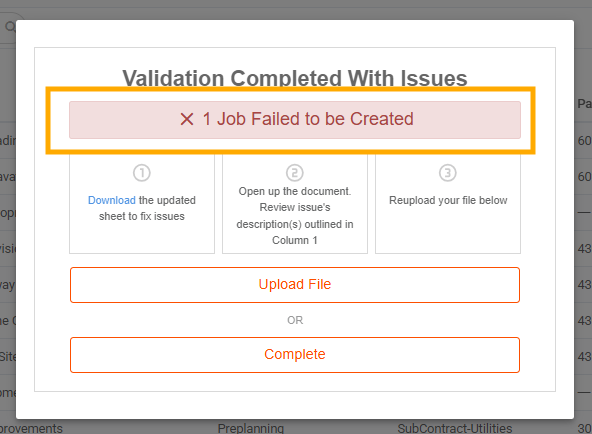
- To move one without fixing the errors, click “Complete”.
- Click “Download” in the first box to download the updated sheet that includes any errors that occurred.
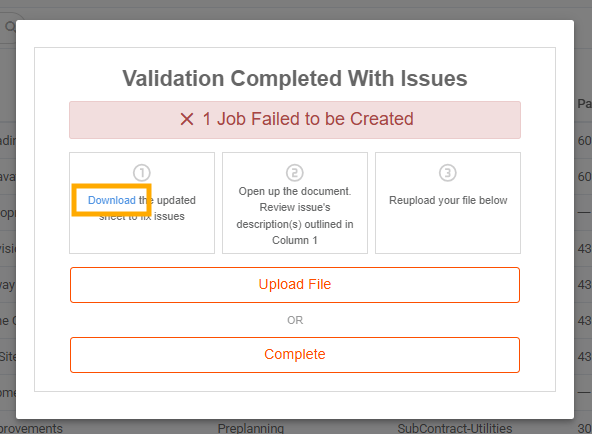
- Errors will show in the first column of the sheet.

- Review the Bulk Import Jobs Guide to review any errors and fix the data. Save the edited template and click “Upload File” to re-upload fixed Jobs.
Bulk Import Jobs Guide
The following guide will assist you in submitting proper data and troubleshooting any errors you may receive during the import process.
- Automation Rules cannot be included in Bulk Import, as this may result in a single geofence being assigned multiple jobs, which is not allowed.
- Billing and Cost Rate Tables (Turn On Billing, Billing Rate Table, Turn On Cost, Cost Rate Table) cannot be included in Bulk Import, as they need to be cloned from a template.
|
Fields (*Required) |
Requirements | Possible Error Messages | Solution |
|---|---|---|---|
| Job No.* |
|
|
Ensure the Job No column is not blank, is unique, and does not exceed 50 characters. |
| Job Name* |
|
|
Ensure the Job Name column is not blank, is unique, and does not exceed 100 characters. |
| Status* | Must match an existing Job Status in Tenna |
|
Review existing Job Statuses and ensure the submission matches. |
| Time Zone* |
Must match exactly one of the following:
|
|
Ensure you entered exactly one of the following:
|
| Parent Job No. | Must match an existing Job Number in Tenna (to be designated as the Parent Job) |
|
Up to 6 levels of jobs Ensure the Job No you entered matches an existing Job No. If you received the “can’t be a parent” error: The chosen Parent Job No is already a level 6 sub-job, so it cannot be a parent. Choose a different Parent Job No (level 1-5). |
| Type | Must match an existing Job Type in Tenna | “Job Type x not found” | Review existing Job Types and ensure the submission matches. |
| Description | Max 500 characters | “Description cannot exceed 500 characters” | Do not exceed 500 characters. |
| Organization Subsidiary | Must match an existing Subsidiary under the below Division and Department. | “ Organization Subsidiary / Division / Department x not found” | The exact category path within the account’s Org Chart must be matched. |
| Organization Division | Must match an existing Division under the below Department. | “ Organization Subsidiary / Division / Department x not found” | The exact category path within the account’s Org Chart must be matched. |
| Organization Department | Must match an existing Department. | “ Organization Subsidiary / Division / Department x not found” | The exact category path within the account’s Org Chart must be matched. |
| Customer (Email) | Must match an existing email for a Tenna User or Contact in your account. | “Customer with the email x does not correspond to any current user or contact within Tenna” | Review existing Users and Contacts to ensure the correct email is entered. |
| Job Value | Must be a dollar amount and entered in the format $x.xx (dollar sign and period included) | “Job Value x is invalid. Enter a dollar amount in the format $x.xx” | Ensure the entered value has the format $xxxx.xx |
| Start Date | Must be formatted mm/dd/yyyy (including slashes) |
“Start Date x is an invalid date” |
Ensure the format is mm/dd/yyyy |
| End Date | Must be formatted mm/dd/yyyy (including slashes) | “End Date x is an invalid date” | Ensure the format is mm/dd/yyyy |
| Projected End Date | Must be formatted mm/dd/yyyy (including slashes) | “Projected End Date x is an invalid date” | Ensure the format is mm/dd/yyyy |
| Notes 1 | Max 500 characters |
|
Do not exceed 500 characters. |
| Notes 2 | Max 500 characters |
|
Do not exceed 500 characters. |
| Project Managers (Email 1, Email 2, etc.) |
Must match an existing email for a Tenna User or Contact in your account. You may add multiple emails with a comma between each. Example: joe@shop.com, greg@jobsite.com, annie@office.com |
“X with the email x does not correspond to any current user or contact within Tenna” | Review existing Users and Contacts to ensure the correct email is entered. |
| Superintendents (Email 1, Email 2, etc.) |
Must match an existing email for a Tenna User or Contact in your account. You may add multiple emails with a comma between each. Example: joe@shop.com, greg@jobsite.com, annie@office.com |
“X with the email x does not correspond to any current user or contact within Tenna” | Review existing Users and Contacts to ensure the correct email is entered. |
| Mechanics (Email 1, Email 2, etc.) |
Must match an existing email for a Tenna User or Contact in your account. You may add multiple emails with a comma between each. Example: joe@shop.com, greg@jobsite.com, annie@office.com |
“X with the email x does not correspond to any current user or contact within Tenna” | Review existing Users and Contacts to ensure the correct email is entered. |
| Health & Safety (Email 1, Email 2, etc.) |
Must match an existing email for a Tenna User or Contact in your account. You may add multiple emails with a comma between each. Example: joe@shop.com, greg@jobsite.com, annie@office.com |
“X with the email x does not correspond to any current user or contact within Tenna” | Review existing Users and Contacts to ensure the correct email is entered. |
| Other Points of Contact (Email 1, Email 2, etc.) |
Must match an existing email for a Tenna User or Contact in your account. You may add multiple emails with a comma between each. Example: joe@shop.com, greg@jobsite.com, annie@office.com |
“X with the email x does not correspond to any current user or contact within Tenna” | Review existing Users and Contacts to ensure the correct email is entered. |
| Job Accountant (Email 1, Email 2, etc.) |
Must match an existing email for a Tenna User or Contact in your account. You may add multiple emails with a comma between each. Example: joe@shop.com, greg@jobsite.com, annie@office.com |
“X with the email x does not correspond to any current user or contact within Tenna” | Review existing Users and Contacts to ensure the correct email is entered. |