How to View or Apply an Asset Exception (Desktop & App)
This article explains how to apply a financial exception to an asset on your desktop and Tenna App. Financial exceptions temporarily override standard billing and costing rates when equipment is in non-standard operational conditions such as breakdown, standby, weather delays, or inter-project transit.
Important! An active exception stays with the asset and continues applying, even if it moves to a different job.
Permission Requirements: Users with the “Apply Asset Exceptions” permission enabled can apply exceptions to an asset.
💥Jobs - Financials is a premium product and requires a separate license. Please contact your Account Manager for more information on premium product licenses or reach out to Customer Support at help@tenna.com or call 888.836.6269.
In this article:
How to Apply an Exception to an Asset (Desktop)
- 1
- Click "Assets" on the left-side navigation menu, then click on an asset.
NOTE: If no Exception Types are configured in Settings > Jobs, there will not be an option to edit Exceptions.
- 2
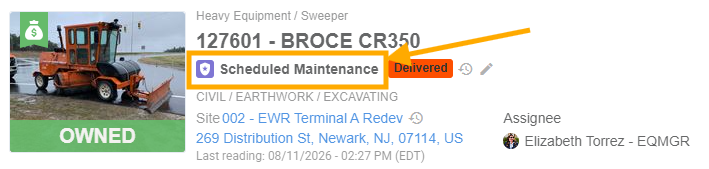
- Click the pencil icon below the Asset Name.

Note: If an exception is already applied to the Asset, it will show below the Asset Name.
- 3
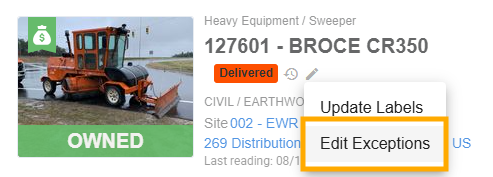
- Click "Edit Exceptions".
- 4
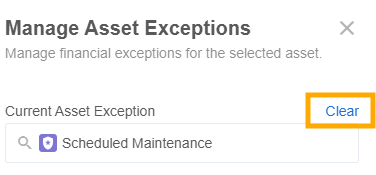
- The Manage Asset Exceptions side panel will open.
To apply a new exception, click “Select Exception” and choose an exception to apply.
NOTE: Only one exception can be applied to an asset at a time.
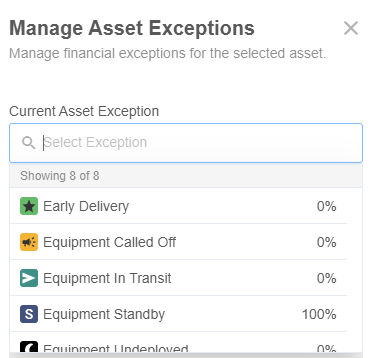
These exception types are configured in Settings > Jobs > Exception Types.
To remove an existing exception from the asset, click “Clear”.
- 5
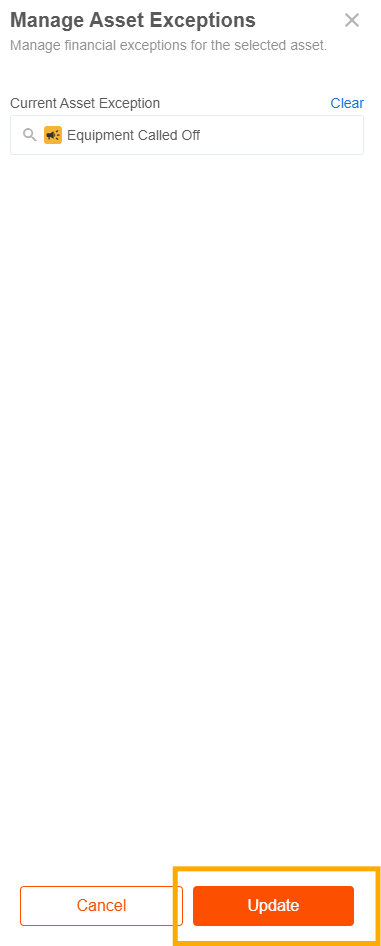
- Click "Update" to complete.
How to Apply an Exception to an Asset (App)
- 1
- Tap the dotted icon to open the More Menu, then tap "Assets".
- 2
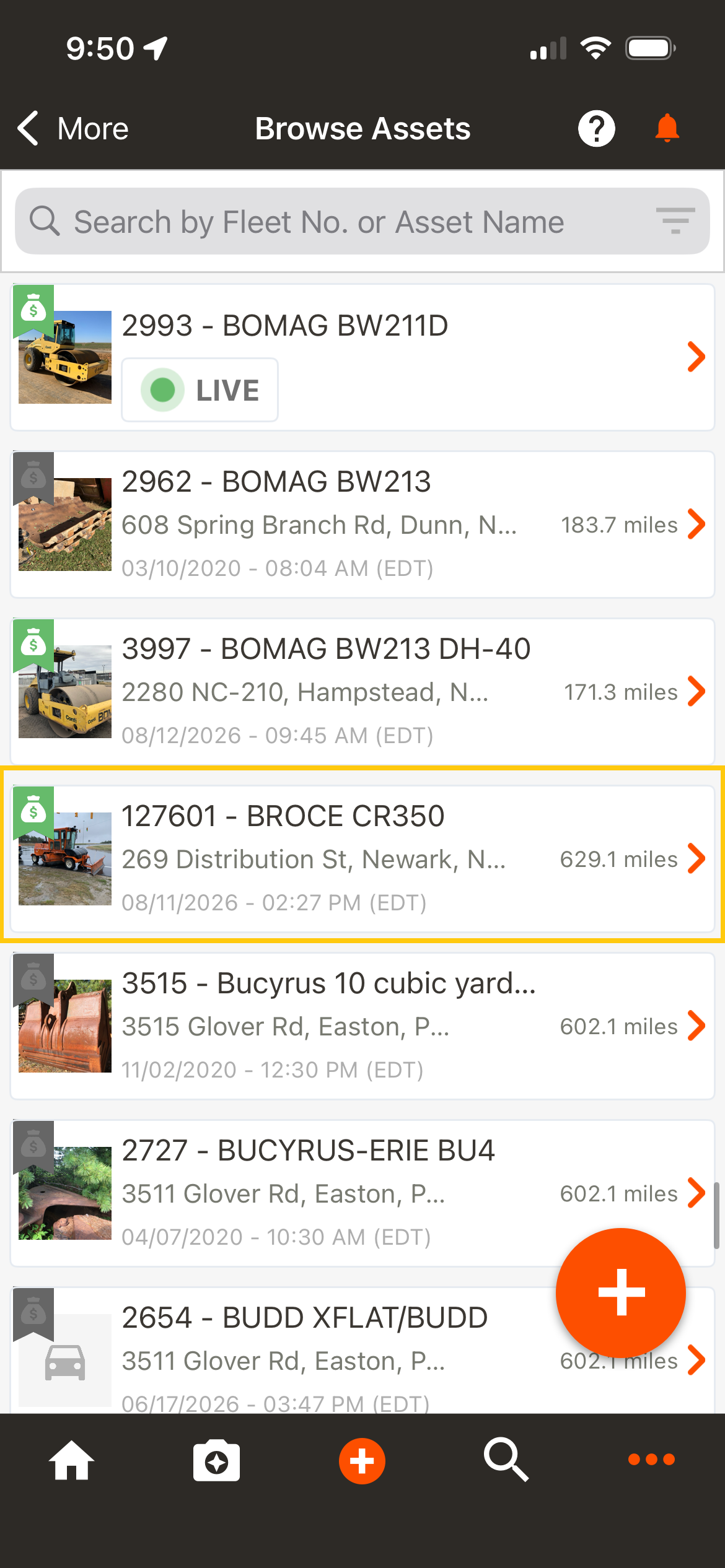
- Tap an asset to open it.
- 3
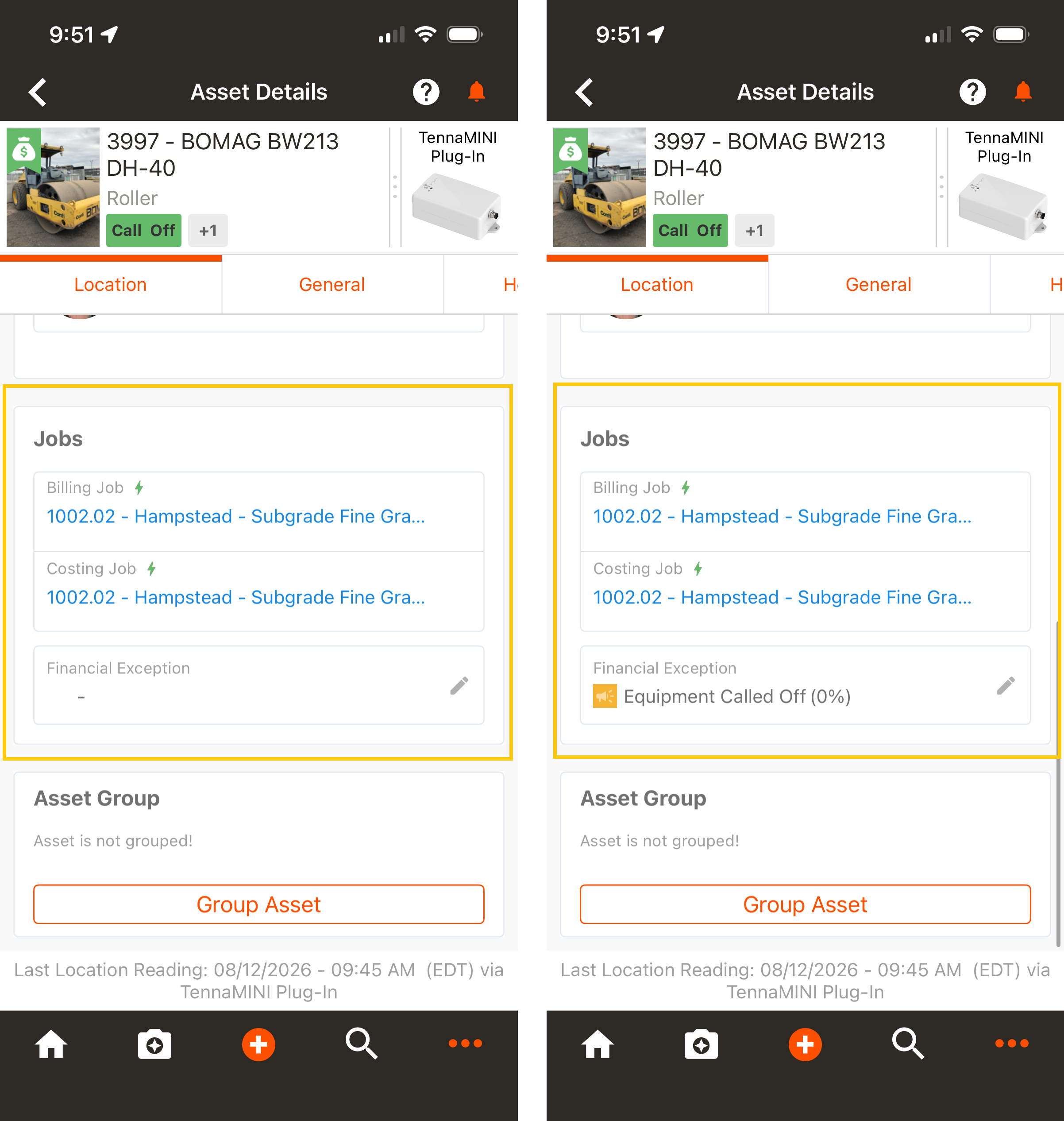
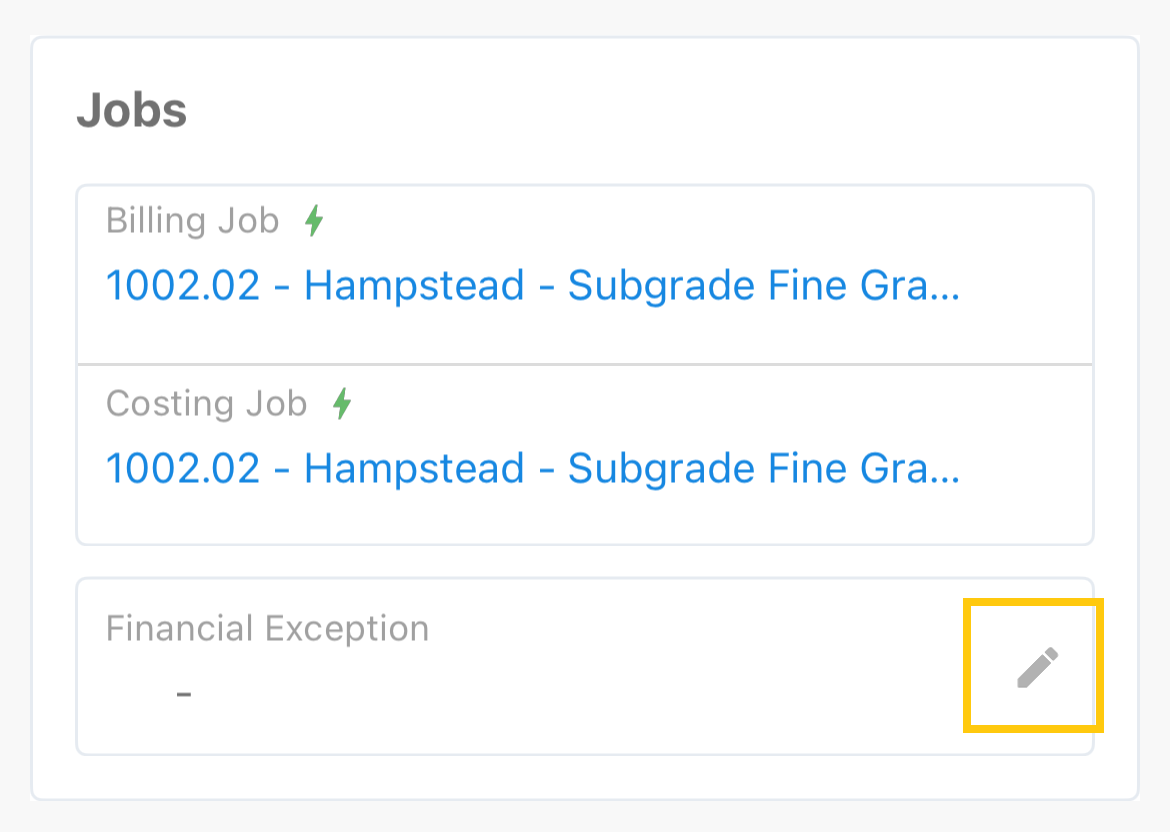
- Scroll down to find "Financial Exceptions" in the Jobs section.
The field will be empty if there is no exception applied to the asset. Any existing applied exception will show in the field.
- 4
- Tap the pencil icon to edit.
- 5
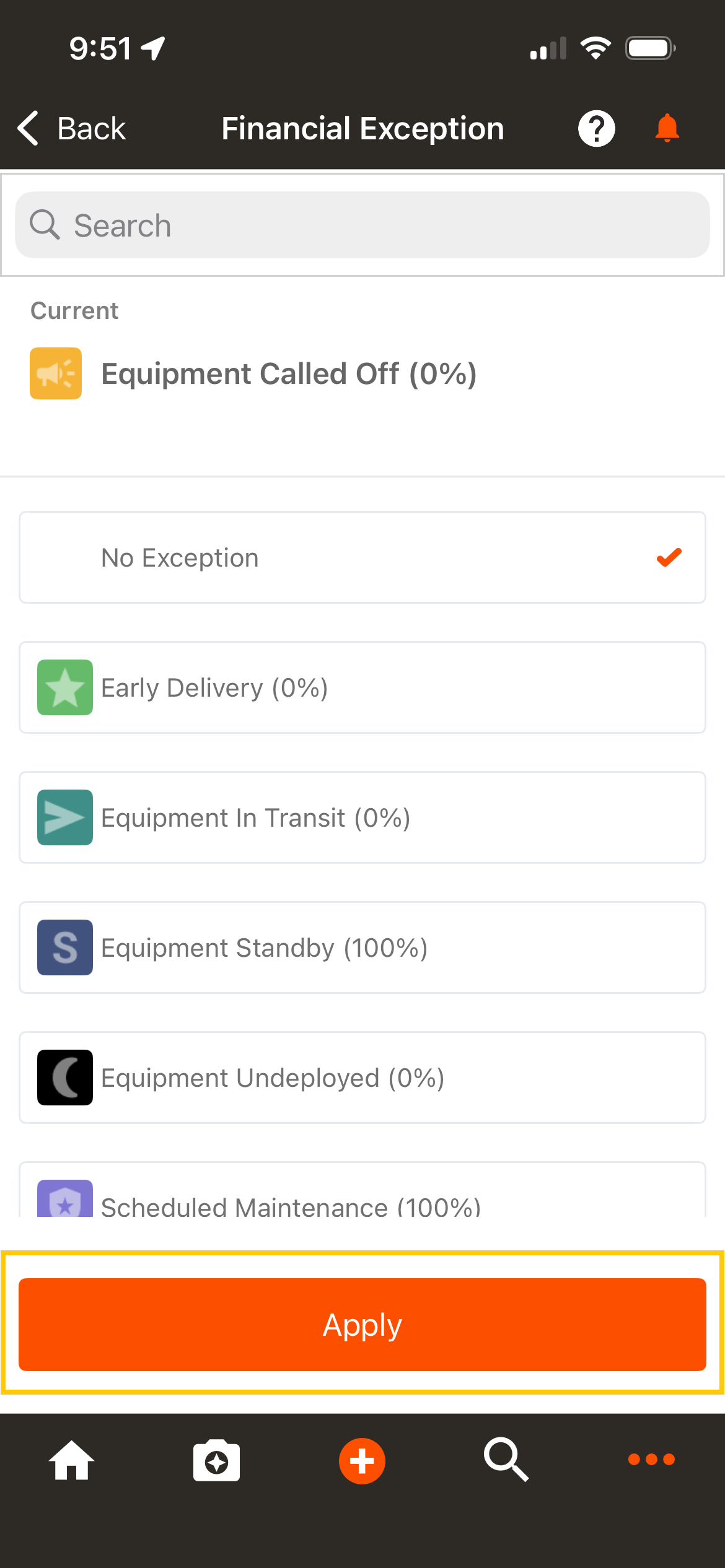
- Select an exception.
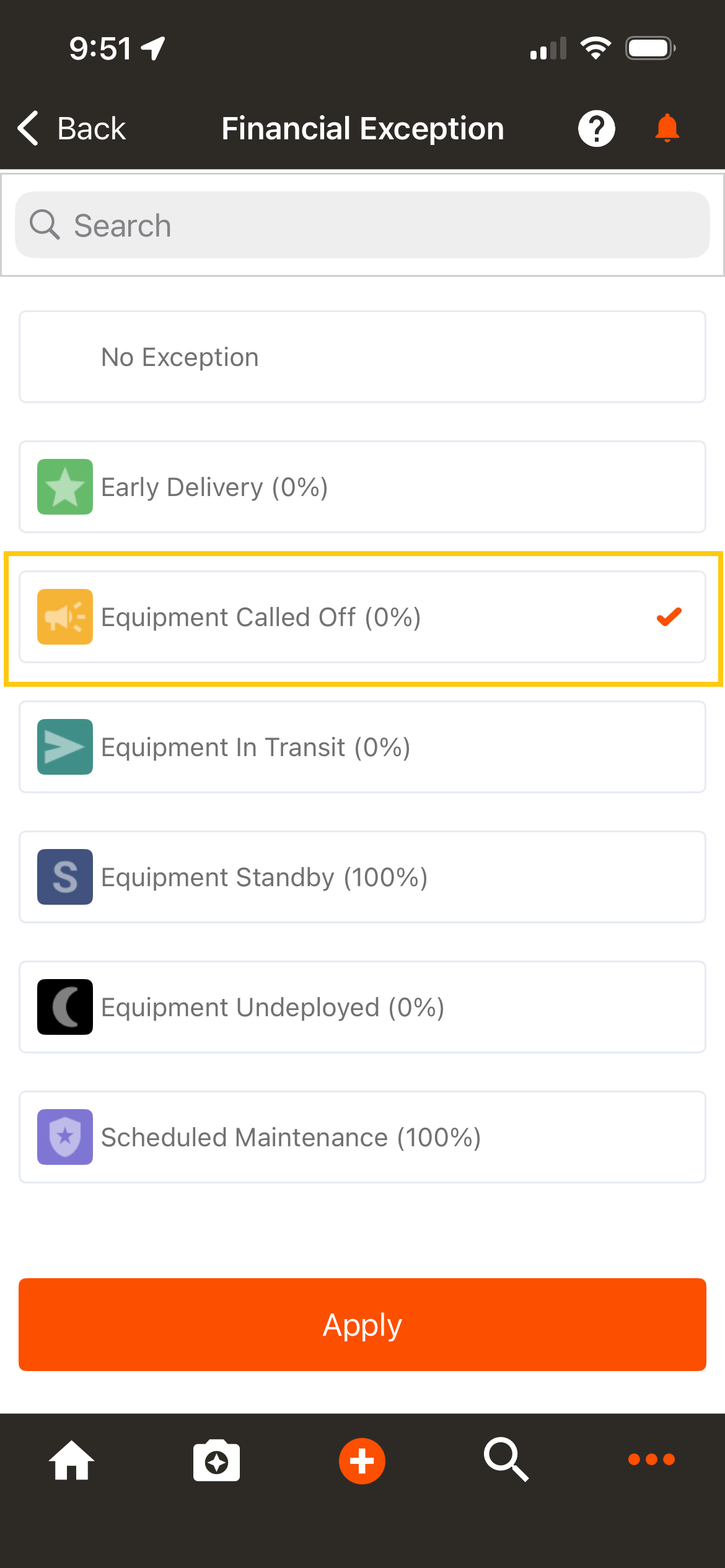
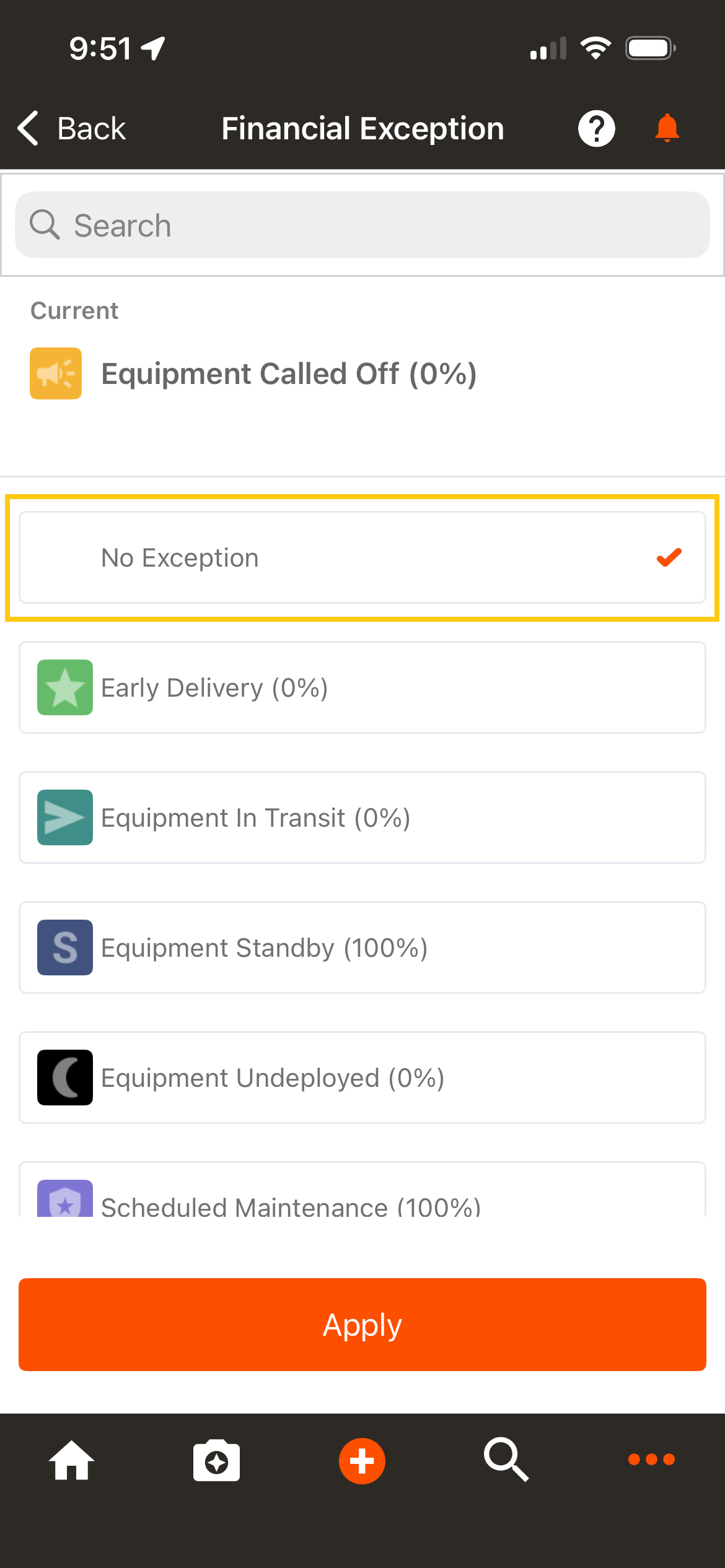
To remove an existing exception, select “No Exception”.
- 6
- Tap "Apply" to complete.