
How to Configure Utilization Rules and Site Utilization Overrides (Desktop)
A utilization rule is a configuration that tells Tenna how to calculate and assign daily “active hours” and expected work hours for assets, so you can measure utilization consistently. Site utilization overrides can be created to override utilization rules when an asset enters a Site.
How to Configure Utilization Rules
Permission Requirements: Users with the "Manage Configurations" permission enabled can configure Utilization Rules.
- 1
- In Tenna, click Settings > Configurations > Utilization.

- 2
- Scroll down to the Utilization Rules section.
- 3
- To create a new rule, click "Add New Rule" at the bottom of the section.

- 4
- Create a name, select a logic, and enter Work Hours Per Day for each Utilization Rule.

- 5
- Click "Save" to save any changes.

- 6
- Click the dotted icon next to a rule to open more actions, like View Categories, View History Log, or Delete.

View Categories: Shows all categories currently assigned this Utilization Rule. This is done in the Category Tree in Settings, not in this utilization configurations.

View History Log: Opens a log of any changes made to the Utilization Rule as well as any new category associations or disassociations.

Delete: Click to delete the rule.
Note: When a Utilization Rule is deleted, any categories that were assigned that rule will default to “No Utilization Rule”.

How to Create Site Utilization Overrides
Permission Requirements: Users with the “Edit Site” permission enabled may create Site Utilization Overrides.
Note: Site Utilization Overrides can only be created in Tenna on your desktop.
A site utilization override is a site‑level setting that overrides the asset category’s chosen utilization rule only for how utilization is calculated for that specific site (Site Utilization).
Instead of a site using the configured work hours per day as set for a particular Utilization Rule, users can “override” those for a particular site.
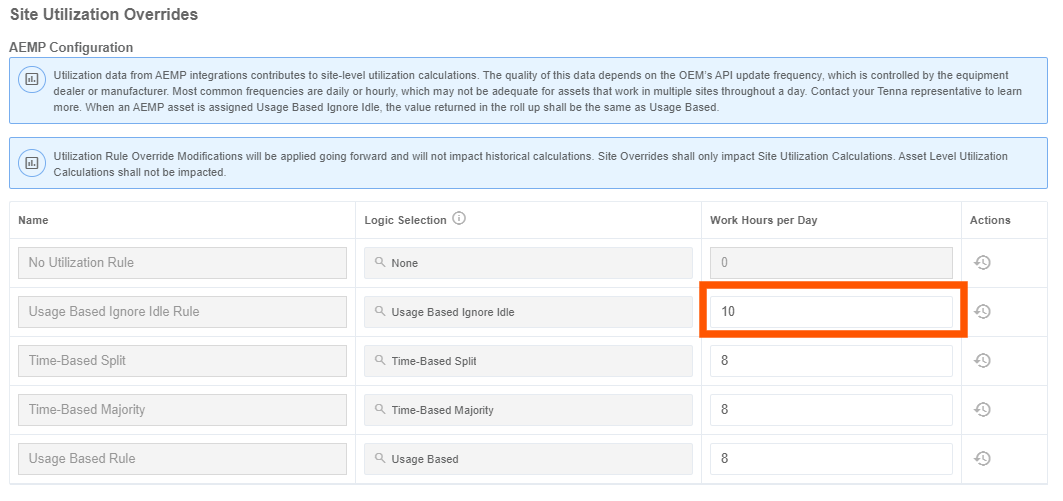
For Example:
Your Utilization Rule 1 is configured as Time-Based Majority with 8 hours/day for production equipment, as most of your Sites work ~8 hours. However, Site X runs 10‑hour days.
- At Site X, you set a site utilization override with work hours per day = 10.
Result:
- Asset Utilization for any machines within that Site’s geofence is still calculated with the default category Utilization Rule.
- Site X utilization % is now based on 10 hours/day instead of 8, so its percentage's better reflect that site’s longer workday.
- All other Sites (without overrides) keep using the 8‑hour expectation.
Site Utilization Overrides are managed when creating or editing a Site.
View How to Create a Site (Desktop) for instructions.
FAQs
Does a site override affect asset utilization?
No. Asset-level utilization remains unchanged. Overrides apply at the site level and do not cascade to individual assets or resources.
When do override changes take effect?
Changes apply starting at midnight the next day in the site’s local time. Plan overrides ahead and spot‑check results after the turnover.
How do overrides interact with category utilization rules?
Site overrides take precedence for the site-level denominator and hours during the effective period. Category-level rules continue to govern categorization and aggregation but use the site’s overridden denominator where applicable.
How do I audit or see where Site Utilization Overrides exist?
Use the Site Override Detail Report to view active and historical overrides by site, including effective periods and configured hours.
Why did my site utilization percentage change unexpectedly?
- An override may have started at midnight, changing the denominator (hours per day).
- Weekend/holiday days were included, setting denominator to zero and affecting averages.
- Category-level rules aggregated differently due to the site’s overridden settings.
Why is there no data after I created an override?
- Overrides take effect starting next-day midnight; check the date range in your report.
- Verify the site has activity and that the override’s effective dates cover your reporting window.
- Confirm you have permission to view the site and associated reports.
How to Apply Utilization Rules to Categories
Permission Requirements: Users with the "Manage Categories" permission can apply Utilization Rules to categories.
Note: Changes take effect after the next daily snapshot at midnight in your account time zone.
- 1
- Click Settings > Categories.

- 2
- Click the pencil icon next to a Major Category to edit.

- 3
- Click the utilization rule to select the Utilization Rule you would like to apply to this Major Category. Click "Update".

- 4
- If you would like to apply the utilization rule to all sub-categories below the Major Category, click the checkbox on the bottom left of the pop-up. Click "Yes" to complete.

Important notes about applying Utilization Rules to a Category:
- If you do NOT want to track utilization for a category, select the “No Utilization Rule” option.
- The chosen Utilization Rule will be inherited by any Sub-Categories under the Major Category, unless you go into the individual sub-categories and override by selecting a different utilization rule.
- Sub-Categories with an inherited Utilization Rule will display this icon:

- The Utilization Rules are configured in the Settings>Configurations>Utilization page. Only configured Utilization Rules can be chosen here to apply to a category.
- If an asset hasn't ever had a verified tracker, its association rule shall remain "No Utilization Rule" regardless of the category to rule association.
- 5
- To override an inherited Utilization Rule for a sub-category, select the parent category. Then, click the pencil icon next to the sub-category to edit.

- 6
- Select a different utilization rule in the drop-down, then click "Update".

Note: You will see the inheritance icon disappear when you have chosen a different Utilization Rule from the parent category.
Pro Tip! Spot-check a few representative assets and sites the next day. Confirm the rule shows as Direct or Inherited as intended, expected hours are correct, and utilization appears in Site and Asset reports. Look for “Rule Name” and “Logic” columns in utilization reports.