All Jobs Overview (Desktop)
The All Jobs page is your central hub for viewing, managing, and taking action on every job across your organization. It displays all jobs your permissions allow you to access in a powerful, sortable grid.
Permission Requirements:
- Users with the “View Jobs” permission enabled can access the All Jobs page.
- Users require additional permissions in order to carry out actions on this page (Create, Edit, Delete).
💥Jobs - Financials is a premium product and requires a separate license. Please contact your Account Manager for more information on premium product licenses or reach out to Customer Support at help@tenna.com or call 888.836.6269.
In this article:
How to View All Jobs
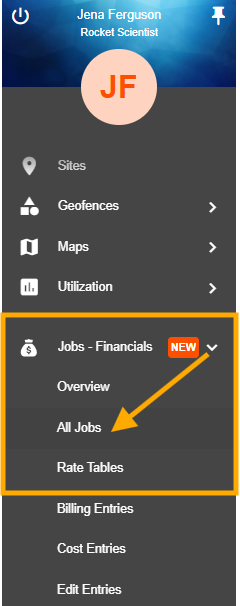
The All Jobs page can be accessed in two ways:
- 1
- Click the arrow next to "Jobs - Financials" then "All Jobs" in the left-side navigation menu.
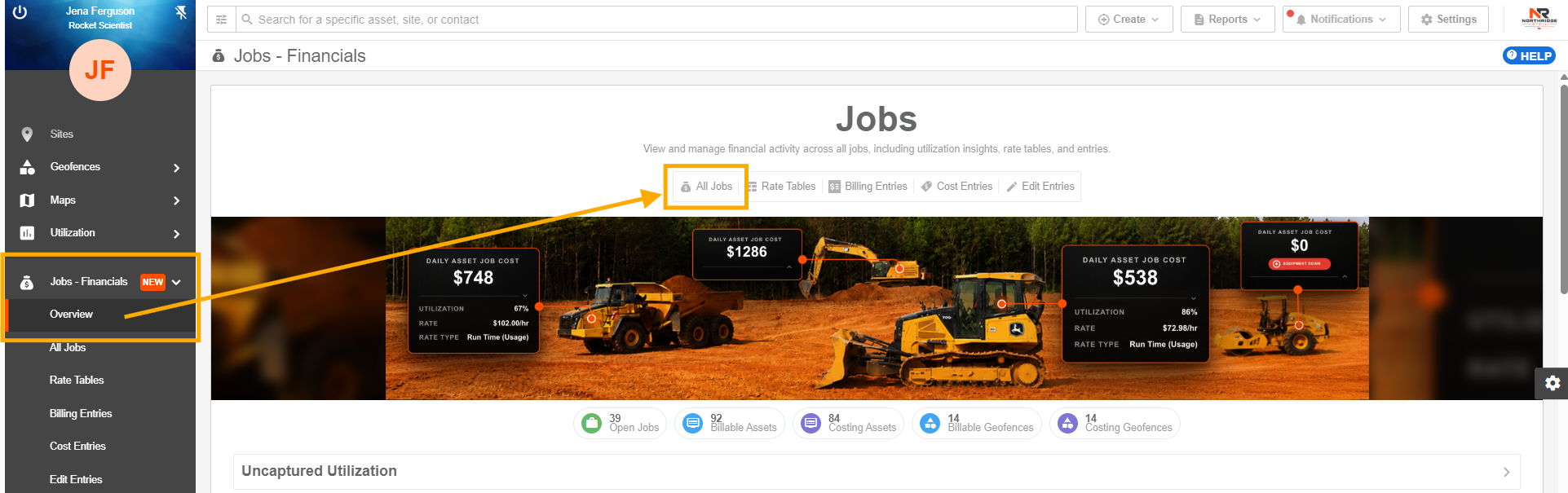
- 2
- From the "Jobs Overview" Dashboard, click All Jobs"
All Jobs Data Overview
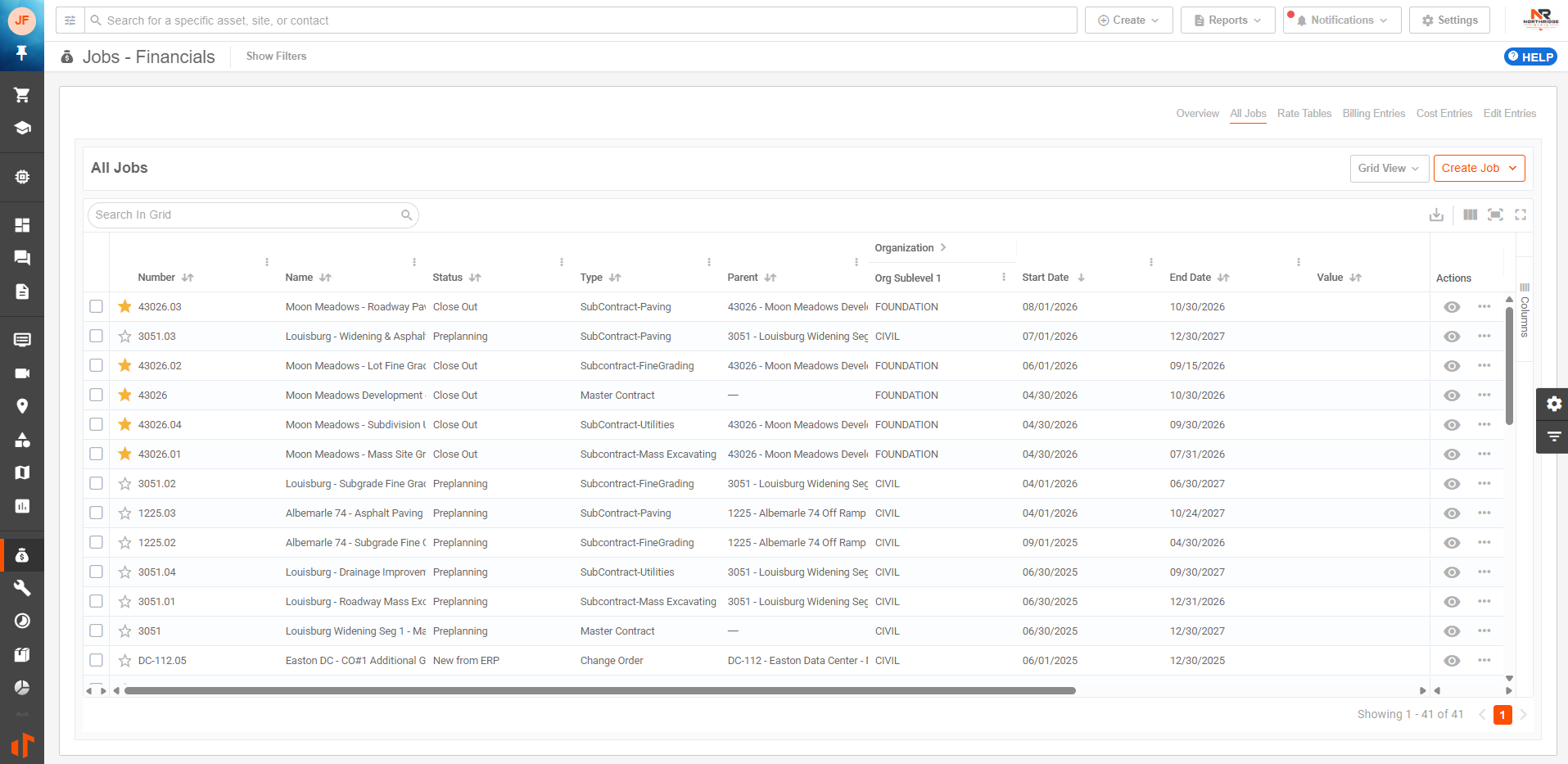
The following information about Jobs can be found in the All Jobs page:
- Job Number: Alphanumeric number for the Job entered by the user when created or by ERP via integration.
- Job Name: Name for the Job entered by the user when created or by ERP via integration.
- Job Status: Selected Job Status as created in Settings > Jobs. These statuses are either Open or Inactive.
Note: Jobs with an Inactive Status cannot be selected under geofences for automation.
- Job Type: Selected Job Type as created in Settings > Jobs.
- Parent Job (if applicable): If the Job is a child job
- Organization: Name of organization from the account’s Org Chart (subsidiary, division, department) assigned to the Job.
Note: If a Parent Job is selected when the Job is created, the Organization may auto-populate from the Parent Job. User may override.
- Job Start and End Dates: The planned start and end dates of the job (the target date). This is usually set in the baseline schedule or contract.
Note: If a Parent Job is selected when the Job is created, the Start and End Dates may auto-populate from the Parent Job. User may override.
- Projected End Date: The completion date the job is currently expected to achieve based on actual progress, delays, productivity, and current forecasts.
- Job Value ($)
- Time Zone: The Job’s time zone.
- Automation Rules
- Billing Geofences: The number of geofences assigned to the job for billing.
- Costing Geofences: The number of geofences assigned to the job for costing.
Note:
Billing Geofences will only show if the account has “Show Billing” enabled.
Costing Geofences will only show if the account has “Show Costing” enabled.
- Rate Tables
- Billing: (Yes or No) If the Job has a Billing Rate Table applied.
- Billing Rate Table: Name of the applied Billing Rate Table.
- Costing: (Yes or No) If the Job has a Costing Rate Table applied.
- Costing Rate Table: Name of the applied Costing Rate Table.
- Customer Information: Assigned Customer Name (Tenna User, Contact or Company) and Mailing Address
Note: If a Parent Job is selected when the Job is created, the Customer Information may auto-populate from the Parent Job. User may override.
- Points of Contact: Chosen POCs of the Job (Tenna Users or Contacts) that include Project Managers, Superintendents, Job Accountants, Mechanics, Health & Safety, and other contacts assigned to the job.
Note: If a Parent Job is selected when the Job is created, the Points of Contact may auto-populate from the Parent Job. User may override.
- Description: Description of the Job, as entered by the user when Job was created.
- Notes: Shows any notes that were added to the Job.
All Jobs Views and Actions
To swap between available views, click the drop-down next to “Create Job” and select one of the views.
Pro Tip! Click the “pin” icon next to the view you prefer to have that view open by default.
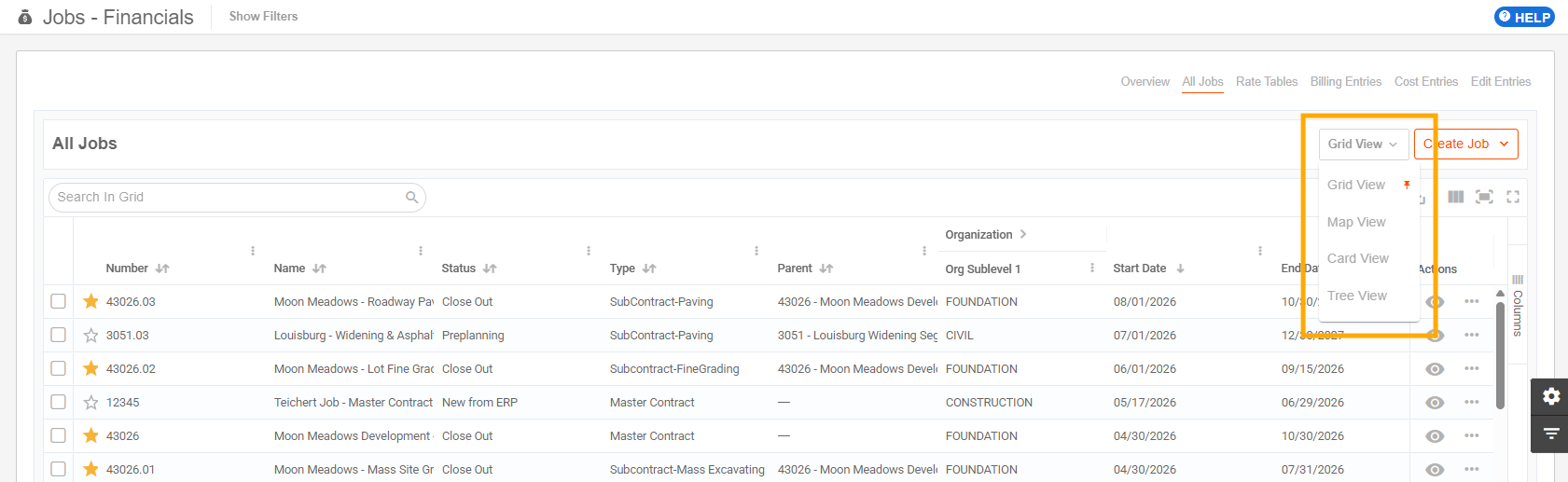
Grid View
Grid View contains all information about all Jobs - and can be searched, filtered, and exported.
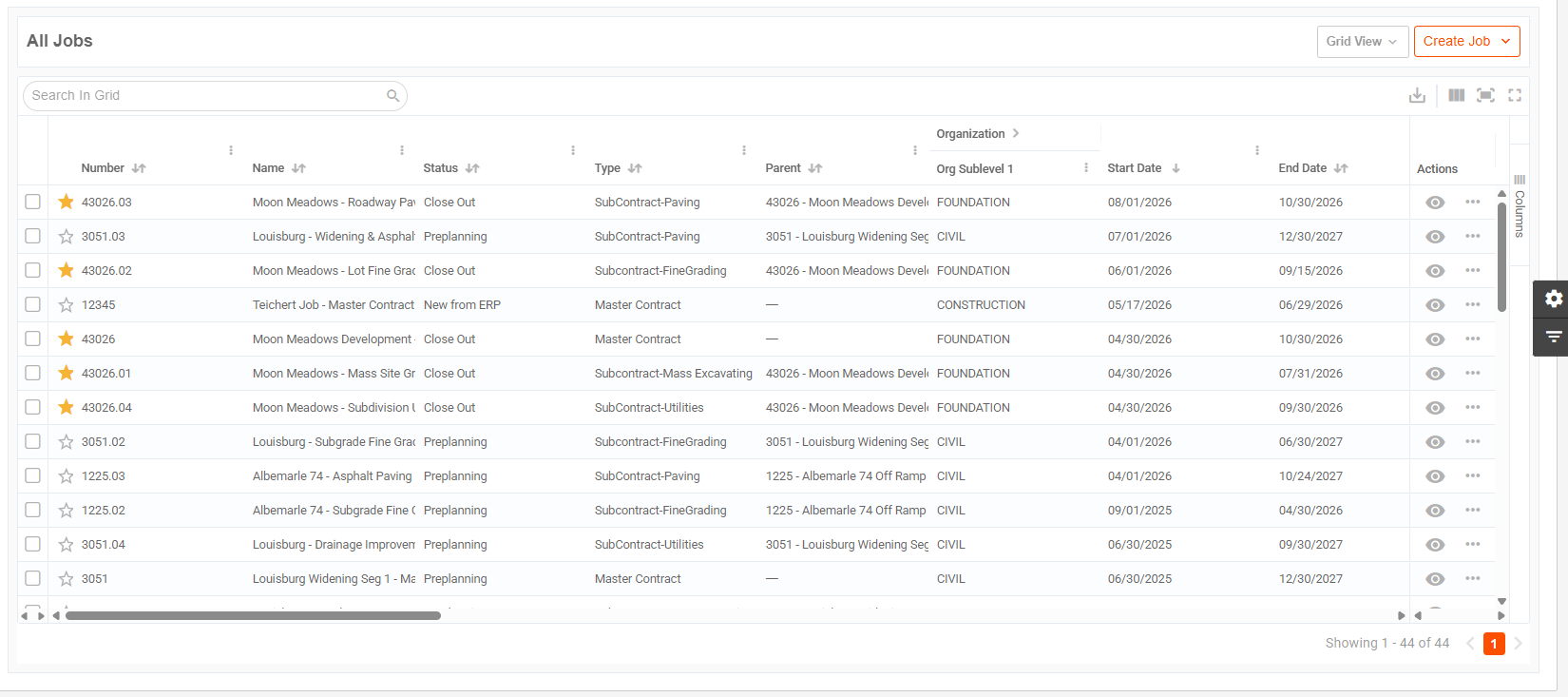
Grid View Actions
- Bulk Actions: Click the checkbox next to each job to open the Bulk Actions menu.
- Modify Type
- Modify Status
- Delete
- Mark or Remove as Favorite

- Favorite: Click the star icon to “Favorite” a Job.

Pro Tip! The grid can be filtered to show only Favorited jobs.
- View Job Details: Click the eye icon to open the Job Details Page.
- Other Actions: Click the dotted icon to open other Job actions: Edit, Clone, Create Job, and Delete.
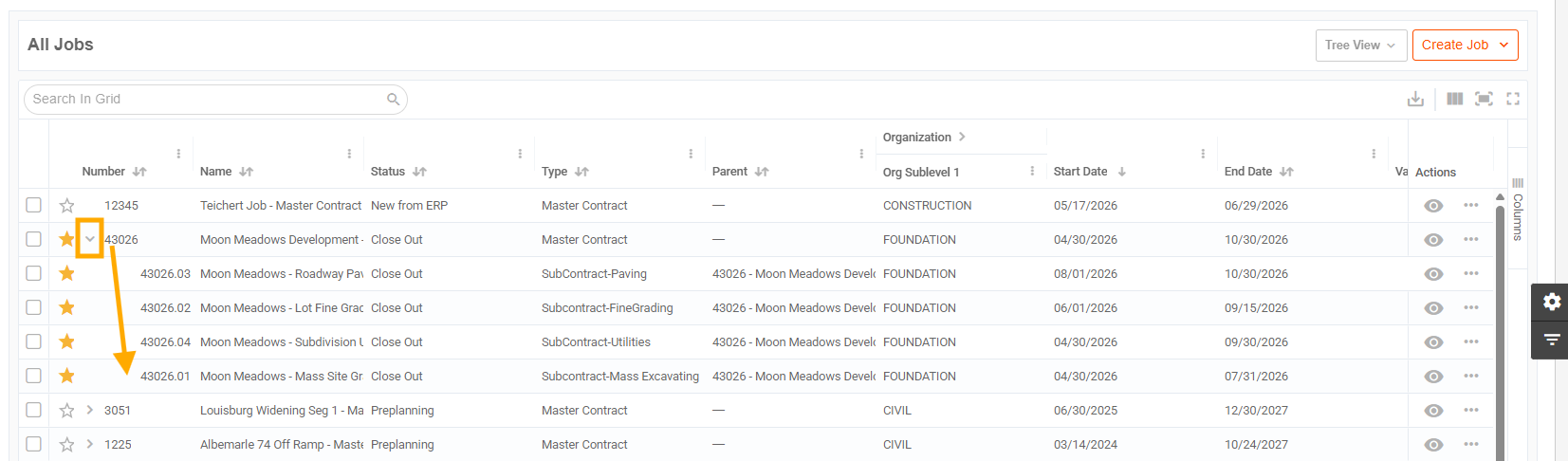
Tree View
Tree View is a grid view that groups Parent Jobs with all child Jobs. It has all of the same functionality as the Grid View.
Click on the arrow next to a parent job to open or collapse the Parent and Child jobs.
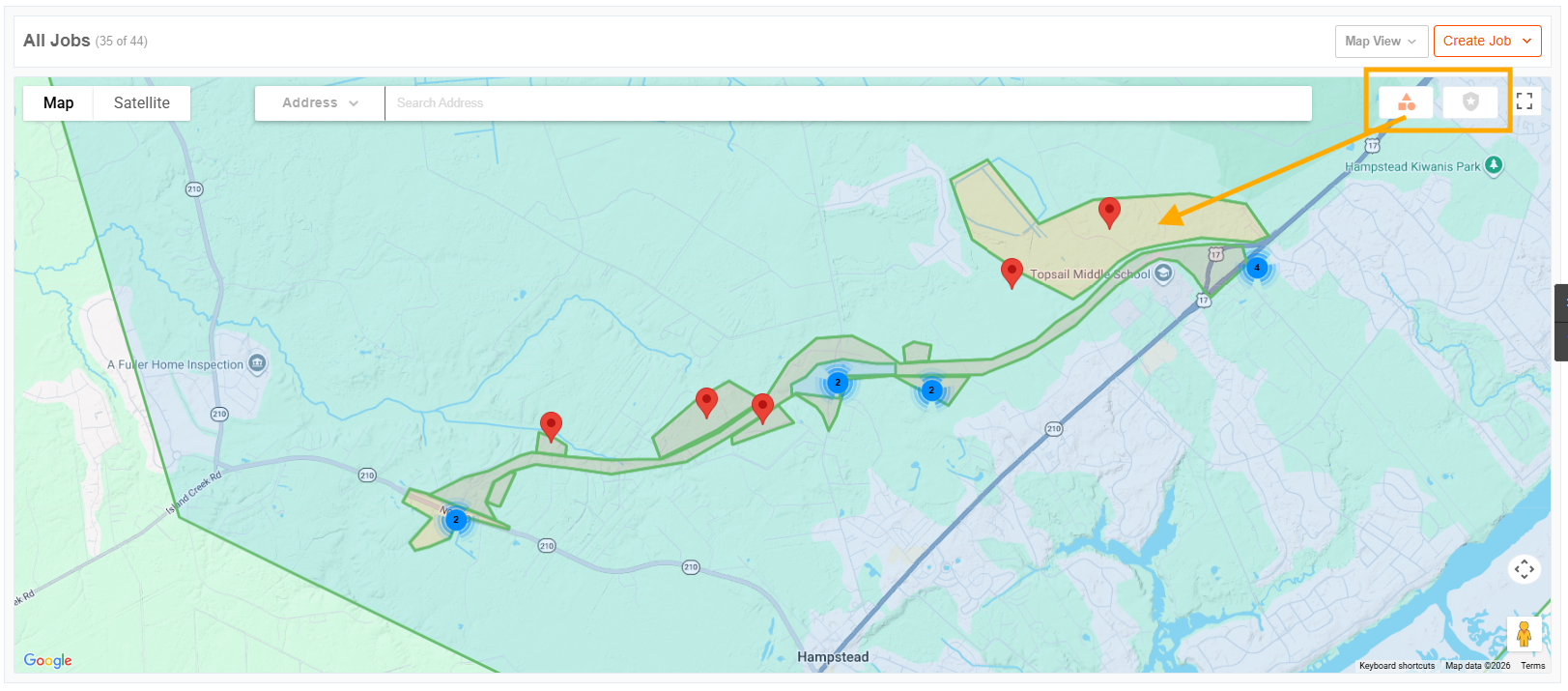
Map View
Map View allows users to see and search for Jobs geographically.
Note: Only Jobs with a submitted Mailing Address will populate in this Map View.
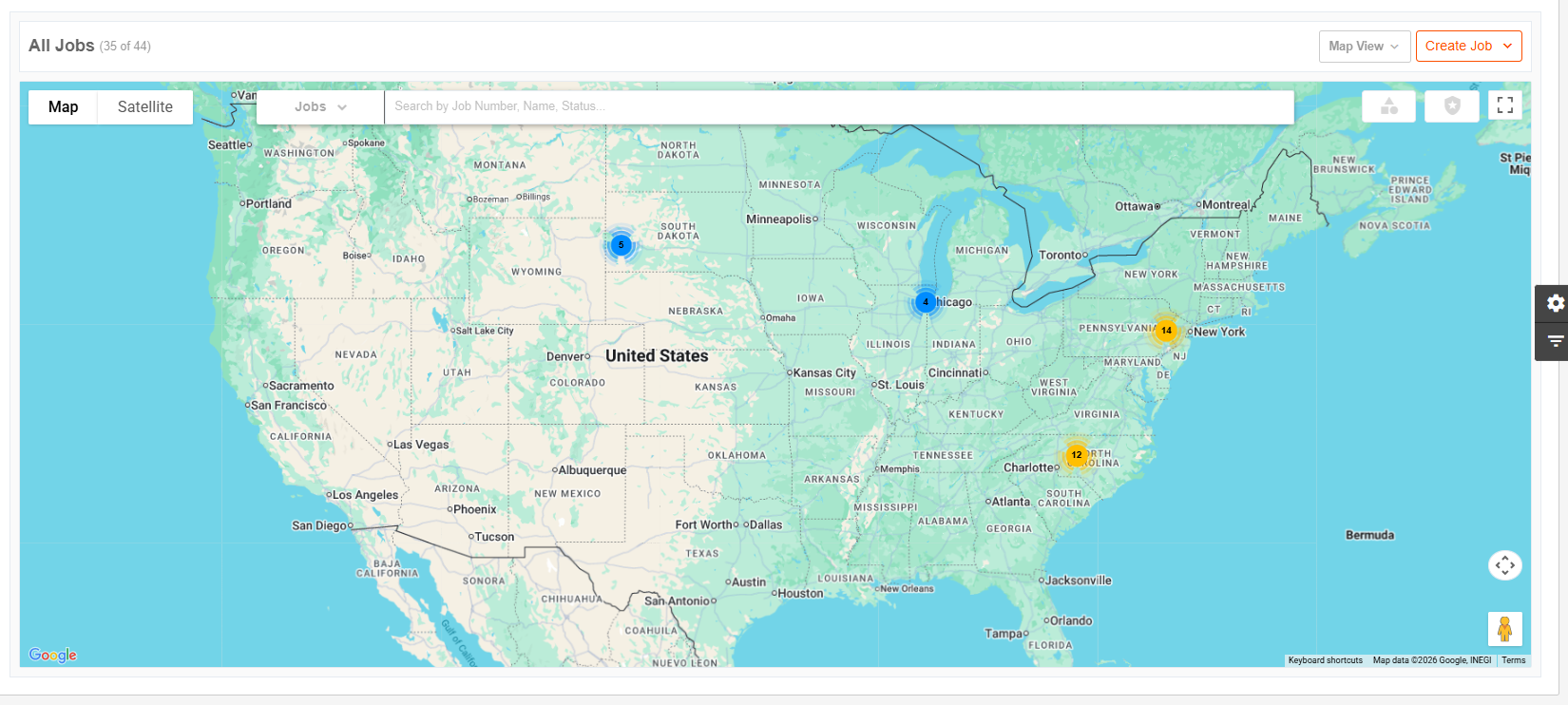
Map View Actions
- Search: Click the dropdown next to the search bar to choose to search by Job (Job Name, Job Number, Job Status) or Address

- Show/Hide Geofences or Security Perimeters: Click the buttons at the top-right corner of the map to show or hide Geofences and Security Perimeters.
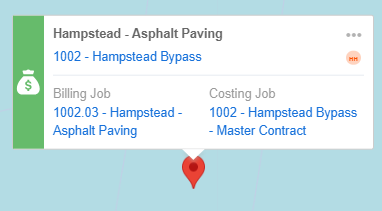
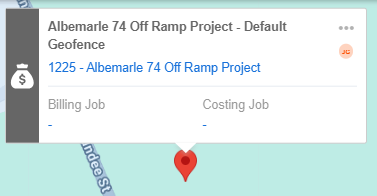
- View Geofence Details: Hover over a point on the map to open the Geofence details.
- Geofence Name
- Site Number and Name
- Site Assignee
- Billing Job
- Costing Job
Pro Tip! The colors on the left side of the Geofence details card will show if the Geofence is assigned to Billing & Costing (Green), Billing Only (Blue), Costing Only (Purple), or None (Gray).
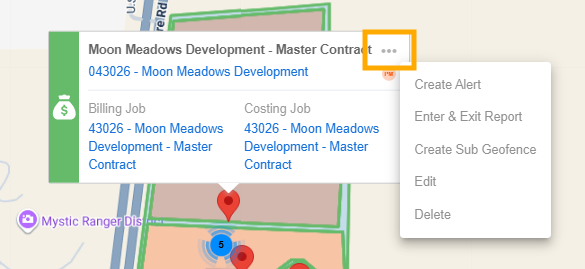
- Geofence Actions: Click the dotted icon on the top right of the Geofence details card to open actions:
- Create Alert
- Enter/Exit Report
- Create Sub Geofence
- Edit Geofence
- Delete Geofence
- View Job Details: Hover over a dollar sign icon to open the Job Details card.
- Job Number
- Job Name
- Job Type
- Job Organization
- Job Status
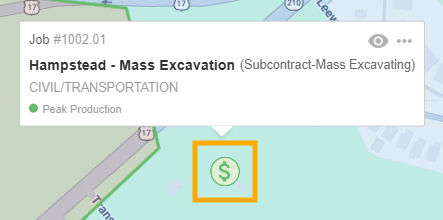
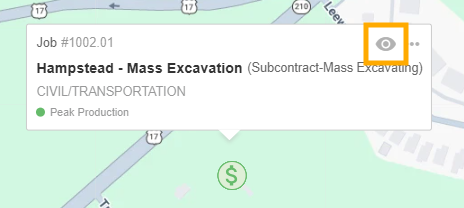
- Click on the eye icon on the Job Details card to view the Job Details page.
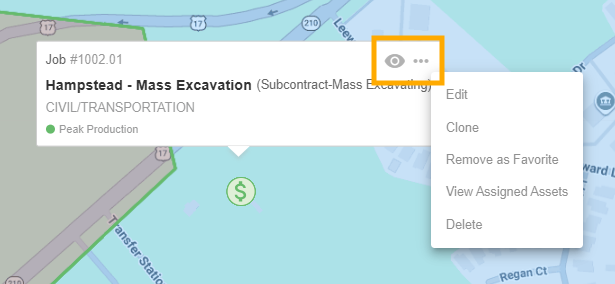
- Job Actions: Click the dotted icon to open additional Job actions:
- Edit Job
- Clone Job
- Mark/Remove as Favorite
- View Assigned Assets
- Delete Job
Card View
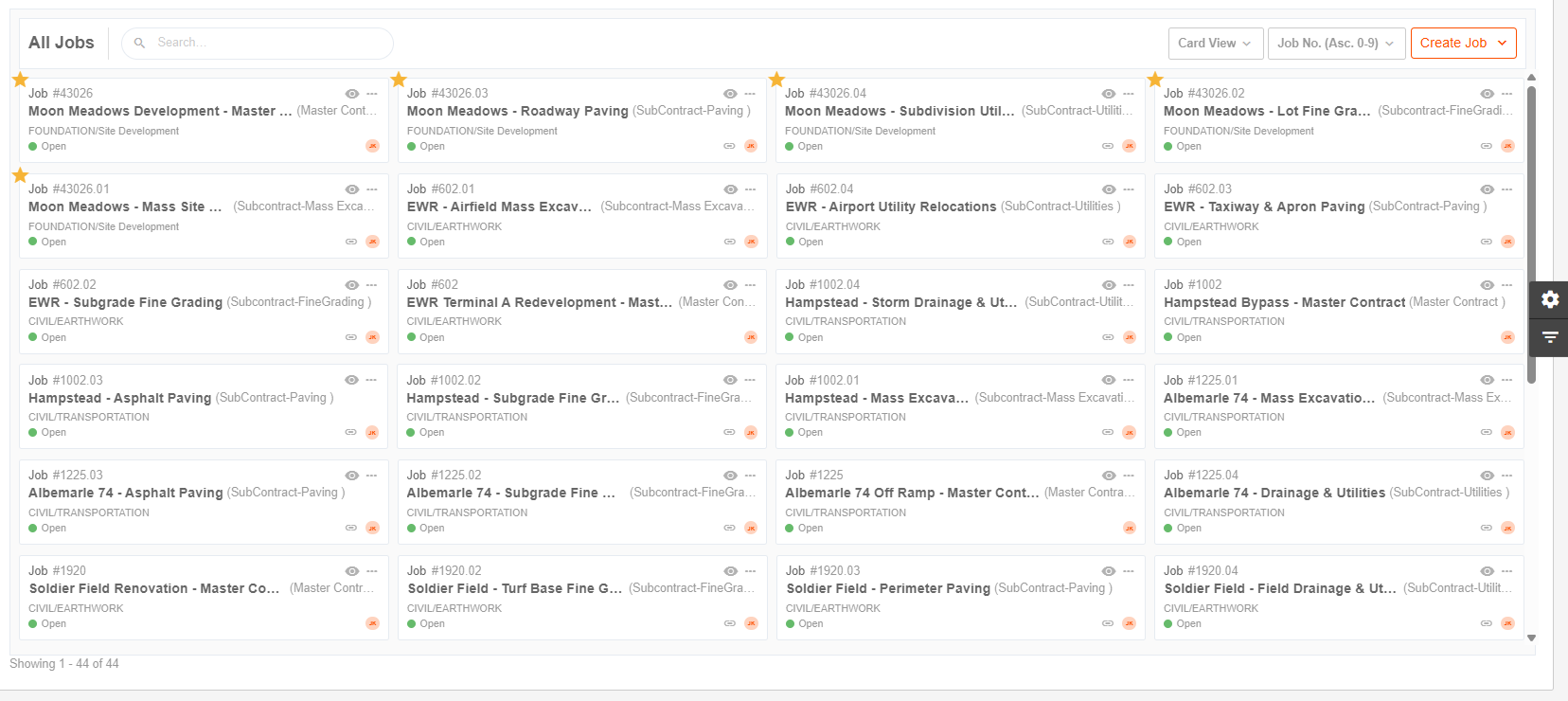
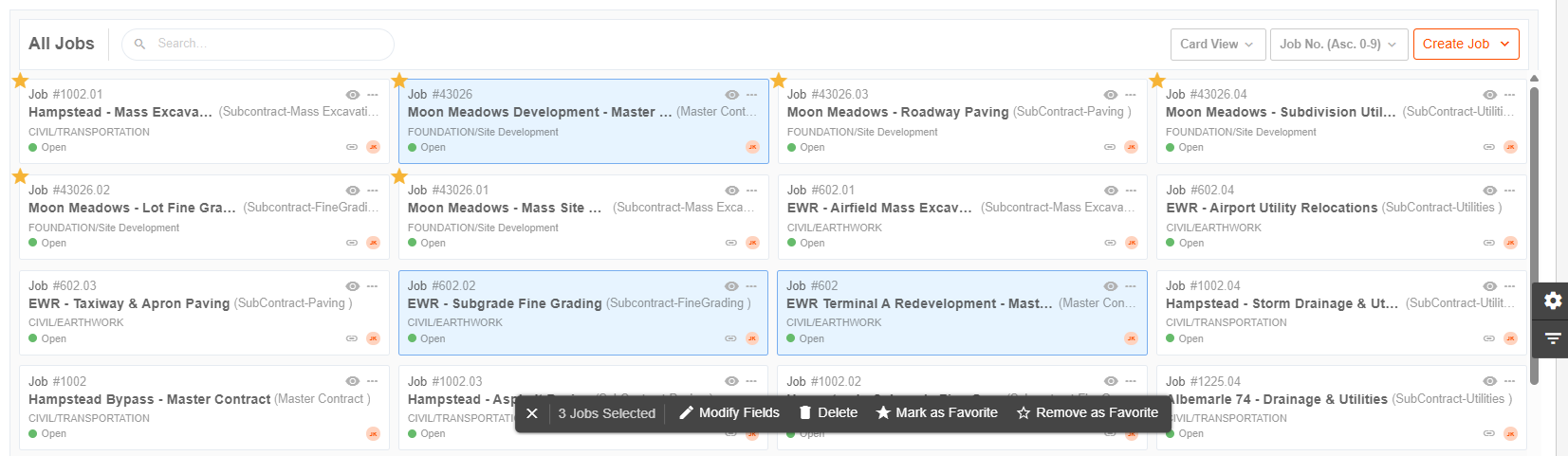
Card View allows users to see pertinent Job information quickly and in comparison to others.
Card View Actions
Each Job card may display the following information:
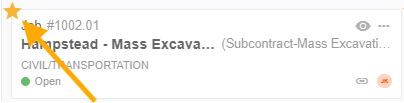
- Favorite: A star icon will be in the top left corner of any favorited Jobs.
- Job Number
- Job Name
- Job Type
- Organization
- Job Status
- Created By Icon: User that created the job. Hover over to view the user’s name.
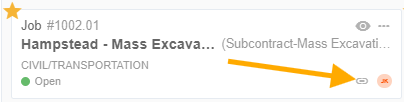
- Parent: If the Job has a Parent Job, you will see a link icon at the bottom right of the card. Hover over the icon to see the Parent. Click on the icon to open the Parent Job Details page.
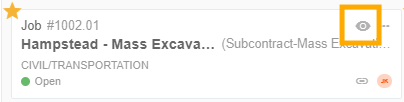
- View Job Details: Click the eye icon to open the Job Details page.
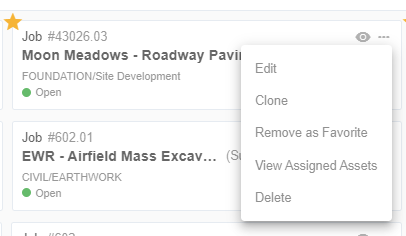
- Job Actions: Click the dotted icon to open more actions:
- Edit Job
- Clone Job
- Mark/Remove as Favorite
- View Assigned Assets
- Delete Job
- Bulk Actions: Click multiple job cards to open Bulk Actions.
- Modify Fields (Type and Status)
- Delete Jobs
- Mark/Remove as Favorite
All Jobs Settings and Filters
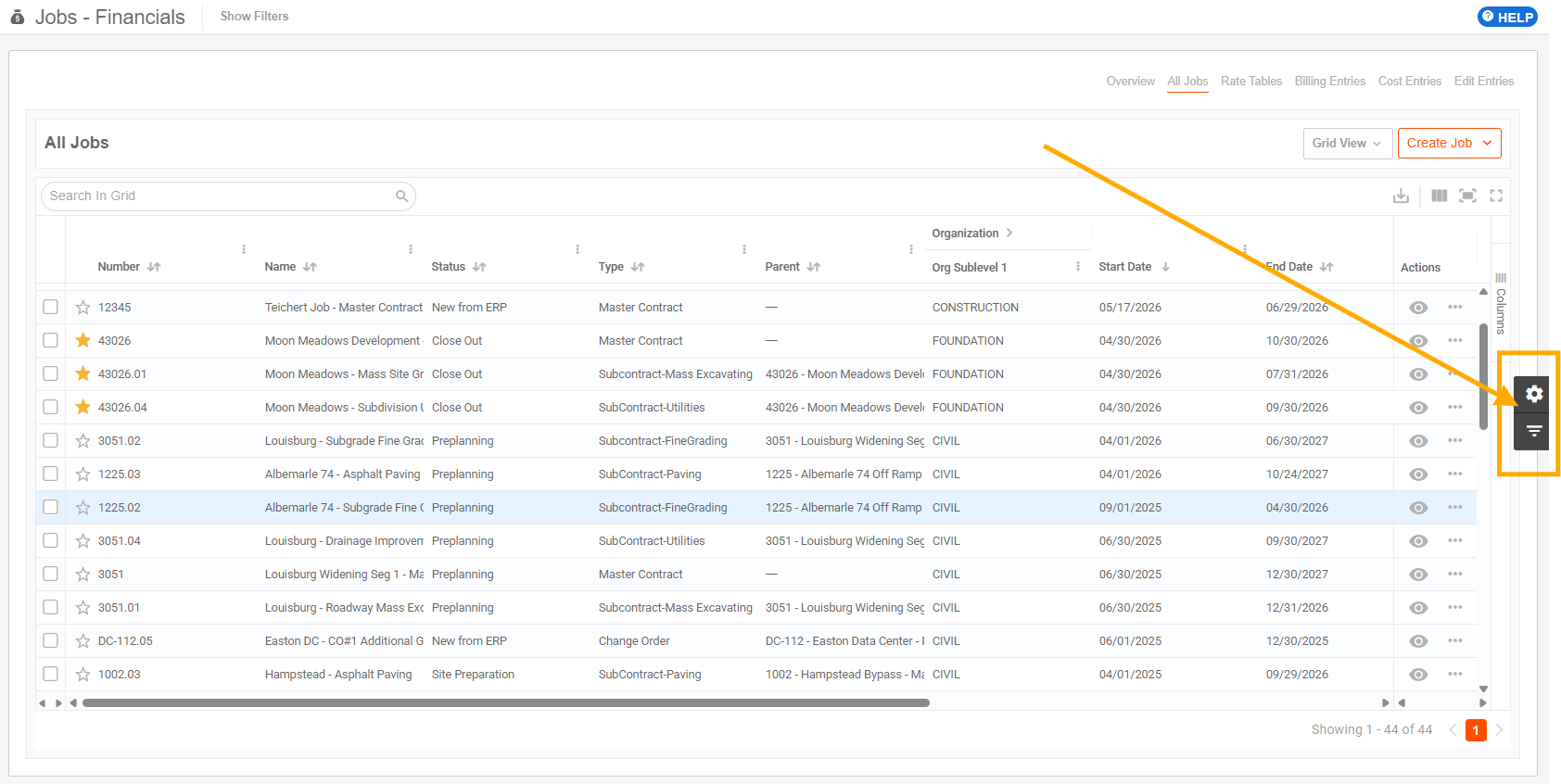
The Settings and Filters on the All Jobs page persist through all view types (Grid, Map, Card, or Tree).
- Click on the gear icon to open Settings.
- Click on the filter icon to open Filters.
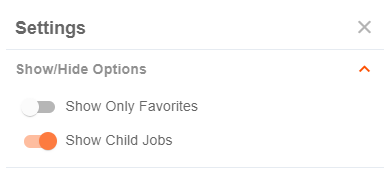
The All Jobs page Settings include toggles to show or hide the following:
- Favorite Jobs
- Child Jobs
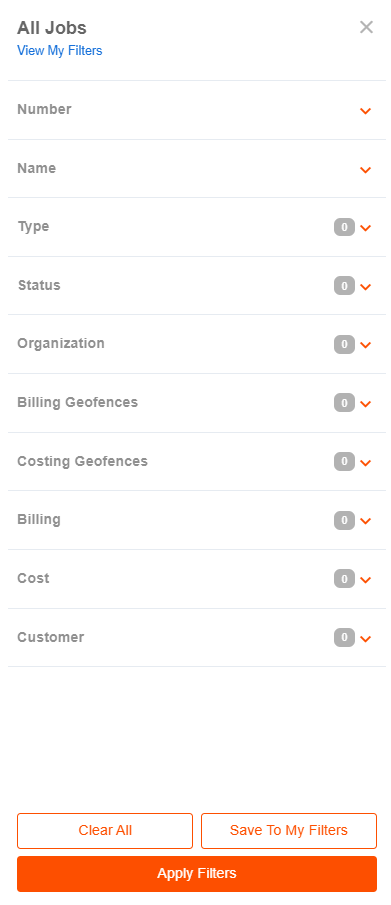
The All Jobs page Filters include:
- Job Number
- Job Name
- Job Type
- Job Status
- Organization
- Billing Geofences
- Costing Geofences
- Billing (Yes/No)
- Cost (Yes/No)
- Customer