
Tenna App vs. Desktop Overview
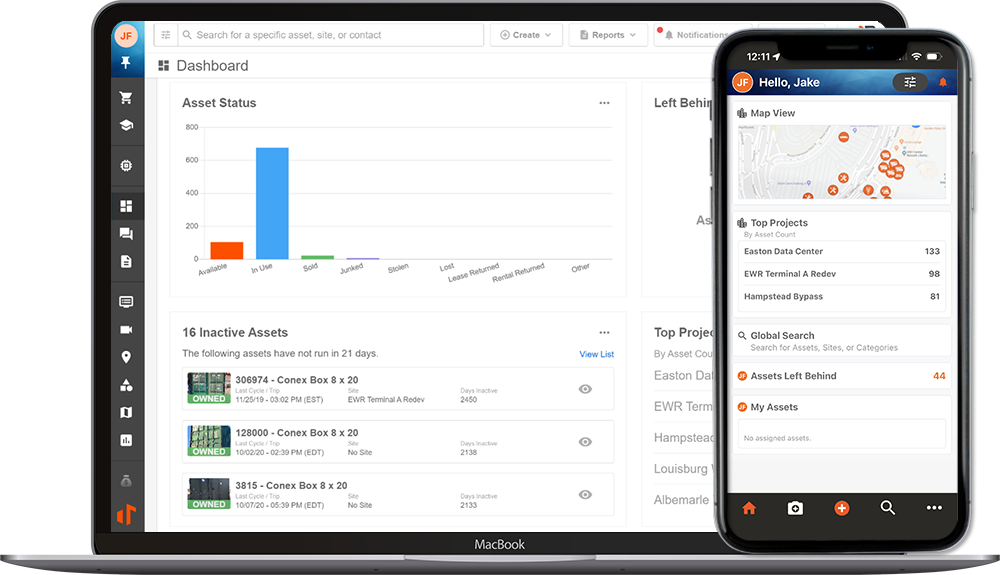
Tenna gives you two ways to work with the same platform: the Tenna App (mobile) and the desktop platform. The Tenna App is designed specifically for field users, with quick and easy access to the features they use most. Understanding the differences helps your team use each tool where it is strongest.
Permission Requirements: All users have the ability to access both the desktop platform and the Tenna App. The features visible to each user are based on their assigned permission group.
In this article:
What Each Platform Is For
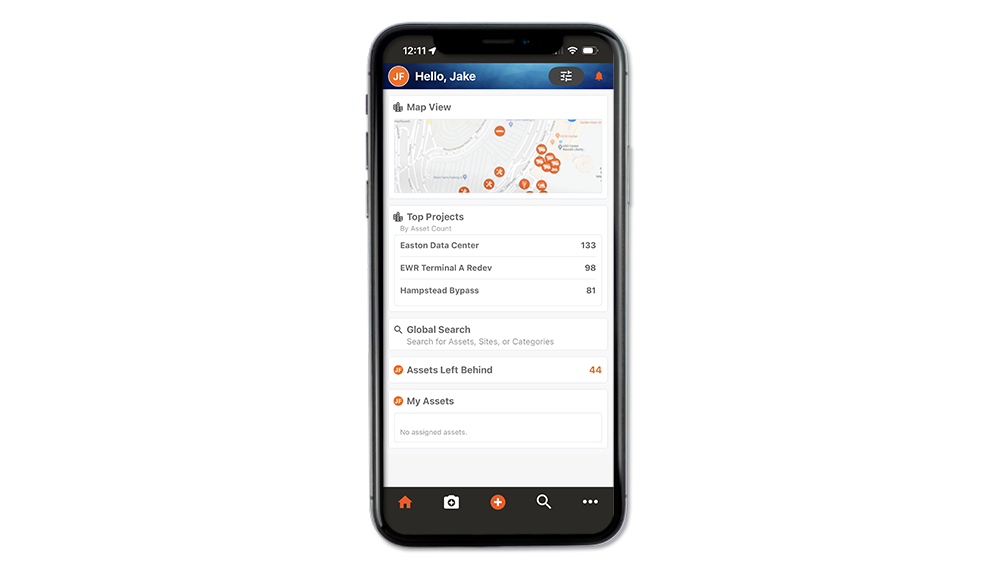
The Tenna App is built for field execution. Operators, Inspectors, Mechanics, and Field Supervisors use it to scan assets, update asset usage, perform inspections, log maintenance requests and work orders, check assets in and out, capture photos, and install trackers right where the work happens. The Tenna App also enables users to request parts, labor resources, and assets.
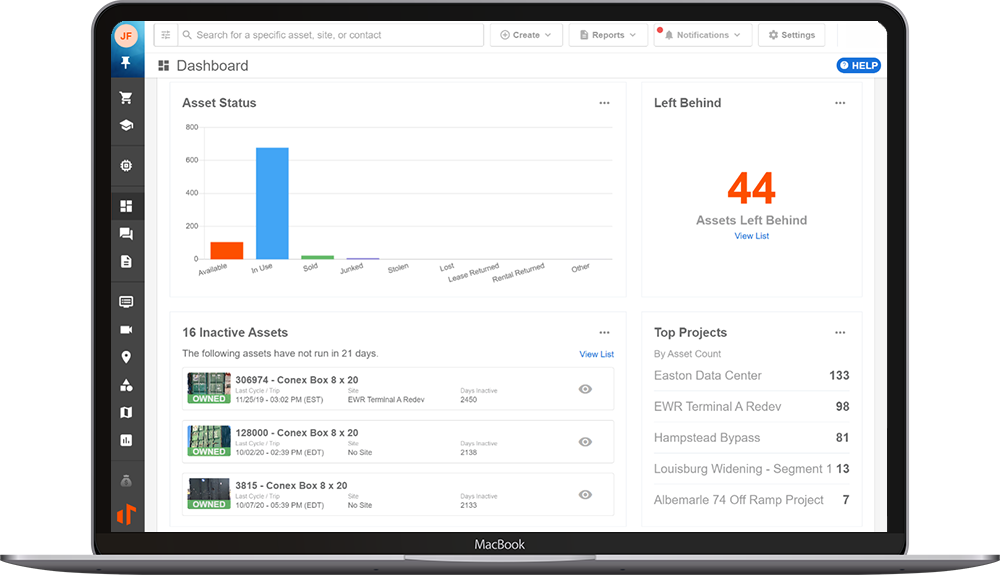
Desktop is the browser-based platform built for configuration, planning, and analysis. Fleet Managers, Maintenance Planners, Dispatchers, and finance and admin staff use it to manage asset data, design PM schedules, run reports, manage users and permissions, and configure integrations.
NOTE: The Tenna App and the desktop platform are complementary clients on a single platform, not two versions of the same tool. Data captured in the field on the Tenna App flows to the desktop platform for planning and reporting, and configuration made on desktop shapes what field users see in the app.
Devices and Access
- The Tenna App is installed from the Apple App Store or Google Play and supports Android 5+ and iOS 13+. Updates are installed per device, so coordinate app updates across your crews when new features ship.
- Desktop is accessed through a single URL (for example, app.tenna.com) in any supported browser. Updates are deployed centrally, so all users see new features at the same time.
- Tablets currently run the phone-optimized app with responsive layouts. The desktop platform is usable on large tablets via the browser, but is best experienced on a desktop or laptop.
Both platforms use the same login credentials, honor your organization's SSO and MFA settings, and respect the same permission groups. The Tenna App additionally supports biometric login (Face ID, Touch ID, or Android biometrics) for faster access in the field.
See How to Download the Tenna App for more information on installing the Tenna App.
Connectivity and Offline Mode
The biggest practical difference between the two platforms is offline mode.
- The Tenna App works offline for critical field tasks. QR code and BLE scanning are fully supported offline, and offline support extends to inspections and key maintenance workflows. Work completed offline is stored on the device and begins uploading automatically as soon as connectivity returns. The app then shows a summary of what was uploaded, surfacing any errors or missing information so you can address them right away.
- Desktop requires an internet connection at all times. There is no offline mode for the desktop platform.
For more information on Tenna App Offline Mode, view these articles: How to Perform an Offline Inspection, How to Perform an Offline Inspection, Maintenance Requests and Work Orders in Offline Mode, and How to Scan TennaQR and TennaBLE in Offline Mode.
Pro Tip! On job sites with unreliable connectivity, lean on the Tenna App for data capture during the day, and build a habit of opening the app in a coverage area (such as the yard or trailer Wi-Fi) at the start and end of each shift so queued work syncs to the platform.
Feature Comparison
| Capability | Tenna App | Desktop |
|---|---|---|
| Review assets and details | Yes Search, filters, map and list views. | Yes. Rich grids, filters, bulk actions. |
| Create and edit assets | Limited flows. | Full asset management, custom fields. |
| Bulk import and export | No | Yes. CSV import and export. |
| Asset check-in/out and moves | Yes. Single asset, scan-to-act. | Yes. Bulk moves, dispatch tools. |
| Inspections | Perform in the field, with photos and offline support. | Build templates, review results, report on trends. |
| Maintenance requests and work orders | Create, update, and complete in the field. | Plan, triage, schedule, and audit. |
| Parts | Browse catalog, manage and review inventory, submit part requests, add, remove, and transfer parts. | Manage master parts data, stocking, transfers, receiving. |
| Tracker installation | Guided install flows with required photos. | Post-install verification and associations. |
| Reporting and analytics | Summary views and asset histories. | Full reports, dashboards, and scheduled distributions. |
| Admin and configuration | Personal profile settings only. | Users, permissions, licenses, notifications, integrations. |
| Integrations (Procore, TrackIt, Gearflow, OEM, Open API) | Reflects integrated data in field workflows. | Configure, manage, and monitor all integrations. |
| Offline mode | Yes. Scanning, inspections, key maintenance tasks. | No |
Common Workflows Across Both Platform
NOTE: Field users should not need to run their day from the desktop platform, and Admins should not need to configure the platform from the app. Each client intentionally exposes the capabilities that fit its users' context.
Most day-to-day processes span both platforms by design. A typical end-to-end flow looks like this:
- 1
- An Admin builds an inspection template and schedule on desktop.
- 2
- An Inspector completes the inspection in the Tenna App, with photos and notes.
- 3
- A failed item generates a maintenance request, which a Planner triages and turns into a work order on desktop.
- 4
- A Mechanic executes and documents the work order in the Tenna App.
- 5
- A Supervisor closes out the work and reviews completion trends in desktop reports.
The same pattern applies to asset moves, part requests, and tracker installations: the field initiates and documents, the office plans and analyzes.
View Maintenance Overview for more information.
Pro Tip! The quality of your desktop reports depends directly on the quality of data captured in the Tenna App. Investing in mobile training for field crews pays off in more accurate analytics for the office.
Which Platform Should My Team Use?
- Operators, Drivers, and Foremen: the Tenna App for check-in/out, inspections, issue reporting, and for Dispatch Event details for drivers.
- Mechanics and Technicians: the Tenna App for maintenance requests, work orders, and parts requests in the field.
- Fleet and Maintenance Managers: desktop for asset data, PM program design, triage, and KPIs.
- Dispatchers and Resource Managers: desktop for scheduling, the Dispatch Board, and bulk moves.
- Finance, admin, and data teams: desktop for reporting, user management, and integrations.
NOTE: For additional help, email help@tenna.com or call 888.836.6269 between 8 AM and 8 PM ET.