
How to Manually Assign or Un-Assign an Asset to a Job (Desktop & App)
Assets can be manually assigned to a job if automation is not an option. This article shows how to manually assign an asset to a job.
Permission Requirements: Users with the “Manage Asset Job Assignment” permission enabled can manually assign or un-assign an asset to a job.
💥Jobs - Financials is a premium product and requires a separate license. Please contact your Account Manager for more information on premium product licenses or reach out to Customer Support at help@tenna.com or call 888.836.6269.
Note: Options to assign Billing and Costing Jobs depends on if Show Billing or Show Costing is enabled in General Job Settings.
In this article:
Reasons for Manual Job Assignment
How to Manually Assign or Un-Assign an Asset to a Job (Desktop)
Reasons for Manual Job Assignment
Manually assign an asset when automatic assignment is unavailable or doesn't reflect how the asset is being used. This is useful when the asset:
- Works outside a job's geofence or the job has no geofence.
- Is shared across multiple jobs or used temporarily.
- Needs a historical assignment.
- Needs a correction to the current assignment going forward for cases where automation is not feasible.
Manual assignment helps ensure the asset's usage, costs, and reporting are associated with the correct job.
How to Manually Assign or Un-Assign an Asset to a Job (Desktop)
Assets can be manually assigned a Billing or Costing Job from the Assets List View or Grid View.
- 1
- Click "Assets" on the left-side navigation menu.
- 2
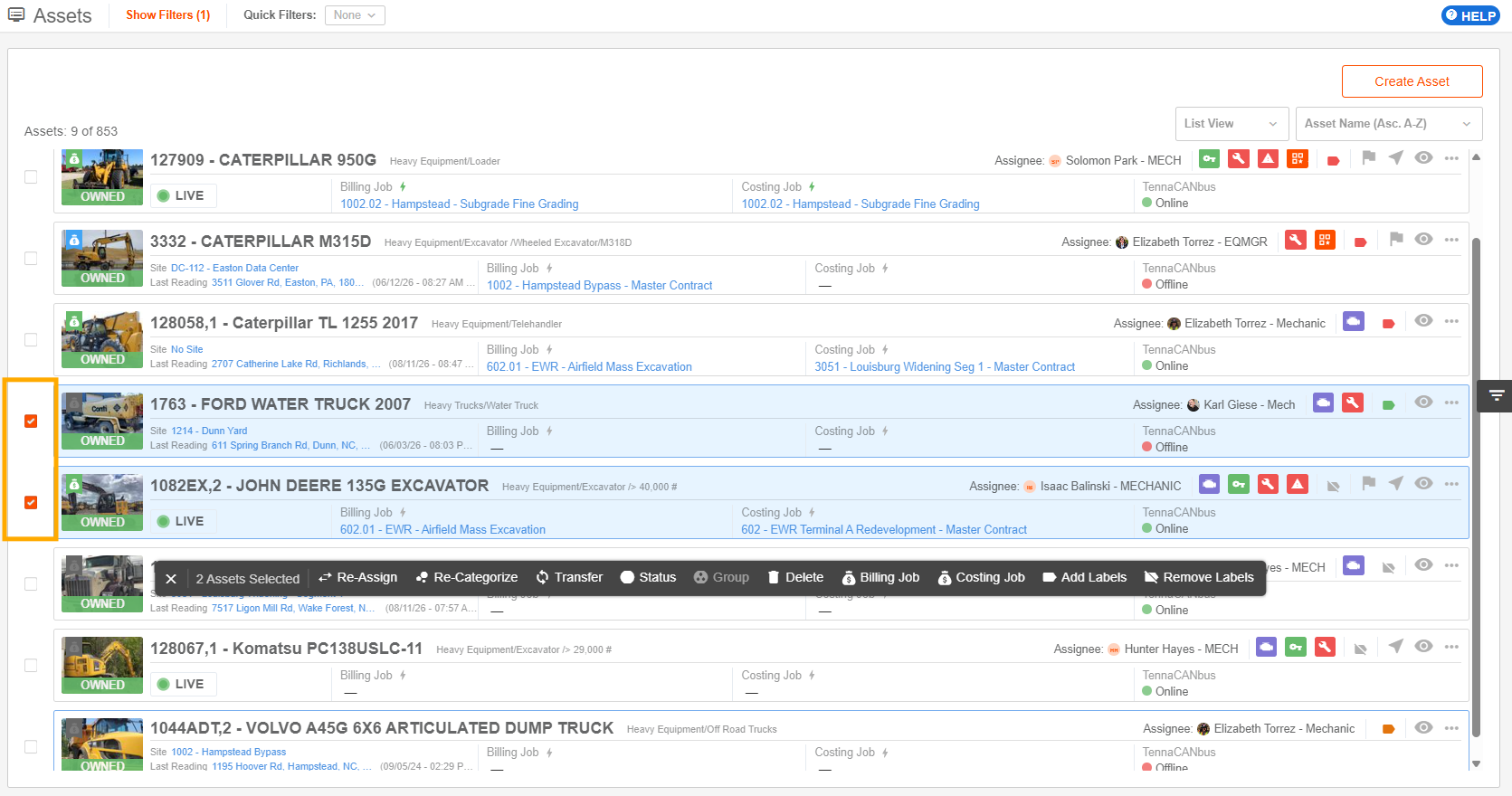
- Select one or multiple assets using the checkboxes next to them.
- 3
- From the Bulk Actions menu, select "Billing Job" or "Costing Job".
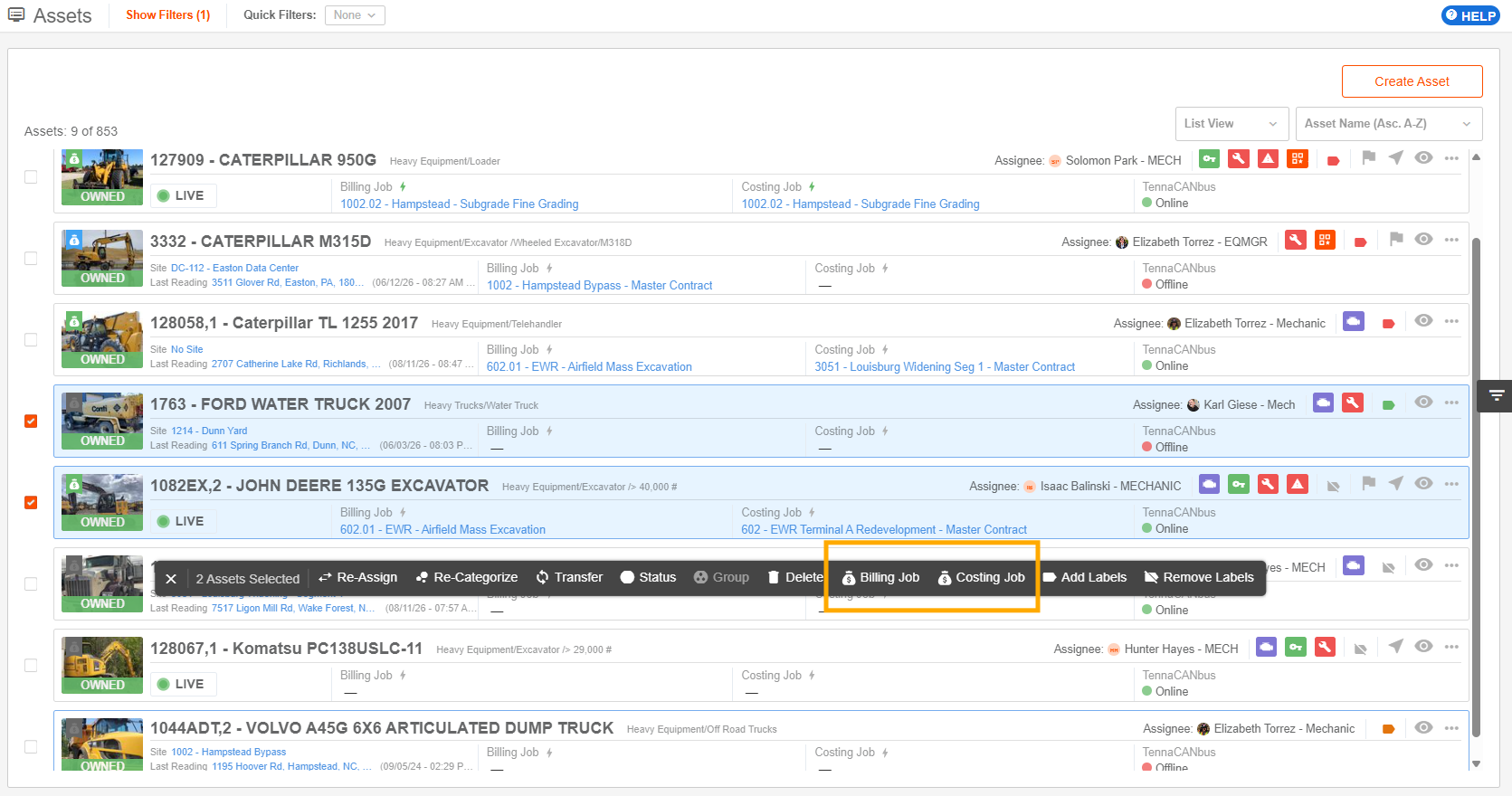
Assign Job
NOTE: Manual job assignment should only be applied to assets with billing/costing automation turned off.
- 4
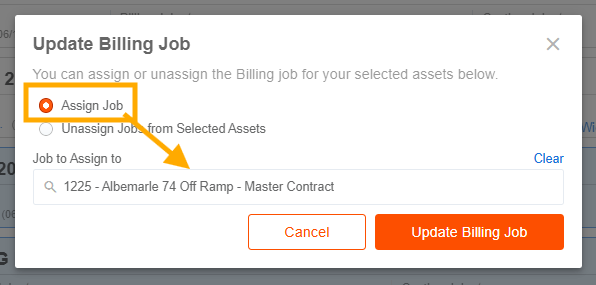
- Select "Assign Job" to assign all selected assets to a job. Then, select a Job from the drop-down.
NOTE: Only jobs with an “Open” status category are available for selection.
- 5
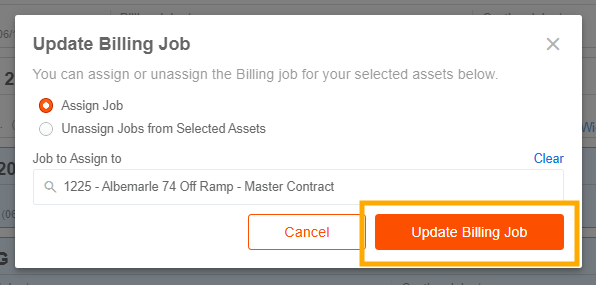
- Click "Update Billing/Costing Job" to complete.
Un-Assign Job
- 4
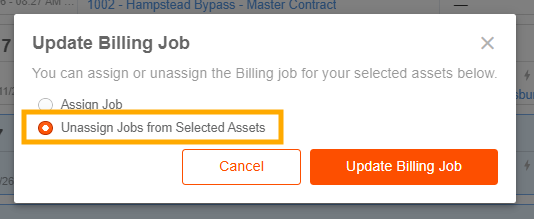
- Select "Unassign Jobs from Selected Assets" to remove any assigned jobs from the selected assets.
- 5
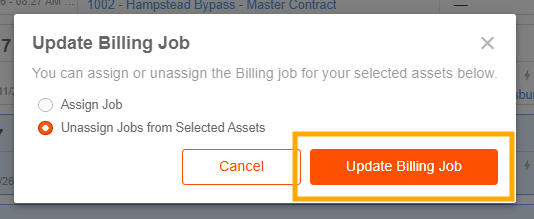
- Click "Update Billing/Costing Job" to complete.
How to Manually Assign or Un-Assign an Asset to a Job (App)
- 1
- Tap the dotted icon to open the More Menu. Then, tap "Assets".
- 2
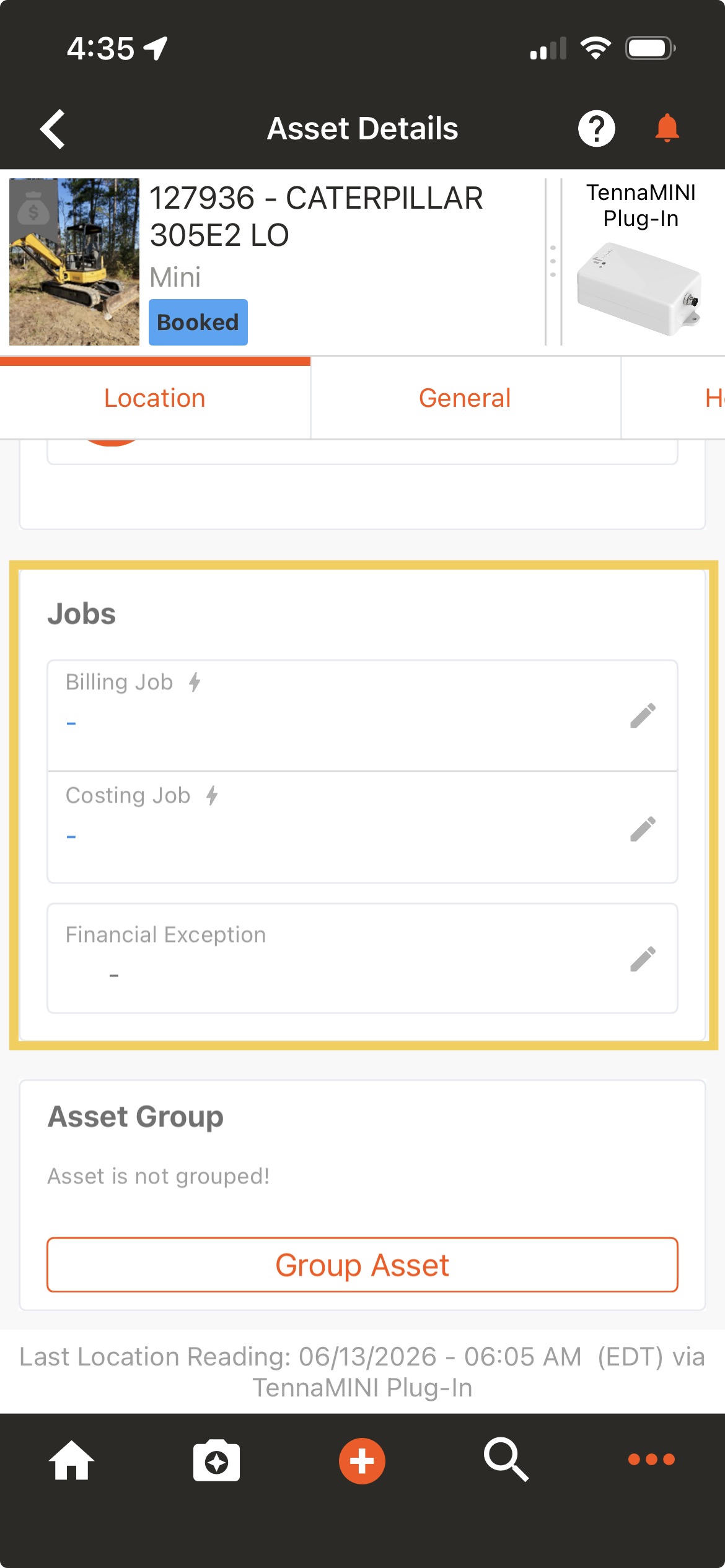
- Scroll down to the Jobs section in the Asset Details page.
Assign a Job
- 3
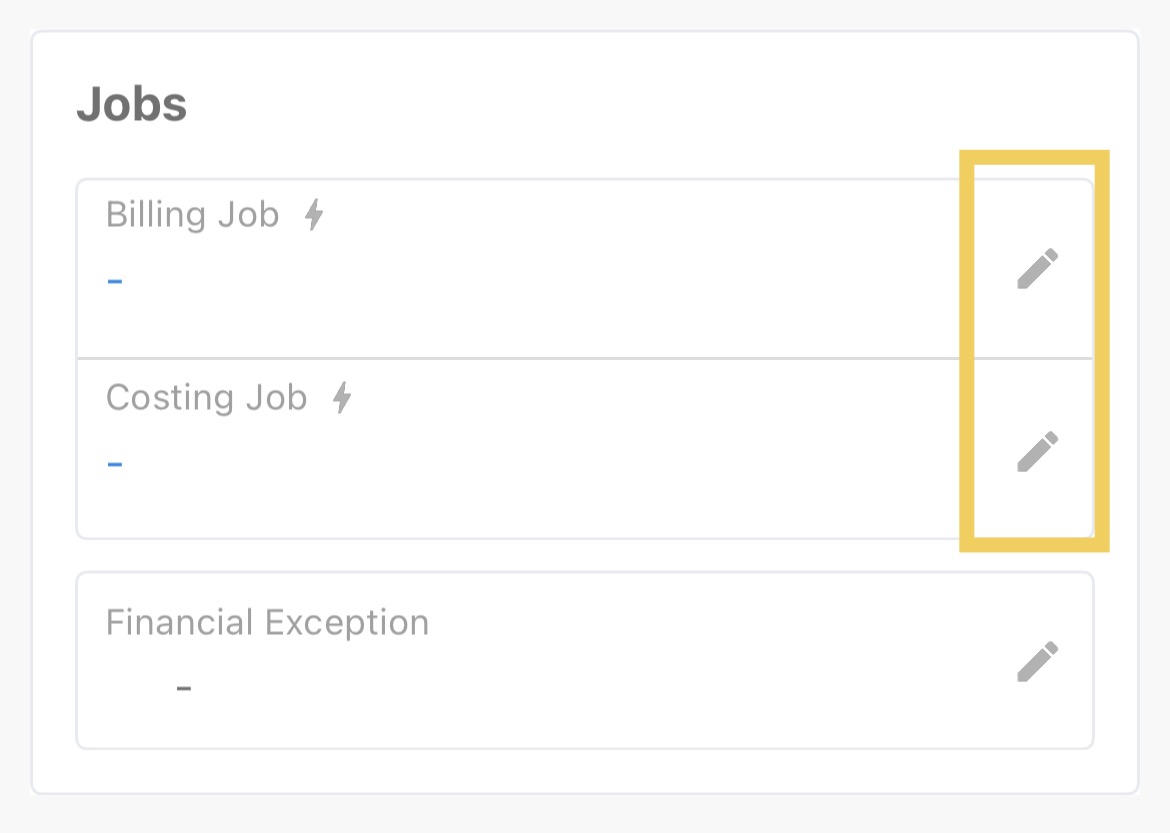
- Tap the pencil icon next to the Billing or Costing Job.
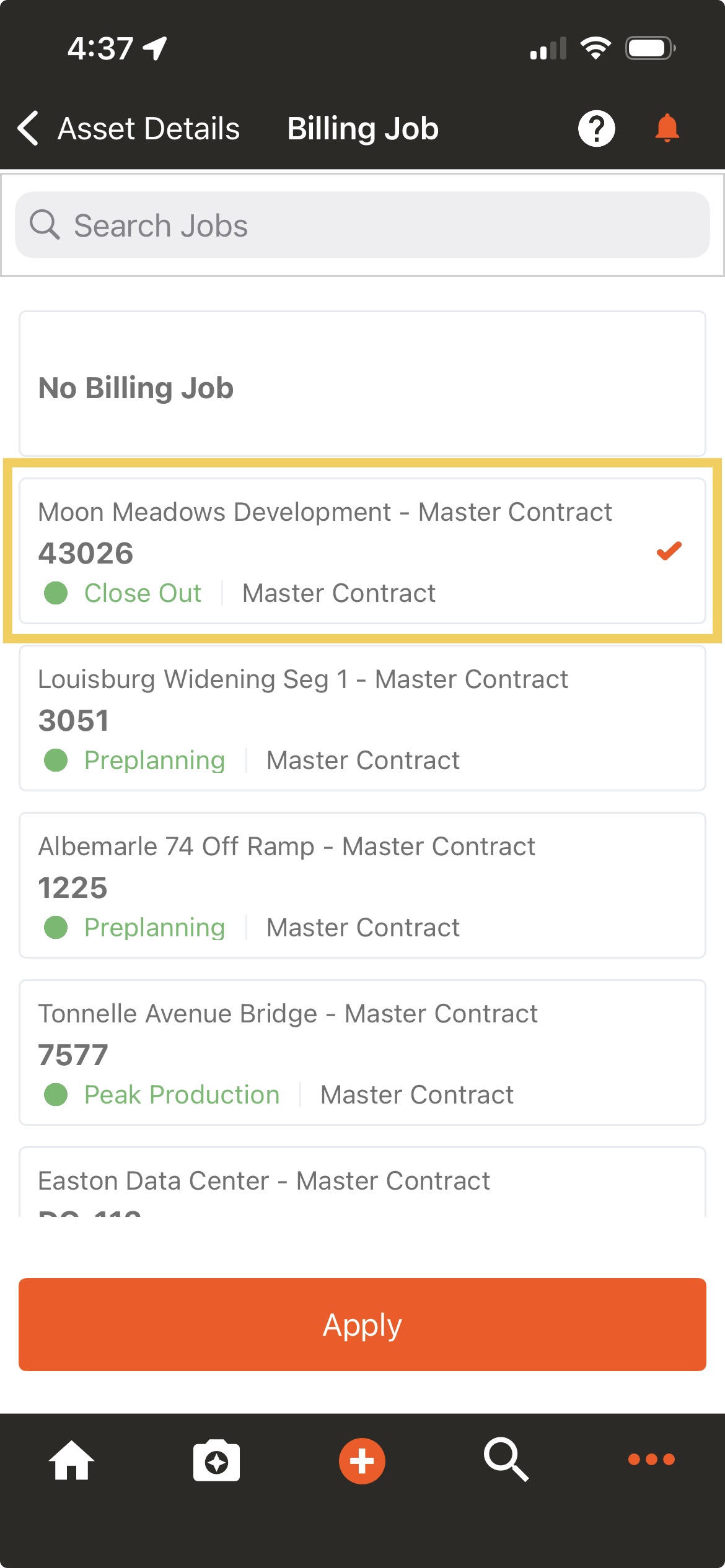
- 4
- Select a Job.
NOTE: Only jobs with an “Open” status category are available for selection.
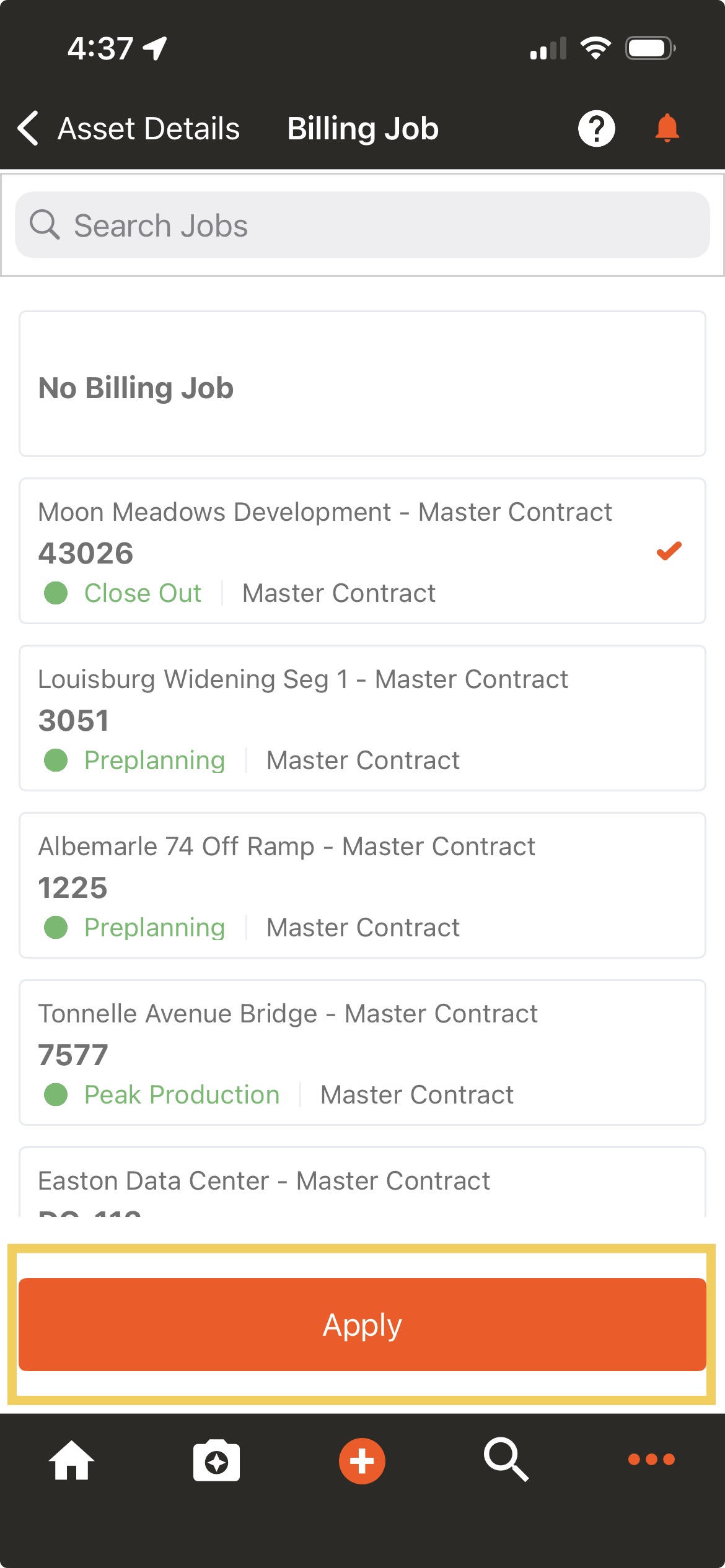
- 5
- Tap "Apply" to complete.
Un-Assign a Job
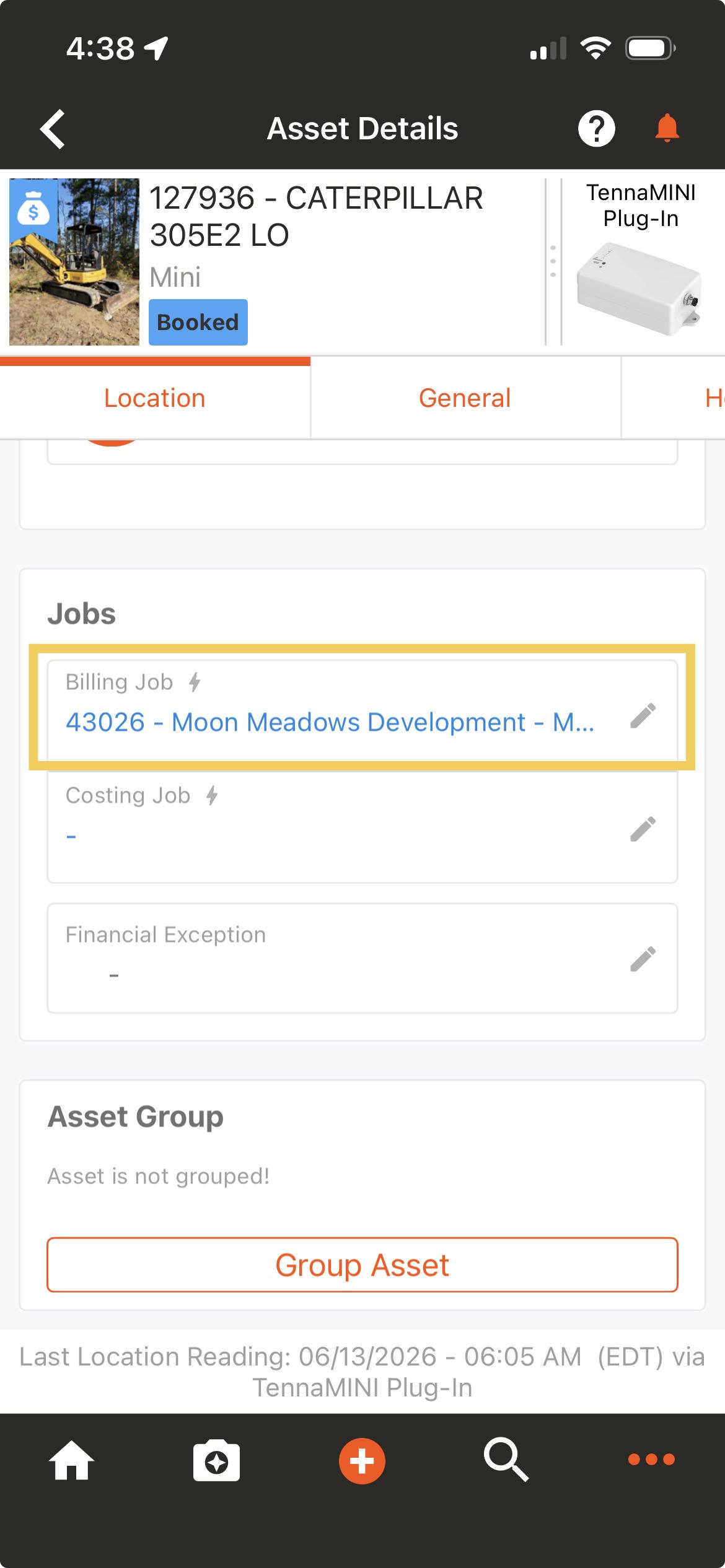
- 3
- Tap the pencil icon next to the Billing or Costing Job.
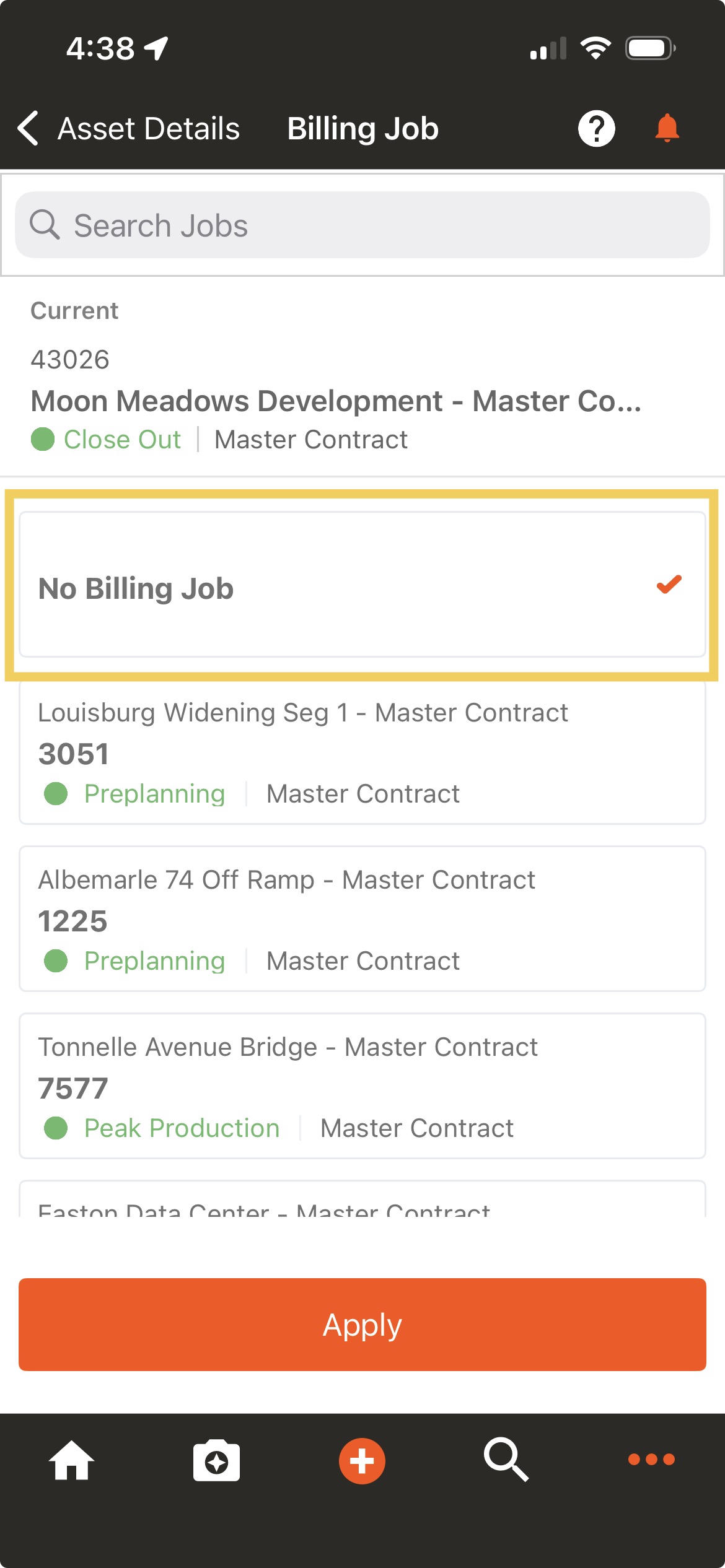
- 4
- Select "No Billing Job" or "No Costing Job".
- 5
- Tap "Apply" to complete.