
How to View, Edit, and Clone Job Rate Tables (Desktop)
Job Rate Tables are specific rate tables assigned to individual jobs. They define the rates for various categories such as labor, equipment, assets, or exceptions that apply to a particular job. Job Rate Tables are created by cloning Rate Table Templates and then assigning them to a job.
Permissions Requirements: Access to rate tables is controlled by separate permission sets for each type:
Rate Table Templates
- View Rate Table Templates allows the user to view rate table templates
- Manage Rate Table Templates allows the user to clone, deactivate, and reactivate rate table templates
Job Rate Tables
- View Job Rate Tables allows the user to view job rate tables
- Manage Job Rate Tables allows the user to manage job rate tables
💥Rate Tables is part of a premium product, Jobs - Financials, and requires a separate license. Please contact your Account Manager for more information on premium product licenses or reach out to Customer Support at help@tenna.com or call 888.836.6269.
In this article:
How to View a Rate Table
- 1
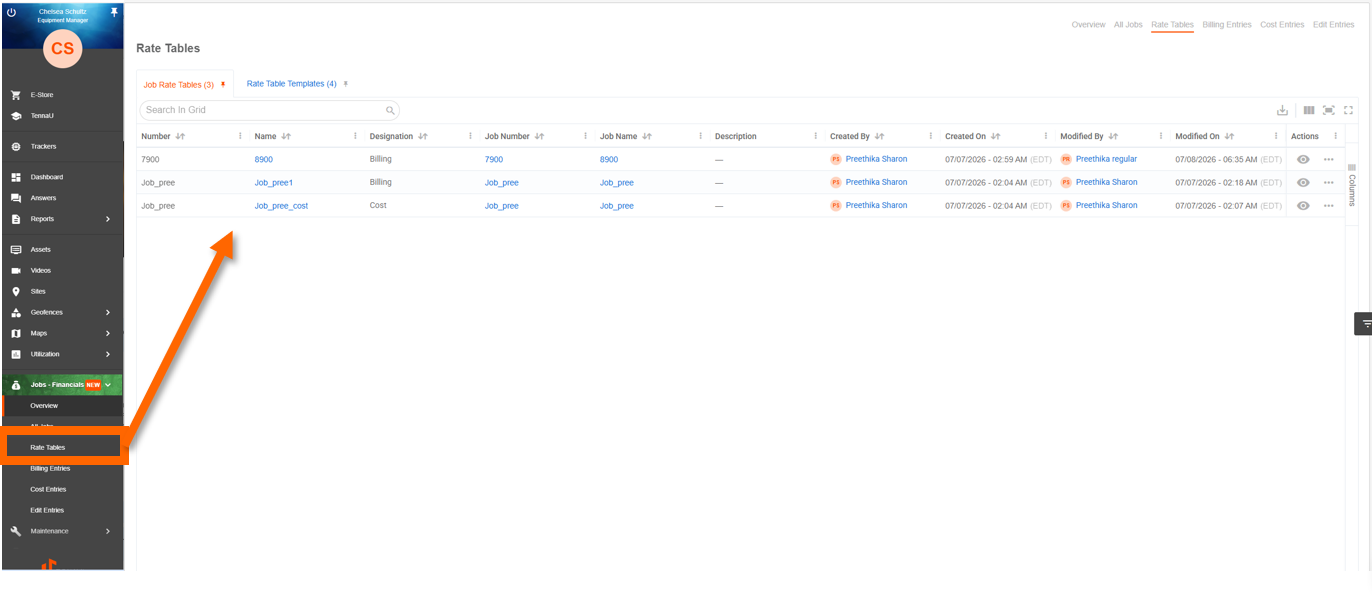
- Navigate to "Jobs" and select the "Rate Tables" tab.
- 2
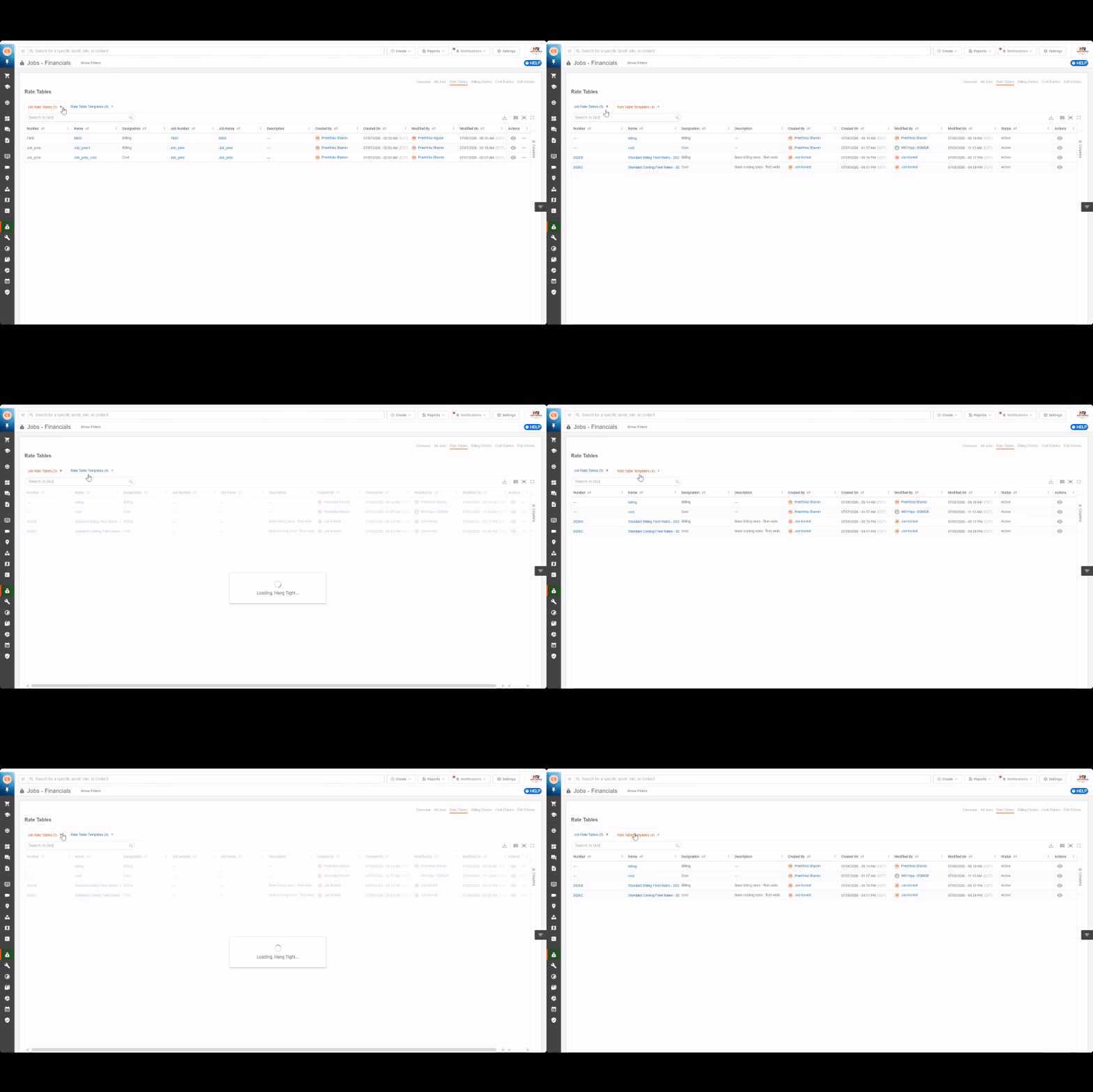
- Select the appropriate sub-tab: Rate Tables or Rate Table Templates.
- 3
- Locate the rate table using search or by scrolling the grid.

- 4
- Select the rate table name or click the "View" action to open it in read-only mode.

How to Edit a Job Rate Table
- 1
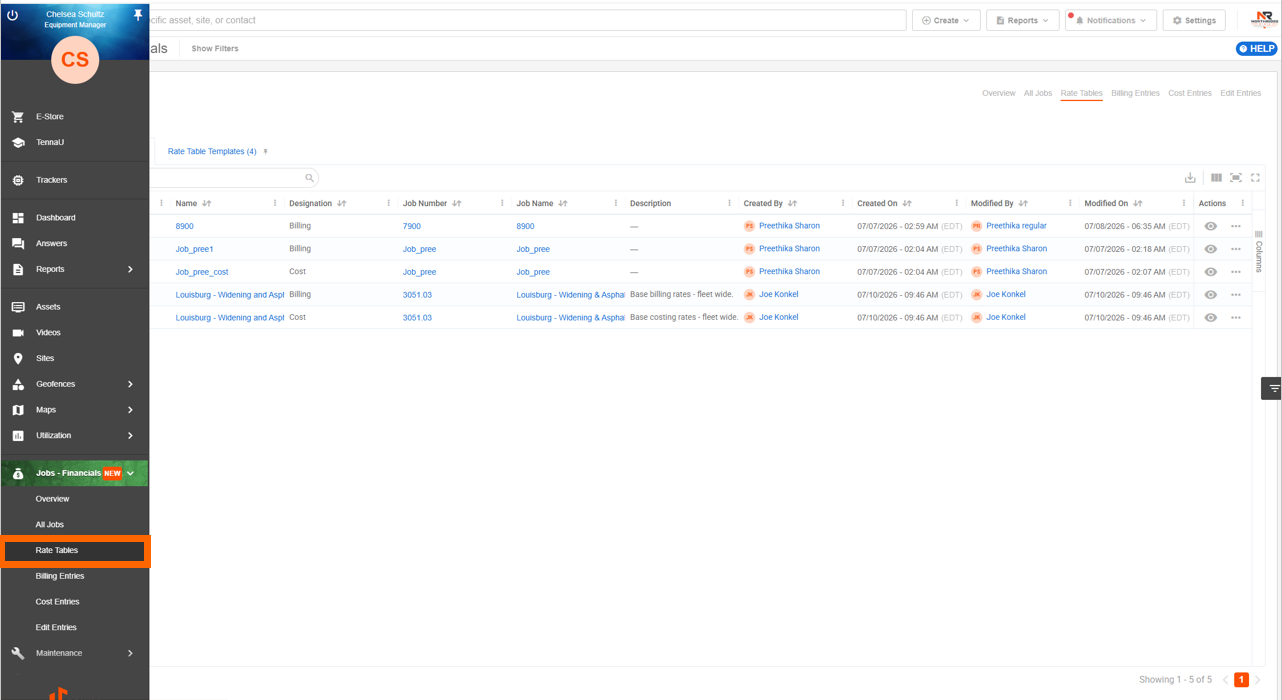
- Navigate to "Jobs", then select "Rate Tables".
- 2
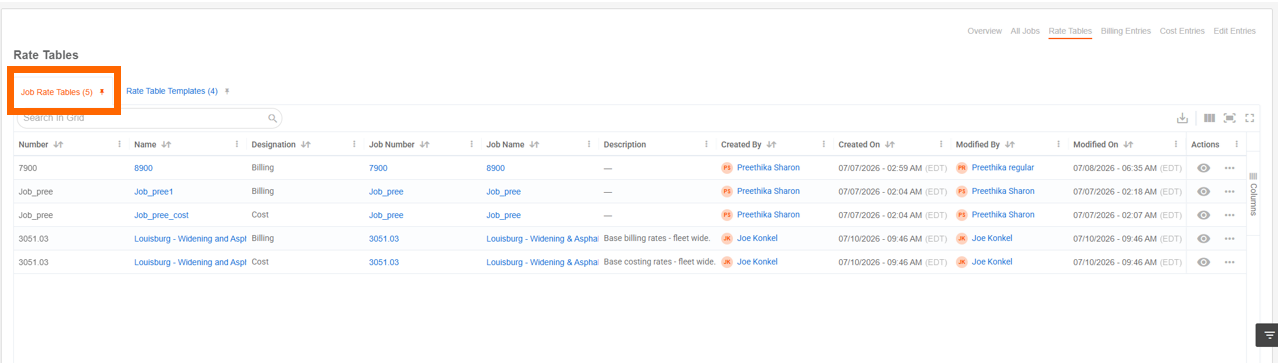
- Select the "Job Rate Tables" sub-tab.
- 3
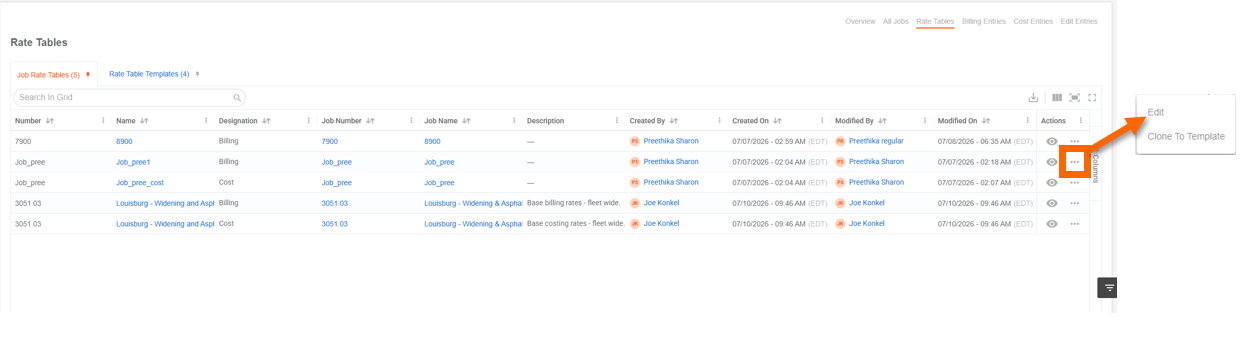
- Find the rate table and click the dotted icon, then select "Edit".
- 4
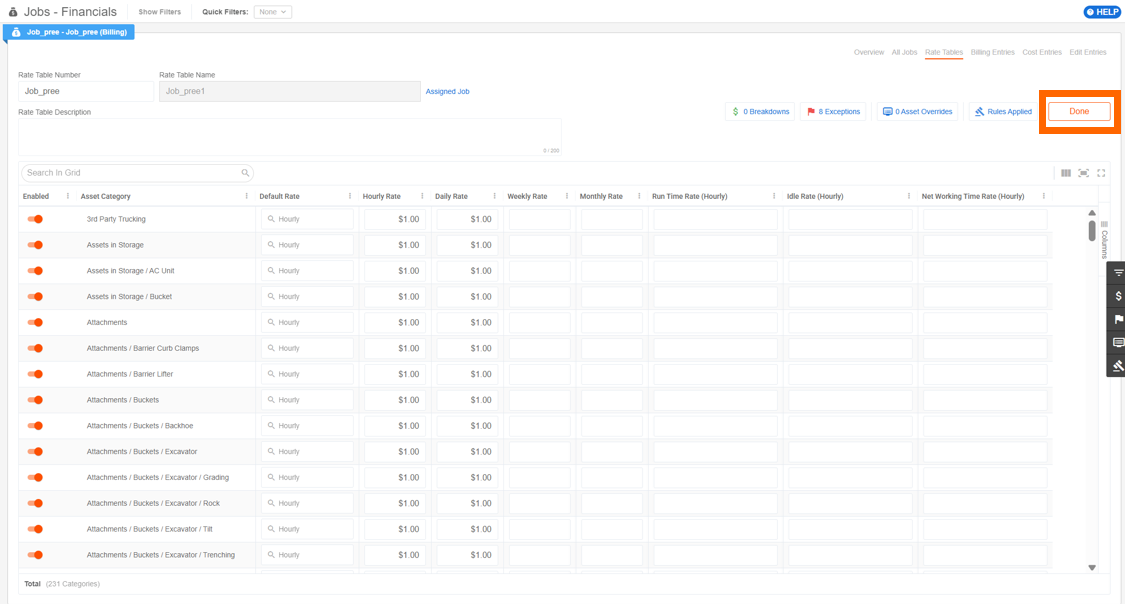
- Make the necessary edits then click "Done".
What CAN be edited
| Element | How it's edited |
|---|---|
| Rate values | Inline- click a rate cell to activate an input field |
| Category enablement | Toggle in the "Enabled" column; saved immediately on toggle |
| Default rate type | Dropdown in the Default Rate column per category; saved on selection |
| Breakdown codes (cell-level) | Via "Edit Breakdowns" in the cell context menu → side panel |
| Rate / Revenue / Phase codes | Via "Edit Codes" in the cell context menu → side panel |
| Asset Overrides | Via header badge → editable side panel |
| Rules Applied | Via header badge → editable side panel |
Important! All changes persist individually at the field or panel level there is no global "Save" action.
What CANNOT be edited (in edit mode)
| Element | Reason |
|---|---|
| Category hierarchy columns | Always read-only; categories are managed in Settings → Categories |
| Breakdowns (header-level) | Header badge opens a view-only side panel |
| Exceptions (header-level) | Header badge opens a view-only side panel |
Breakdowns and Exceptions can only be viewed from the header, but breakdown codes can be edited at the individual rate-cell level through the cell context menu's side panel
NOTE: Editing is not available for deactivated rate tables. Reactivate the template first if edits are needed.
How to Clone a Job Rate Table
Permission Requirements: Users with the Manage Rate Table Templates permission enabled can clone a rate table.
Cloning creates a new, fully independent rate table template from an existing job rate table. The clone opens in edit mode so you can make changes before saving.
NOTE: Template names must be unique; if the default cloned name conflicts with an existing template, you will be prompted to rename it.
- 1
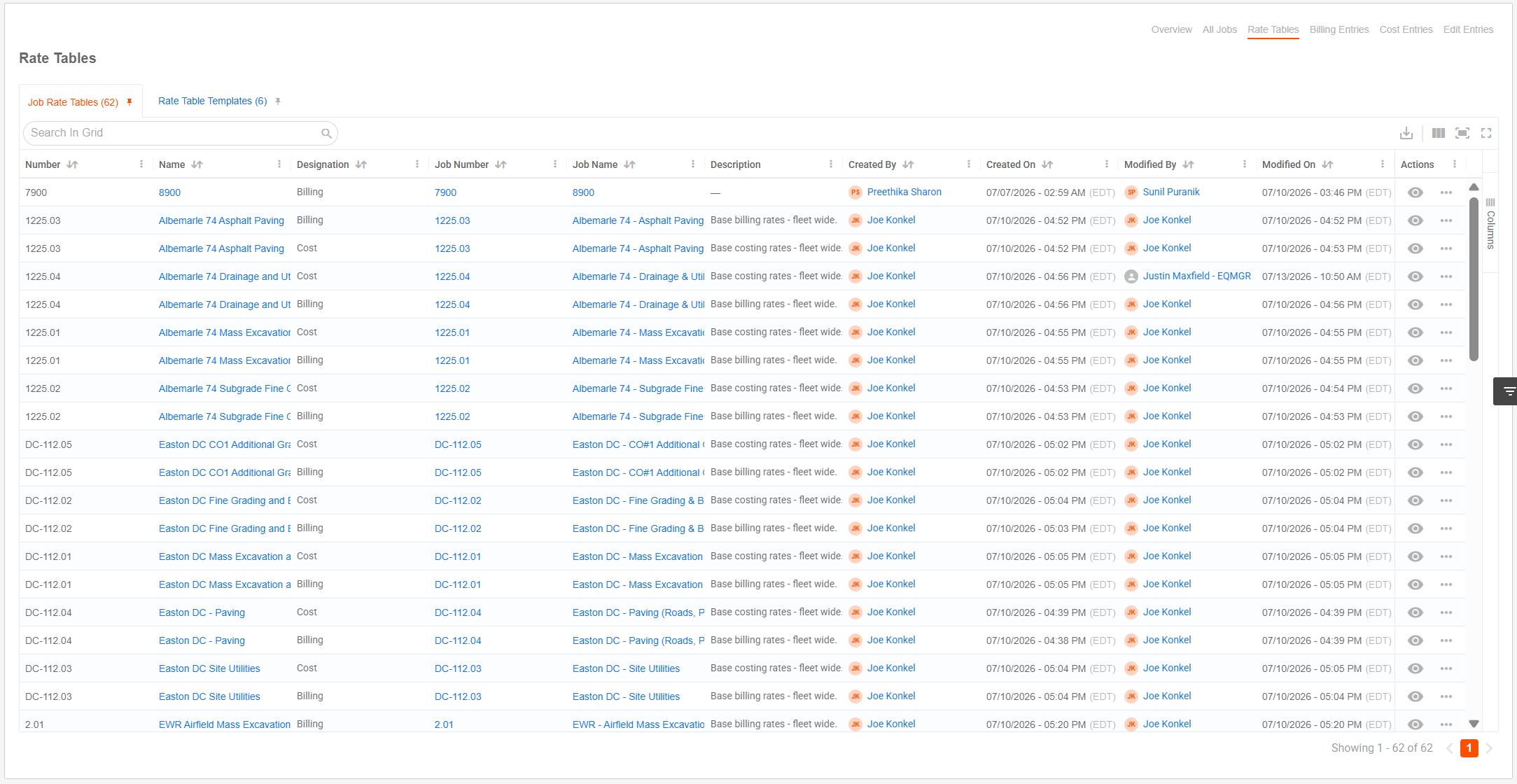
- Navigate to the "Rate Tables" page.
- 2
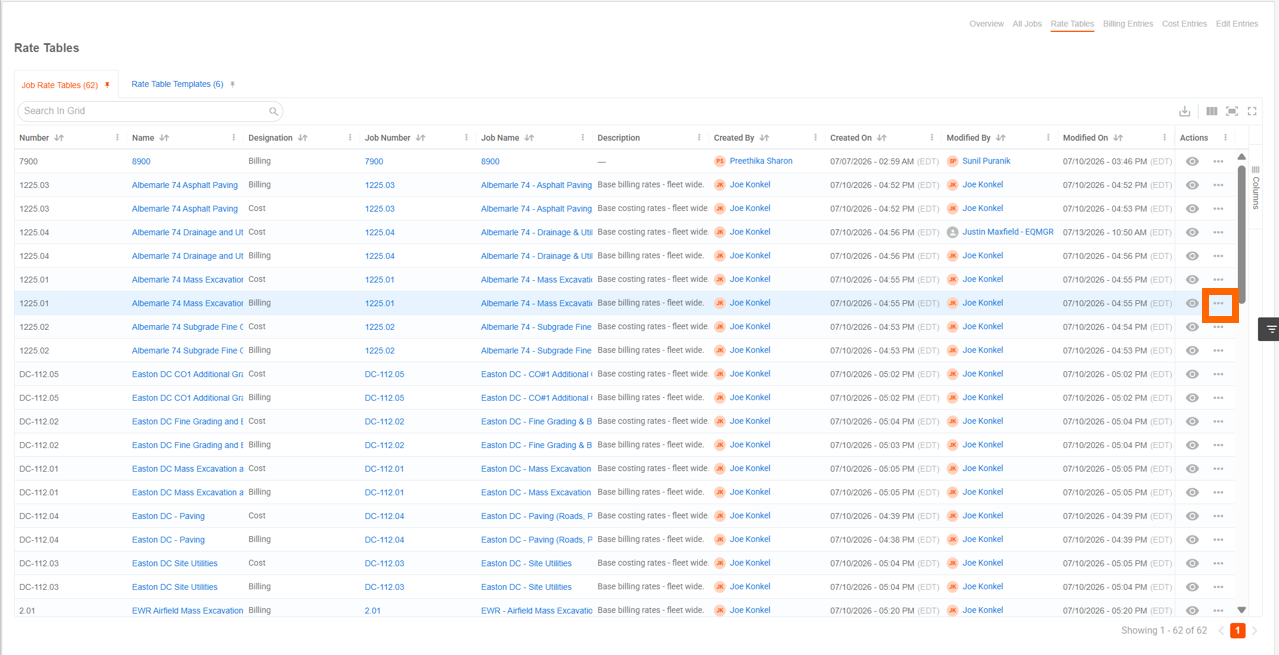
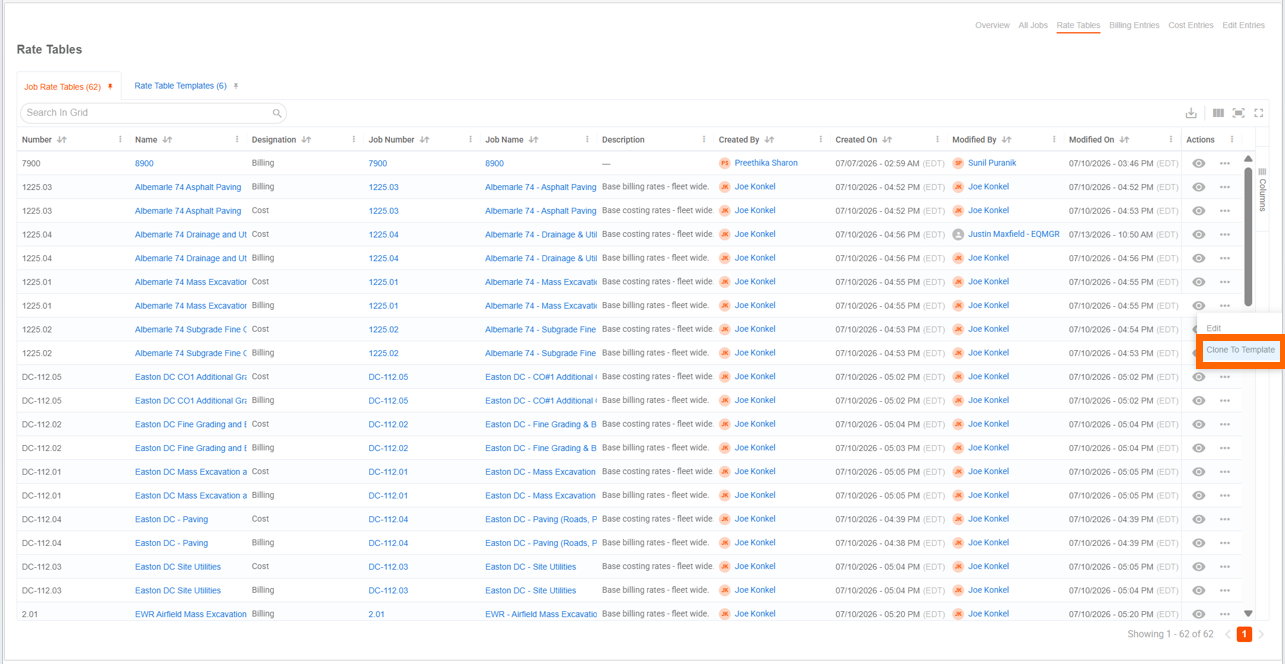
- Find the Rate Table you'd like to clone and click the dotted icon.
- 3
- Select "Clone to Template".
- 4
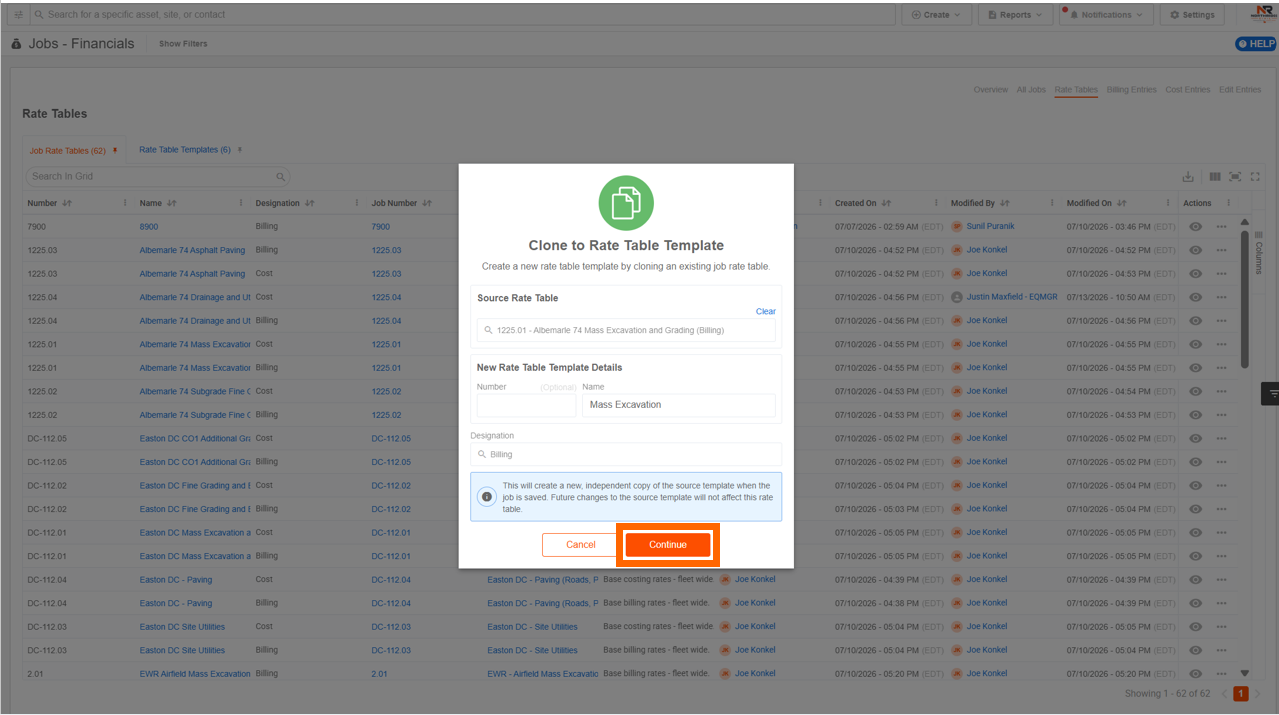
- A prompt will appear for you to clone the template; name the new template (the name must be unique) and update the designation (if necessary). Then click "Continue".
What gets copied:
- All rates
- All exceptions
- All breakdown codes
- Asset overrides
- All rules
NOTE: Updates to the source after cloning do not affect the clone, and updates to the clone do not affect the source rate table.