
TennaBLE Beacon Overview
This article includes TennaBLE Beacon trackers (RT1, Ruggedized, Steel Puck, and SP2) functionality, features, device power and battery draw specs, and technical specifications.
Functionality
Ideal for effortlessly tracking equipment parts and attachments that get aggressive use, such as buckets and blades, as well as smaller to mid-sized equipment and miscellaneous, non-powered assets and tools scattered across a site or grouped together.
Bluetooth Low Energy (BLE) Beacons are durable for construction environments and optimized for long range.
TennaBLE Beacons transmit “heartbeats” every 4 seconds that are picked up by the Tenna App on a mobile device or installed TennaINTEL tracker. When in range, the app records the beacon position every 2 minutes and stores it to the cloud to report to Tenna.
🔑 Best Practice
An attachment (with a TennaBLE tracker) needs to be loaded onto a truck trailer and transported to another jobsite. The driver ensures that he is logged into the Tenna App on his mobile phone as he loads the attachment onto his trailer, meaning his mobile device will automatically scan the attachment as he loads it. When he drops off the attachment at the new jobsite, the driver opens the BLE Scans report on the Tenna App home page to ensure the new location is recorded.
Device Power/Battery Draw
One of the many benefits of BLE technology is that scanning is much more passive and power modest than an active Bluetooth connection with a consumer Bluetooth device, like a speaker or wireless headphones.
How does BLE scanning effect your mobile device's battery?
| Mobile Device or Tablet | Battery Consumption |
|---|---|
| Older Android Devices (>2 years old) | 5% |
| New Android Device (<2 years old) | 1% |
| iOS Device | 1% |
Therefore, BLE scanning (running the Tenna App in the foreground/background of your mobile device or tablet) will only deplete your device's battery by 1-5%.
NOTE: The above cases were tested on devices with full charge and 100% battery health. If your device is running on a lower charge, low battery mode, or is very old, the battery may deplete faster.
Users can turn off Bluetooth Scanning and/or Bluetooth Background Scanning in their user preferences in the Tenna App.
Features
- Leverages Tenna’s BLE “network effect” whereby anyone with the Tenna App or TennaINTEL tracker (within 300 ft / line of sight) can pick up your beacons and report updates to your account.
NOTE: Users outside of your company do not have access to your data.
- Durable, easy-to-install and long-lasting for reliable equipment tracking and management.
- Extremely ruggedized designs to withstand the elements (both) and extreme force and impact (steel puck).
- Read by smart devices to autonomously send data to Tenna on all tagged equipment in range.
Specifications
TennaBLE Ruggedized |
|
| Best For | Small Assets, Non-Powered Assets, and Tools |
|---|---|
| Features & Functionality |
Your smartphone (with Tenna App installed), and nearby assets with TennaINTEL trackers, will automatically identify each asset’s location, without manual involvement, when within range. |
| Specs |
|
| Reports to Tenna |
|
| How often tracker reports to Tenna |
|
| Tracker Insights |
|
| Tracker Offline Reasons |
|

TennaBLE Steel Puck |
|
| Best For | High-Impact Equipment Attachments, Small Assets, Non-powered Assets, and Tools |
|---|---|
| Features & Functionality |
Encased in steel and gets welded onto assets for extra ruggedness. Your smartphone (with Tenna App installed), and nearby assets with TennaINTEL trackers, will automatically identify each asset’s location, without manual involvement, when within range. |
| Specs |
|
| Reports to Tenna |
|
| How often tracker reports to Tenna |
|
| Tracker Insights |
|
| Tracker Offline Reasons |
|

TennaBLE RT1 |
|
| Best For |
Attachments, Small Assets and Tools Ideal for small, miscellaneous assets and tools. |
|---|---|
| Features & Functionality |
Smallest BLE option lends itself to installations with limited available real estate. Installed with lanyard and VHB tape for added security. Your smartphone (with Tenna App installed), and nearby TennaINTEL trackers, will automatically identify each asset’s location, without manual involvement, when within range. |
| Specs |
|
| Reports to Tenna |
|
| How often tracker reports to Tenna |
|
| Tracker Insights |
|
| Tracker Offline Reasons |
|

TennaBLE SP2 |
|
| Best For | High-Impact Equipment Attachments, Small Assets, Non-powered Assets, and Tools |
|---|---|
| Features & Functionality |
Encased in steel and gets welded onto assets for extra ruggedness. Your smartphone (with Tenna App installed), and nearby assets with TennaINTEL trackers, will automatically identify each asset’s location, without manual involvement, when within range. |
| Specs |
|
| Reports to Tenna |
|
| How often tracker reports to Tenna |
|
| Tracker Insights |
|
| Tracker Offline Reasons |
|

FAQs
How do I set up my mobile device to scan TennaBLE trackers?
- Enable Bluetooth settings on the Tenna App and your mobile device:
- In the Tenna App, go to Settings and enable Bluetooth Scanning and Bluetooth Background Scanning.
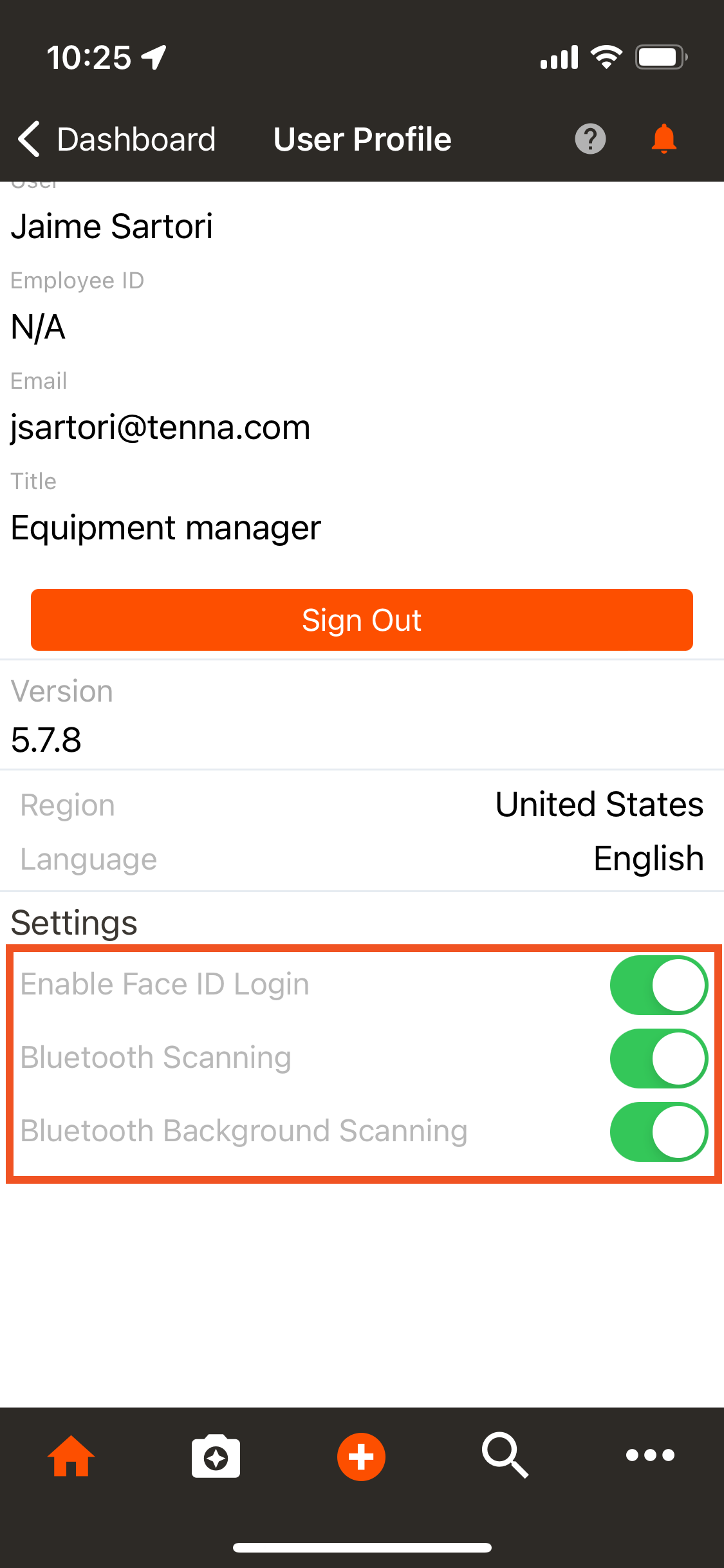
- On your mobile device settings, enable Location Services and make sure Bluetooth is turned on.
- If given the option to select "Never", "While Using the App", or "Always"; select "Always" for Background Scanning.
- Make sure you are logged in to the Tenna App. If you are logged out, the device will not pick up the TennaBLE.
How do I review any TennaBLE trackers that my mobile device has scanned?
- From the Tenna App home page, tap BLE Scans. This will open the BLE Report, which includes the Asset, Location, and Timestamp.
- You can also view the Scans by User Report under the Reports feature in Tenna on your desktop computer.
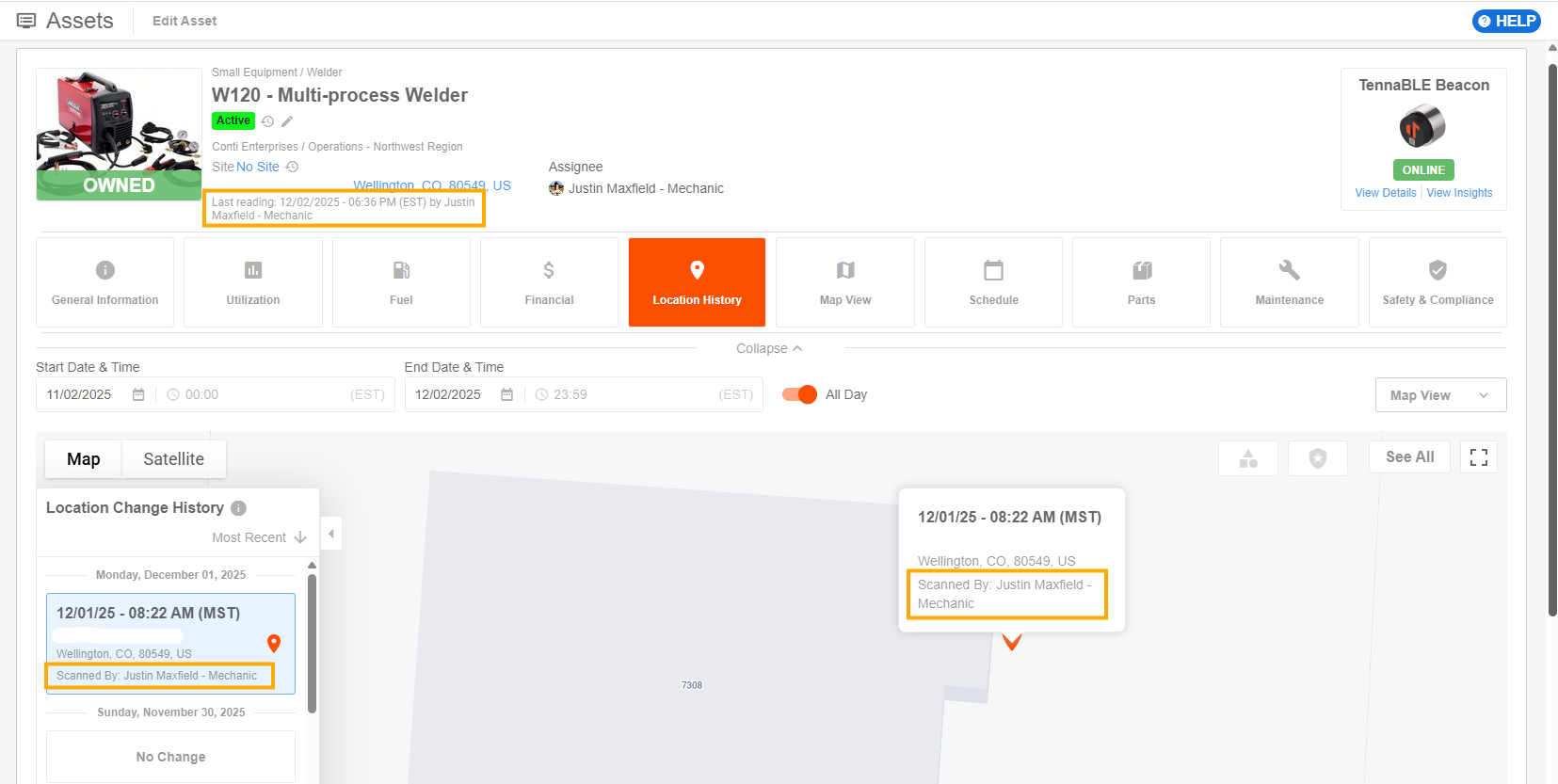
Can I identify if a TennaBLE tracker was scanned by a mobile device versus a TennaINTEL tracker?
Yes, if the tracker was scanned by a mobile device, the user's name will be listed. If a TennaINTEL tracker scanned the tracker, it will show as N/A for scanned by.
How do I see the battery status of my TennaBLE tracker?
If the battery status is available, you can view it in Tracker Details > General Tab.
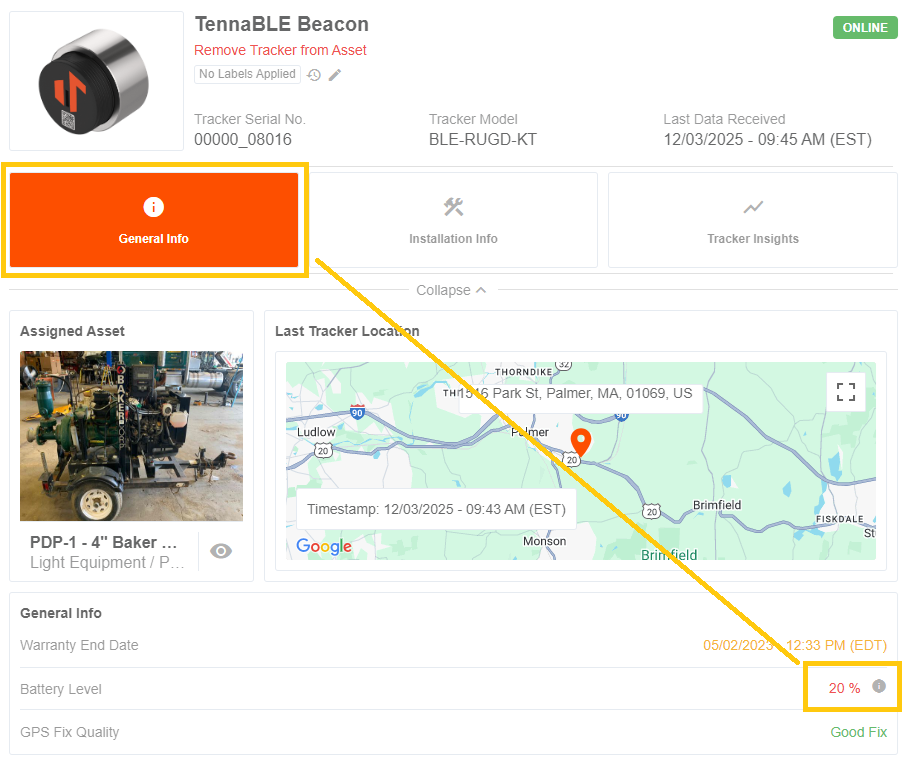
Learn more about Tracker Battery Status in the Tracker Insights Overview article.
How can I test if a TennaBLE tracker is reporting/working?
On an Apple device (iOS):
- Open the BLE Scans report in the Tenna App.
- Go near a TennaBLE tracker.
- Look for any new scans at the top of the report.
- To refresh, send the app to the background, wait a couple seconds, and re-open the app.
- If that refresh does not work, go back to the Tenna App home page, and pull down to refresh.
On an Android device:
- Open the BLE Scans report in the Tenna App.
- Go near a TennaBLE tracker.
- Look for any new scans at the top of the report.
- To refresh, close the app fully. Do not just leave in the background. Wait a couple seconds and re-open the app.
- If that refresh does not work, go back to the Tenna App home page, and pull down to refresh.